





Tips Index
Samsung is one of the most popular and used products in the world. From mobile phones to televisions, it’s one of the most beloved brands in the world.
People love Samsung phones because they are savvy and stylish. The latest models have all the basic functions of regular phones like calls and text messaging. More than that they allow access to the Internet, e-mail, games, play music and even let you watch videos conveniently with their widescreen and high resolution.
If you want to convert a video file to make it compatible with your Samsung device, here is a guide for that.
VideoPower BLUE is a multifaceted tool bundled with multiple functions and features including screen recording, slideshow creation, basic video editing, and audio and video conversion. This software can convert video to Samsung devices.
Download and install the program on your PC with the link below to start the conversion.
Step 1: Add the video file to the program.
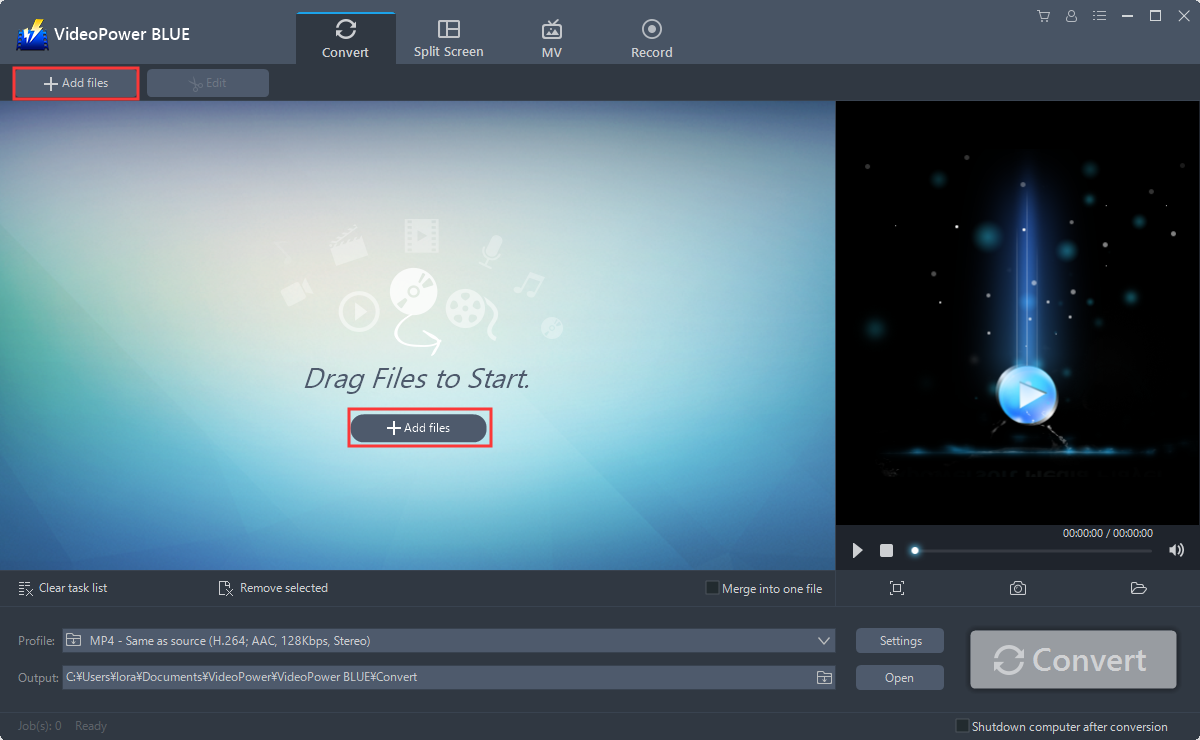
Run the program if you have installed the video converter software VideoPower BLUE successfully on your PC. You can directly import the file to the program by clicking the “Add files” button or by drag-and-drop the file to the interface.
Step 2: Edit the video.
If you need to edit the video first before converting, just follow the instructions below.
2.1 Open Editing Window
The imported file is displayed in the list. Click the “Edit” button on the right side of the file.

2.2 Start Editing the video
The built-in video editor will pop up, with its help, you can make the perfect movie. Adjust speed and volume, trim, cut, crop, rotate or flip videos. Add effects, subtitles, and watermark while adjusting brightness, contrast, and saturation that will make editing conveniently easier.
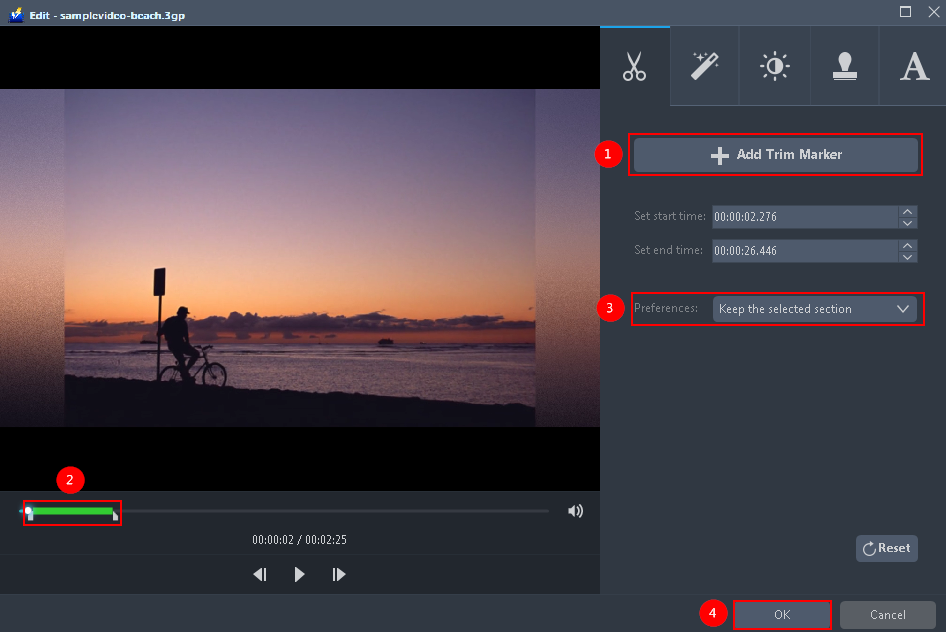
For example, you can trim your video as shown below:
1) Click “Add Trim Marker”.
2) Drag the mark as shown below to select the part you want to cut.
If you want to select multi-sections, please repeat 1 and
3) Choose “Keep the selected section” or “Delete the selected section” from “Preferences”.
4) Click “OK” to save the setting.
Step 3: Convert video to Samsung device.
3.1 Set the output format.
Click to open the “Profile” drop-down menu, then choose the format you want from the profile list. Choose “Device”, “Samsung”, and select models accordingly.
1) Click “Profile” drop-down menu.
2) Click “Device”.
3) Select “Samsung” from the device list.
4) Select Samsung model.

3.2 Costumize Settings.
You can also customize frame rate, bitrate, codec, etc. manually. Just click the “Settings” button to enter the “Preset editor” window, then you can change the value and click “OK” to save the settings.

3.3 Start Conversion.
Return to the file list and click the “Convert” button, then the converted Samsung file will be saved in the default output folder.

The program will pop up a window to inform you once the conversion is completed. Click “OK” to open the folder of your saved converted Samsung files.
Or you can click the “Open” button to find the Samsung file.

Conclusion:
Converting videos is fast and simple with this tool. It doesn’t take a tech genius to learn how to convert a video even for first-timers.
Converting video files for Samsung devices is as easy as that. VideoPower BLUE is a professional software which supports video conversion to a compatible format for Samsung phones and tablets.
VideoPower BLUE not only supports conversion of video and audio files it also features screen recording activity, basic video and audio editing such as effects, watermarks, subtitles, trimming and cropping.


