





Tips Index
We often download videos without subtitles. But don’t feel frustrated because you can add subtitles manually by yourself.
Generally, subtitles can be downloaded on the Internet because there are people who specialize in making subtitles online. So you just need to download the subtitles file from the Internet or even create your own subtitles, and then add it to the video.
VideoPower BLUE is a powerful tool that has multiple functions such as video editing, screenshots, capture, and file format conversion. This software can also add subtitles to an MKV Video. SRT is the file format often used by subtitles.
You can try to use the software for free by downloading its trial version below.
Step 1: Import the video file that you want to add subtitles
You can directly add the video file to the program by clicking the “Add files” button or drag and drop files from the local drive to the interface directly.

Step 2: Add subtitle
Click “Edit” on the lower right part of the video you just added.

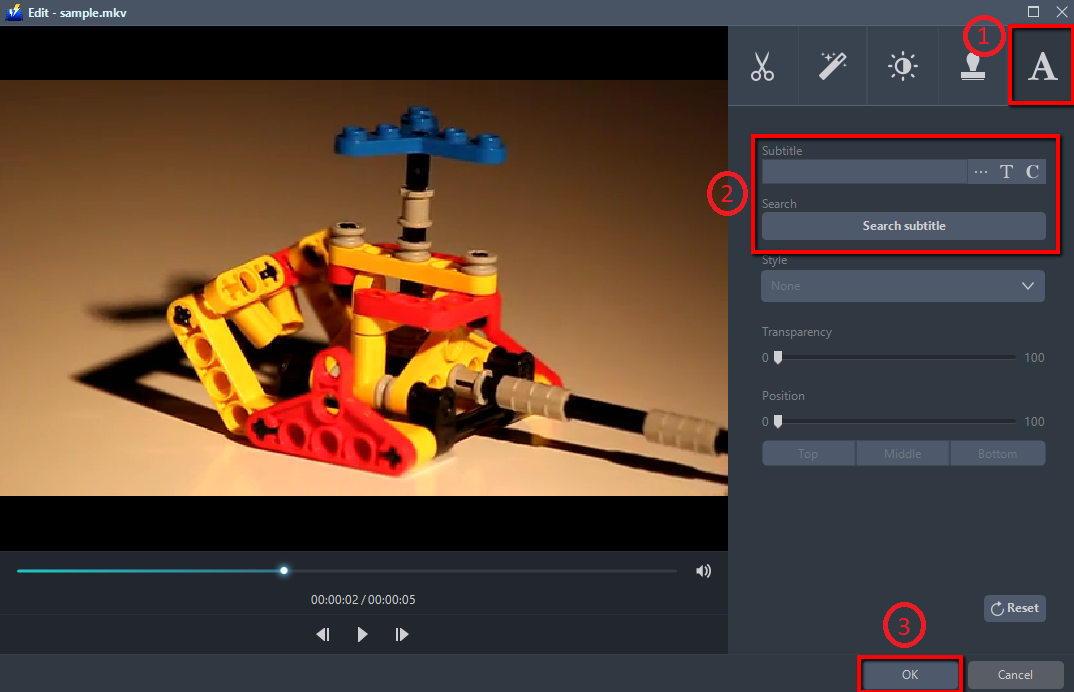
The editing window will pop up immediately, do the following:
1) Click the Subtitle icon.
2) Import a subtitle file or search it online.
3) Click “OK” to save the setting.
Step 3: Convert video file
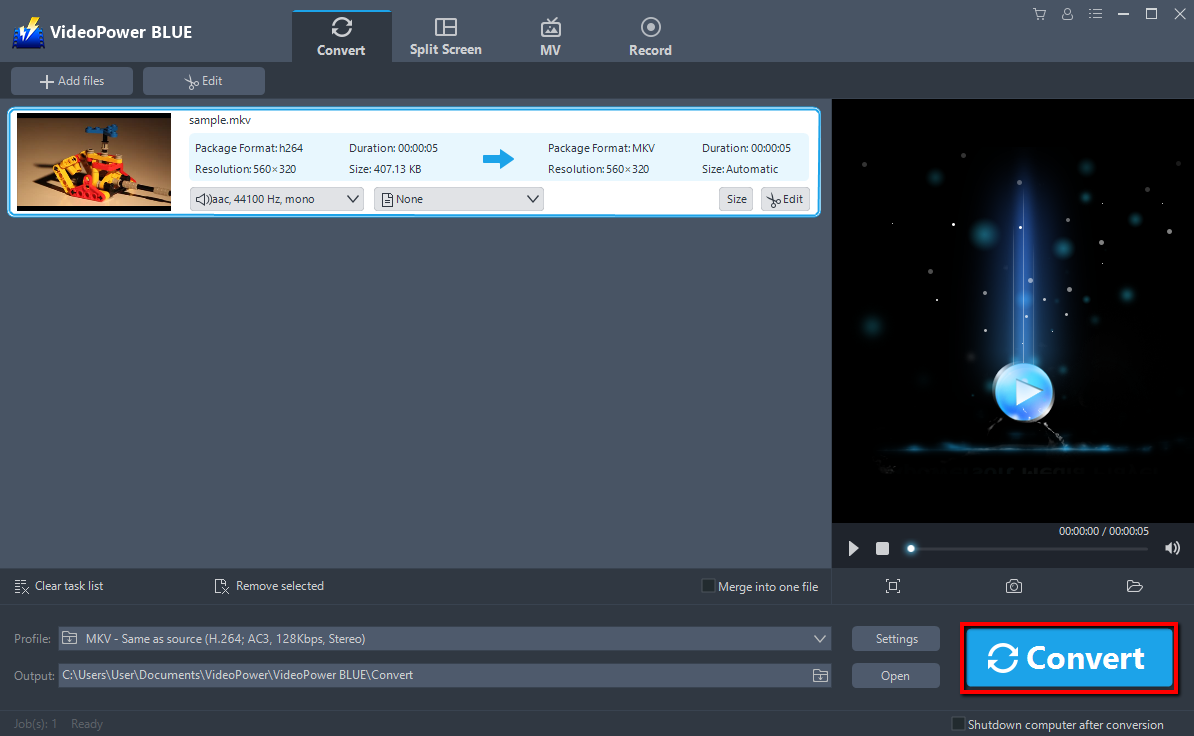
Return to the file list.
Click the “Convert” button, then the edited file will be saved in the default output folder.
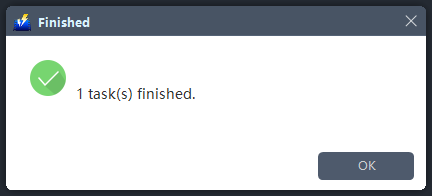
After saving is completed, a prompt window will pop up to indicate that a file has been successfully converted. Click “OK” to confirm. Find the video that has been converted and exported in the folder, and then preview the video.
Conclusion:
With the help of the software guide How to add subtitles to MKV files is very easy. You can create your own subtitles or download SRT online which both are effective ways to add subtitles into your MKV video file.
VideoPower BLUE has a built-in video editor that will enable you to edit slideshows or videos, apply watermarks, effects, and other basic video editing options such as trimming or cropping. Moreover, it has a split-screen tool for your photos and videos and a screen recorder which allows you to capture any on-screen activity on your computer. There’re so many advanced functions equipped in this program, which offer more options for you to convert and edit media files.


