

Tips Index

Many friends like to use the online chat tool for voice chat. This voice is not transmitted by the traditional telephone network of the telecom operators but transmitted over the Internet.

Voice over IP technology is the technology that converts voice into IP data packet and transmits part or all of the voice over IP network.

People like to use VoIP due to low-cost rates and functions that automatically route your phone no matter where you go.

What’s more, users are considering recording VoIP calls to save some important information.

Using VideoPower YELLOW, you can record VoIP calls. To install the software, just click the button to download the installer.

You can try to use the software for free by downloading its trial version below.

FREE DOWNLOAD

Windows 7 / 8 / 8.1 / 10 supported

Step 1: Set the sound source

Before recording, make sure to set first the sound source you need to use in your recording. Click the audio jack icon button that you can see at the bottom of the interface. Choose among “System Sound”, “Microphone”, “System Sound and Microphone”.

record VoIP calls, VideoPower YELLOW, set the sound source

Step 2: Set the file format

After setting the sound source, set the output file format too before recording. Click the button behind the audio jack icon button below.
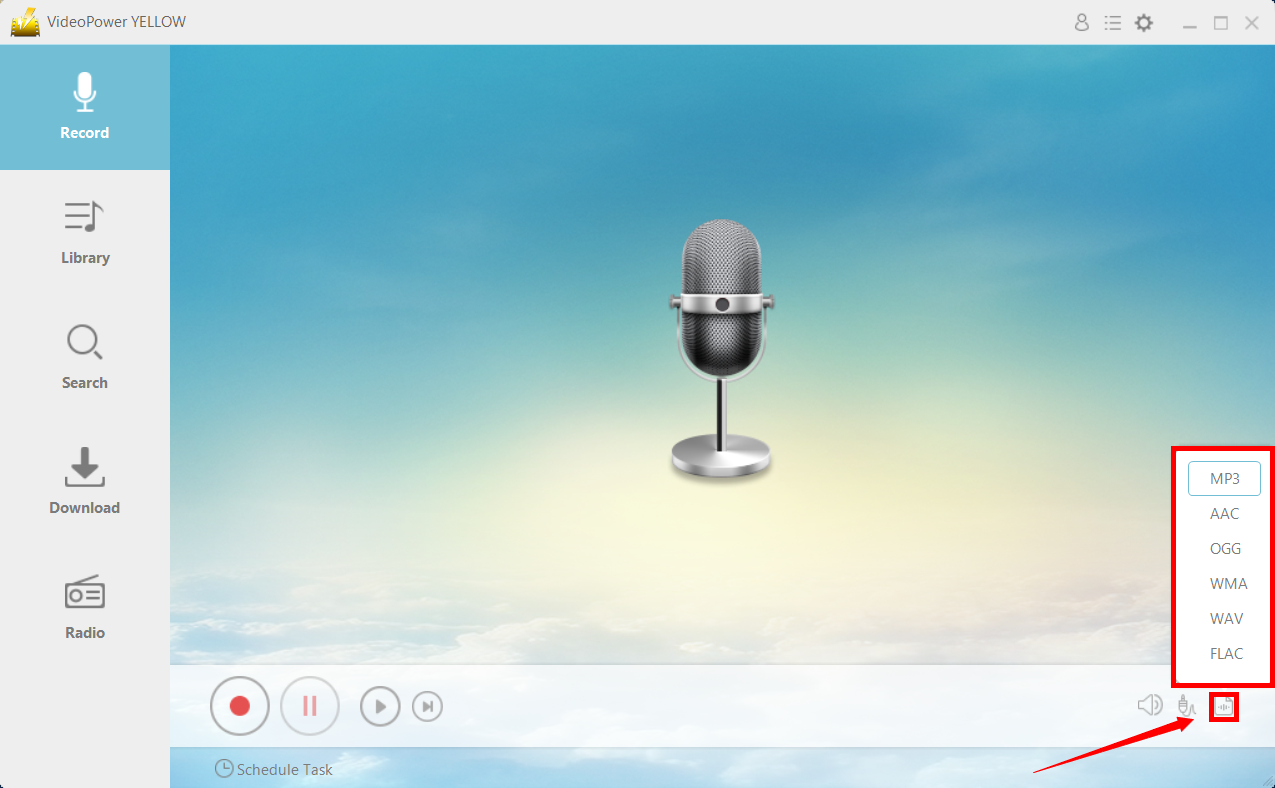
record VoIP calls, VideoPower YELLOW, set the output format

Step 3: Start Recording

Click the “Record” button to start recording the VoIP calls. Click the same button to stop.
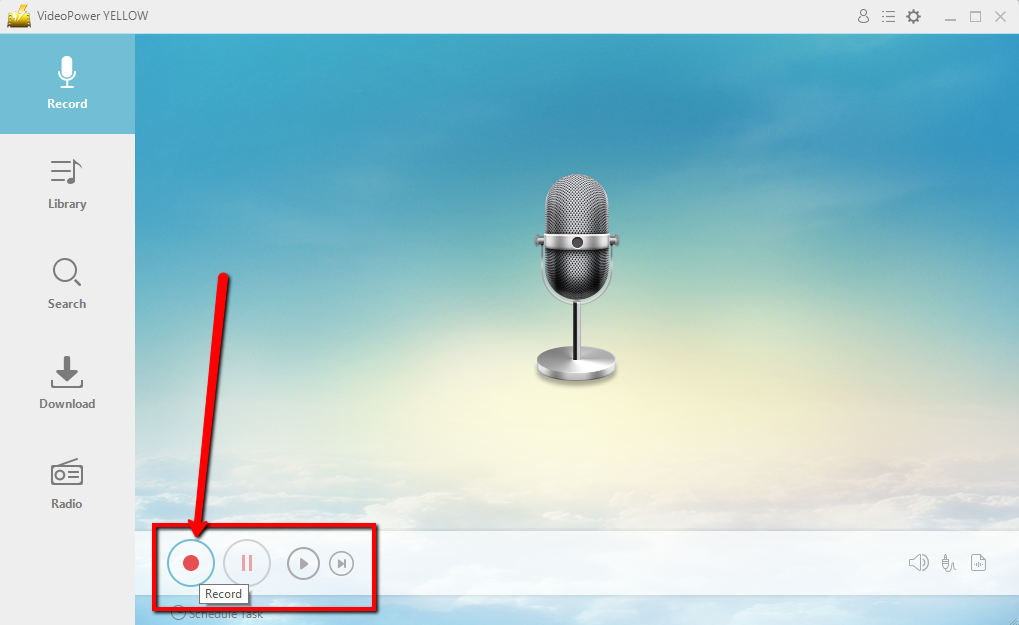
record VoIP calls, VideoPower YELLOW, start recording

Step 4: Navigate to Output File Location

After recording, right-click the recorded track icon and click “Open folder” to open the storage location of the recorded audio file or click “Delete” if you want to delete the file and record again.
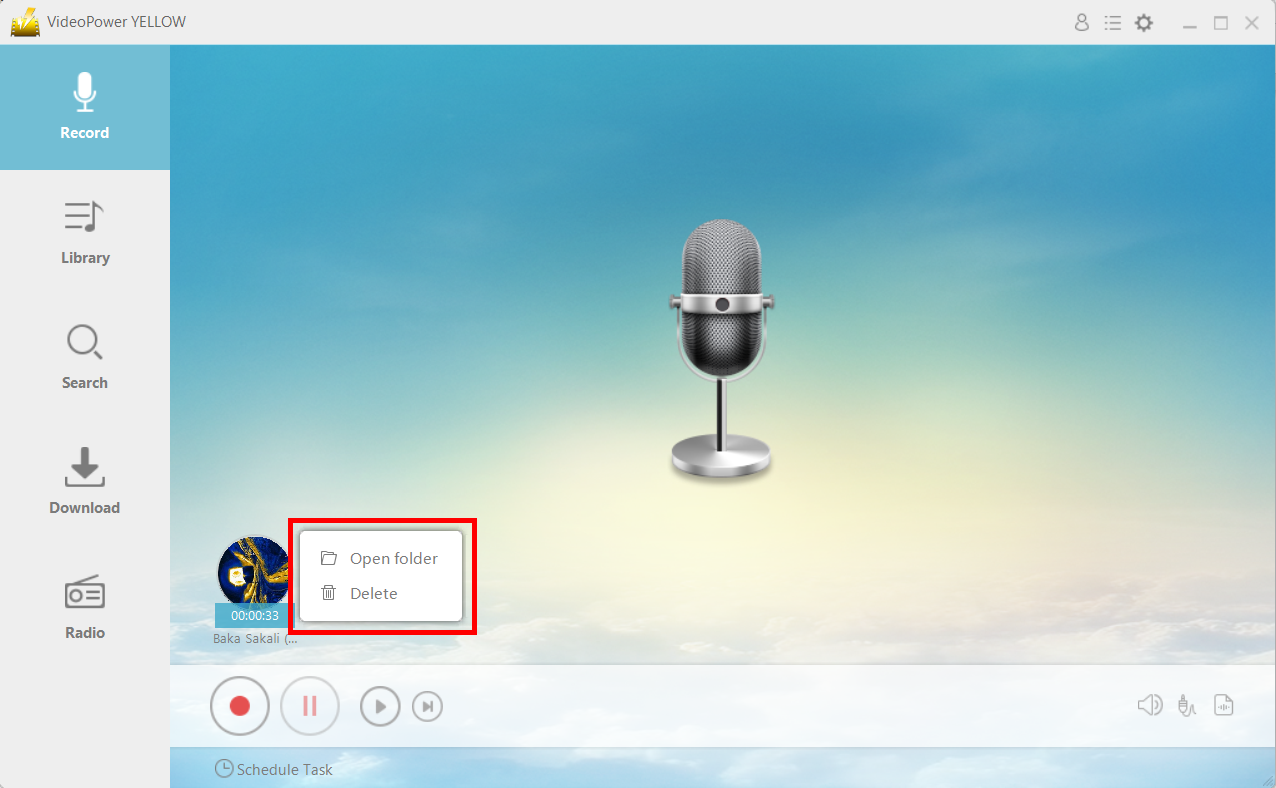
record VoIP calls, VideoPower YELLOW, open file location or delete

Conclusion:

If you want to record VoIP calls because you need to review some important details, you can use VideoPower YELLOW to do that. With VideoPower YELLOW, you can record VoIP calls easily and without hassle.

Related Posts

Video Download
Record
Convert

VIDEO POWER

RED

  • Download video and audio from over 1000 video site
  • Batch download YouTube playlist
  • Record screen and audio with real-time annotation
  • Trim, crop, rotate video with a strong video editor
  • Windows 7, 8, 8.1, 10 (32/64bits)
> DOWNLOAD <
LEARN MORE

Schedule Recording
Annotation
Video Edit | Convert

VIDEO POWER

GREEN

  • Record screen and audio with real-time annotation
  • Create a scheduled task to record screen and webcam
  • Enrich your recorded video by powerful Video Editor
  • Capture and annotate your screen in the picture
  • Windows 7, 8, 8.1, 10 (32/64bits)
> DOWNLOAD <
LEARN MORE

Video Convert
Record
Slideshow Maker

VIDEO POWER

BLUE

  • Convert video and audio to various formats at super fast speed without quality loss
  • Make your own video clips or movies with fantastic themes
  • Transform multiple videos and photos in one frame as a collage
  • Trim, crop, rotate, effect, watermark, subtitle, etc. in video editing
  • Windows 7, 8, 8.1, 10 (32/64bits)
> DOWNLOAD <
LEARN MORE

Music Search
Download
Record

VIDEO POWER

YELLOW

  • Records music and audio from various sources in lossless

  • Search and download music

  • Auto-add music ID3 tags for recorded music

  • ID3 Tag Identifier and Editor, Audio Editor/Converter, CD Ripper/Burner, Transfer to iTunes, etc

  • Windows 7, 8, 8.1, 10 (32/64bits)

> DOWNLOAD <
LEARN MORE

Whatever fits your needs, it's here.
Which one would you choose?

> Video Power Series Comparison <