





Tips Index
When you have a large catalog of music files, it can be quite frustrating to organize and manage them on your device. What may help is putting an image on the audio so that the organizing becomes easier.
With VideoPower YELLOW users can add cover albums to their collected music and add an image to the MP3 music. Doing so reduces the burden of identifying each track one by one.
This article is a step-by-step guide to add an image to your MP3 music.
>Step 1: Open ID3 Tags Identifier
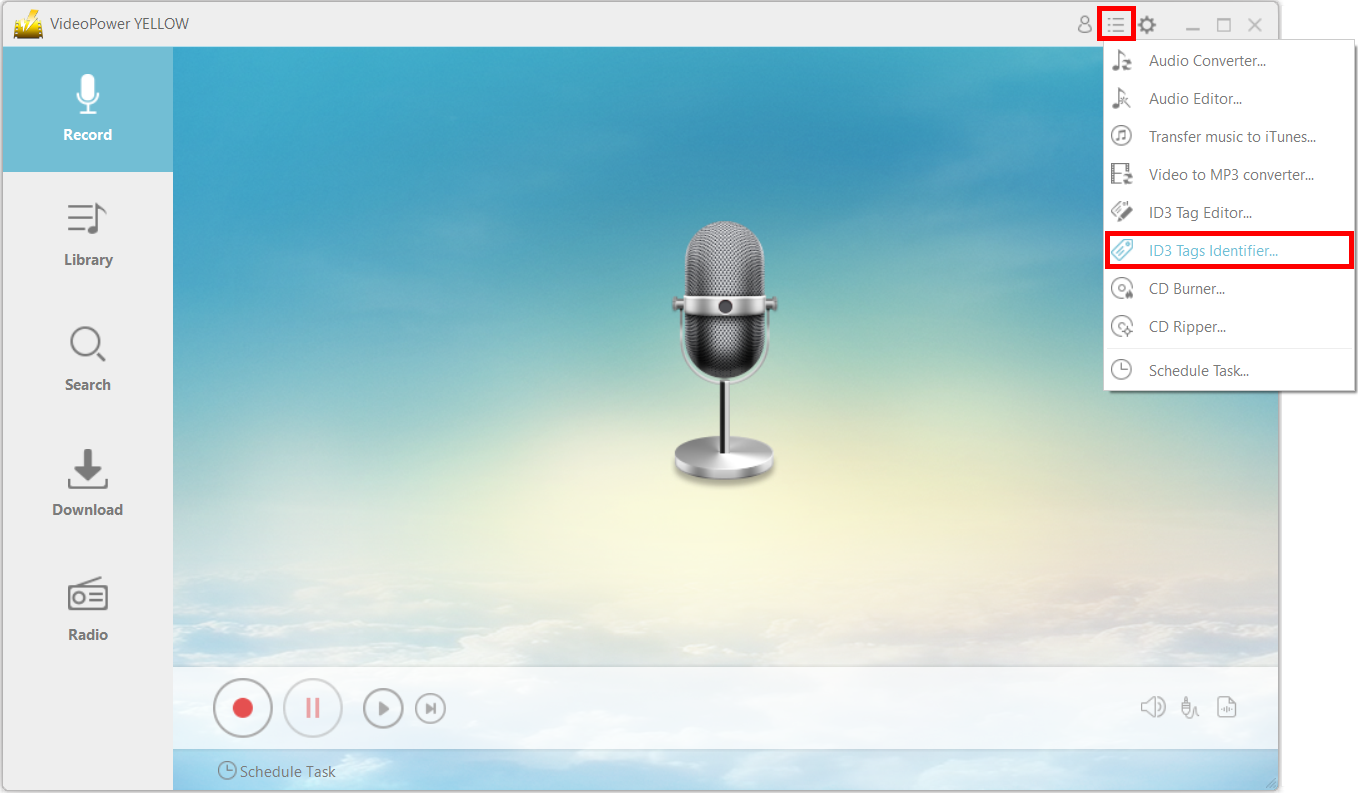
Click the menu icon on the upper-right and then click on “ID3 Tags Identifier.”
Step 2: Identify and add ID3 tag to your songs
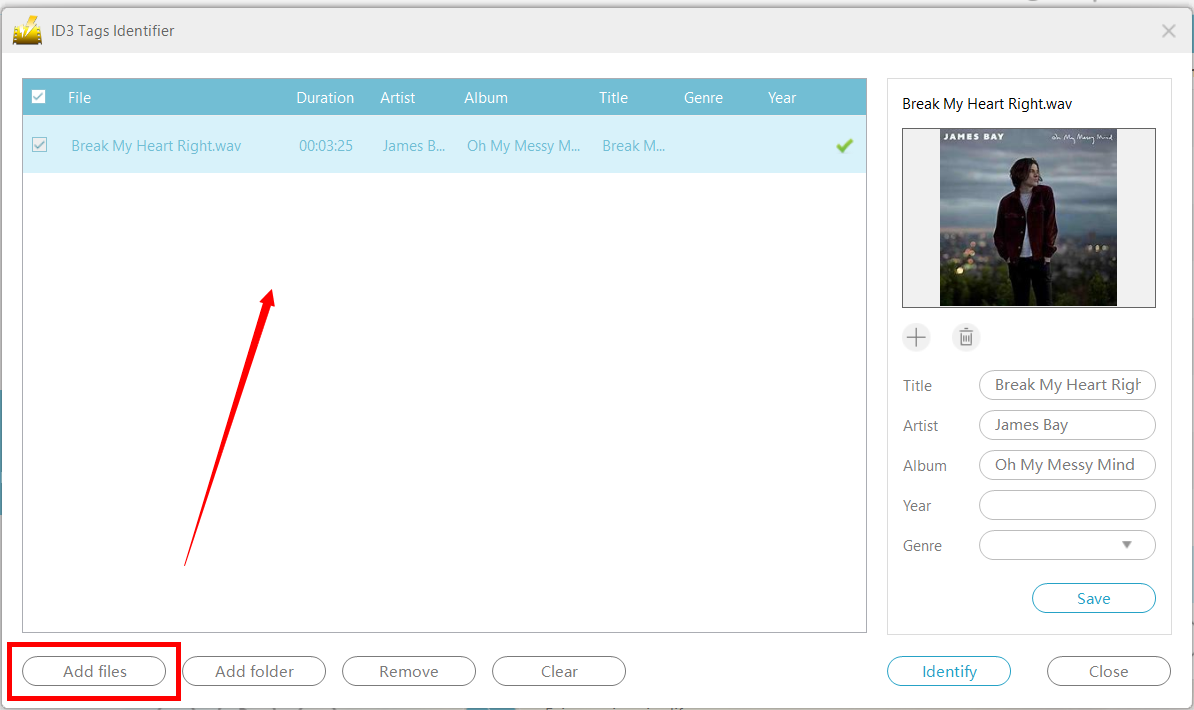
2.1 Add files
You can add a bunch of files at a time or even add an entire folder. This program is able to tag multiple audio files at once but for this example, we’ll simplify and use a single file.
2.2 Tag Music
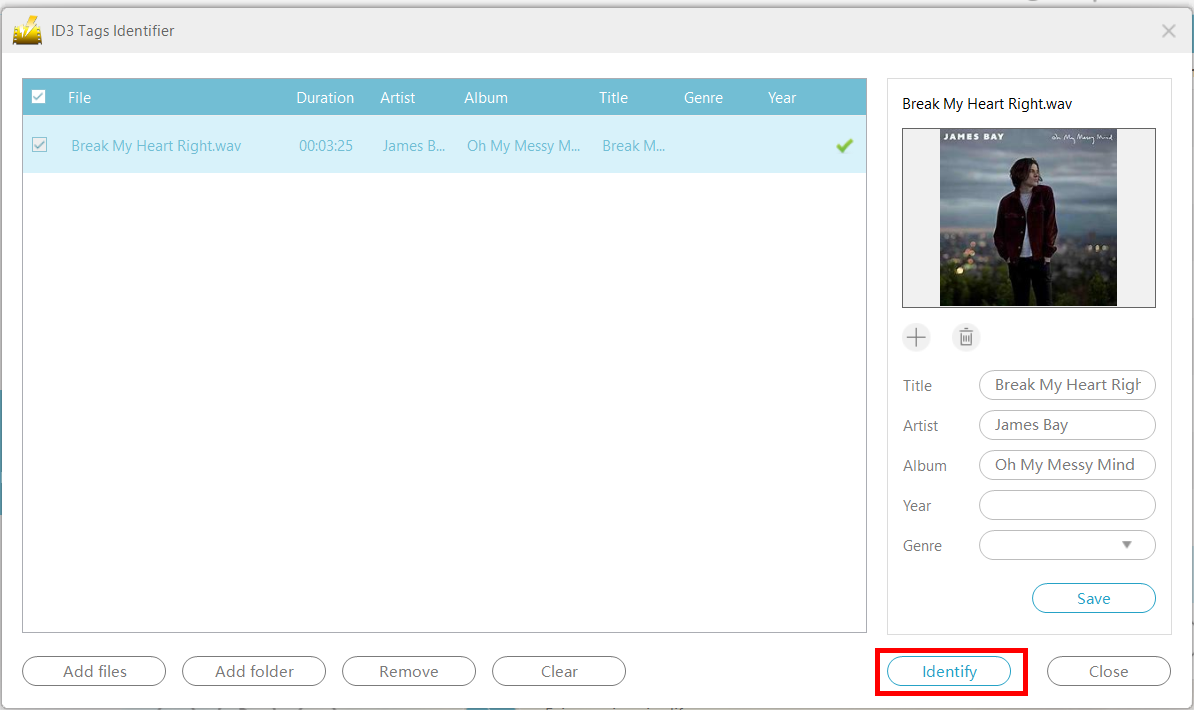
Check the items and click the “Identify” button to tag those selected songs.
Step 3: Add Image
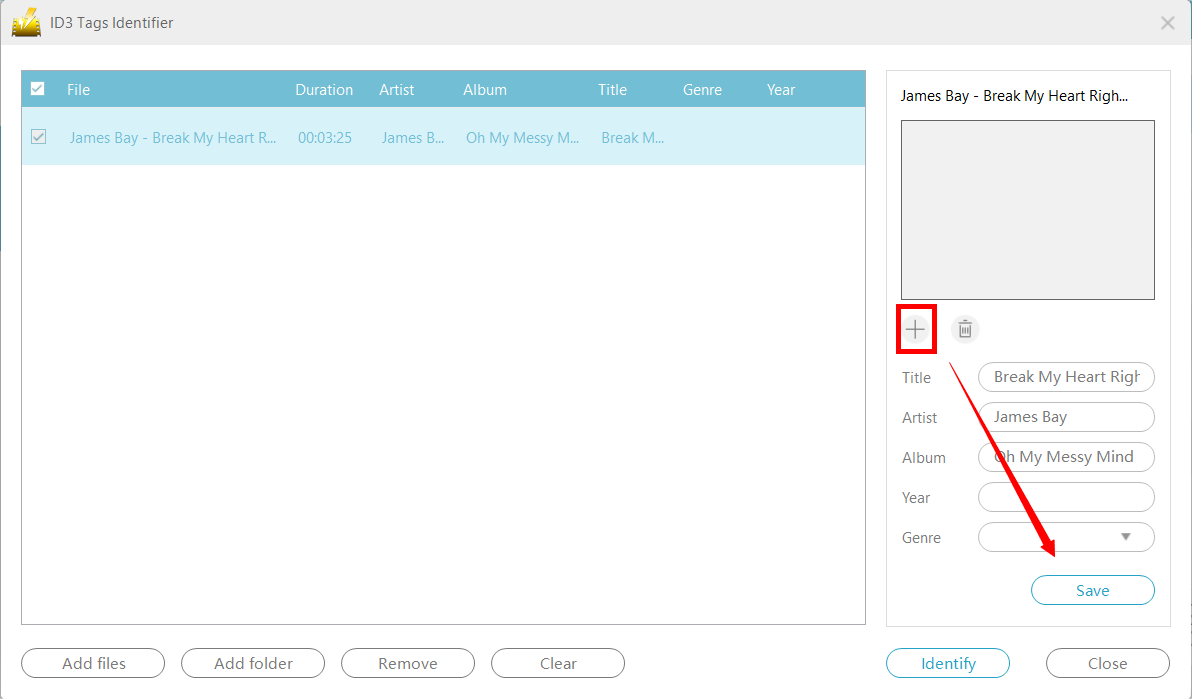
Add an image to the songs/song. Check the item you are going to add a cover image and then click the plus icon. Choose the desired image then click “Save” to save the settings.
Conclusion:
Because managing and organizing large lists of music files can be a hassle, you can use VideoPower YELLOW to add an image to the audio files so that you can better see the differences between the files.


