





Tips Index
Brief Introduction of AC3
Audio Coding-3 or commonly known as AC3 is synonymous with Dolby Stereo Digital, an advanced audio compression technology that encodes up to six individual channels with a bit rate of up to 448kbps. AC3 format is a preferred format for DVDs, game consoles and cinemas.
In 1994, Japan Pioneer Corporation announced the development of a new surround sound system in cooperation with Dolby Laboratories in America and named it “Dolby Surround Audio Coding-3”.
In early 1997, Dolby Laboratories officially changed “Dolby Surround Digital” to “Dobby Surround Digital”, often referred to as Dolby Digital.
Supported platforms
The supported platforms include VLC Media Player, KMPlayer, Nero
Multimedia Suite, Xine Player, and ALLPlayer.
Solution for AC3 format conversion
Now there are few devices that can play AC3. So it’s not a bad idea to convert AC3 to MP3 or other more popular audio formats.
Below is the step-by-step guide on how to convert AC3 files to MP3 format.
VideoPower BLUE is a powerful software that has various functions and features such as screen recording, basic video editing, and file conversion. This software can undergo AC3 conversion.
Download and install its trial version on your PC with the link below to start the conversion.
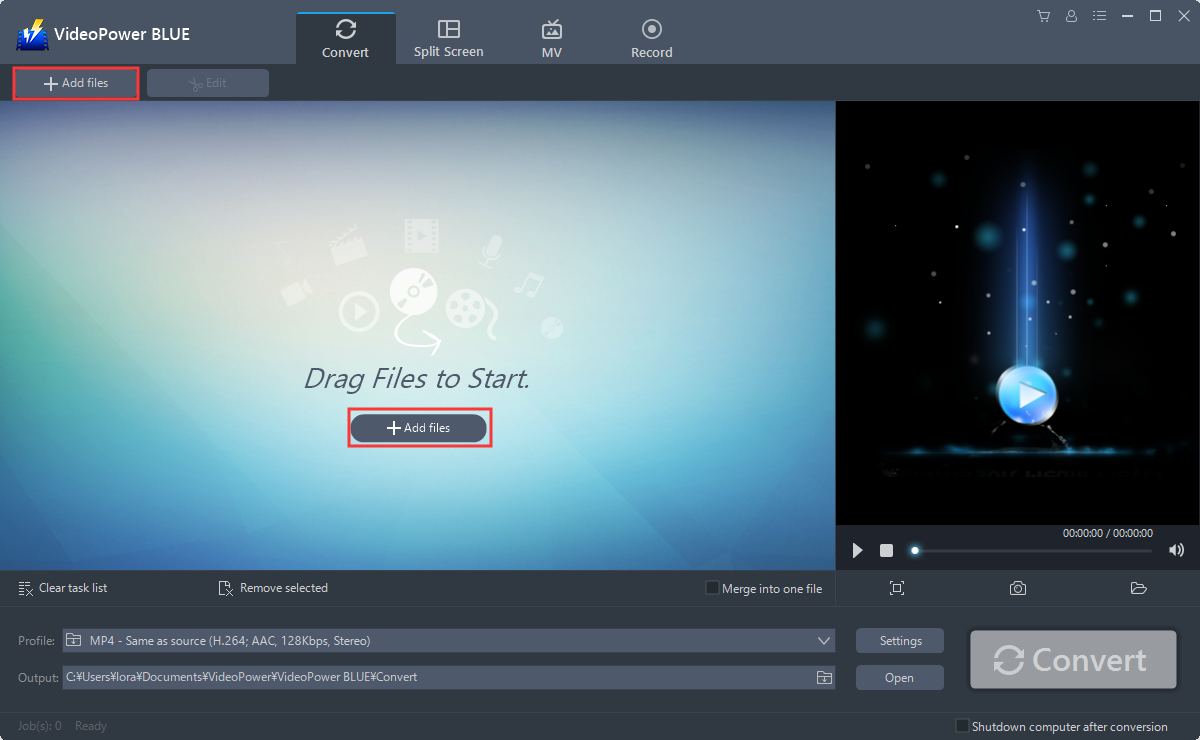
Step 1: Add the AC3 file to convert it to MP3
You can directly import the ac3 file to the program by clicking the “Add files” button or by drag-and-drop the file to the interface.
Step 2: Edit the AC3 file before conversion
If you need to edit the audio before converting it to MP3, Click the “Edit” button on the right side of the file.
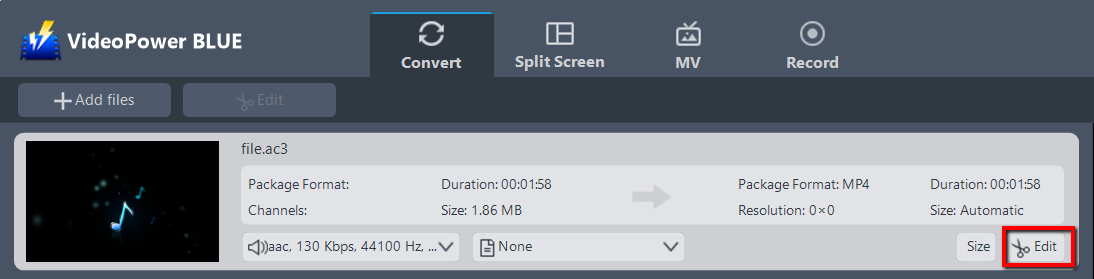
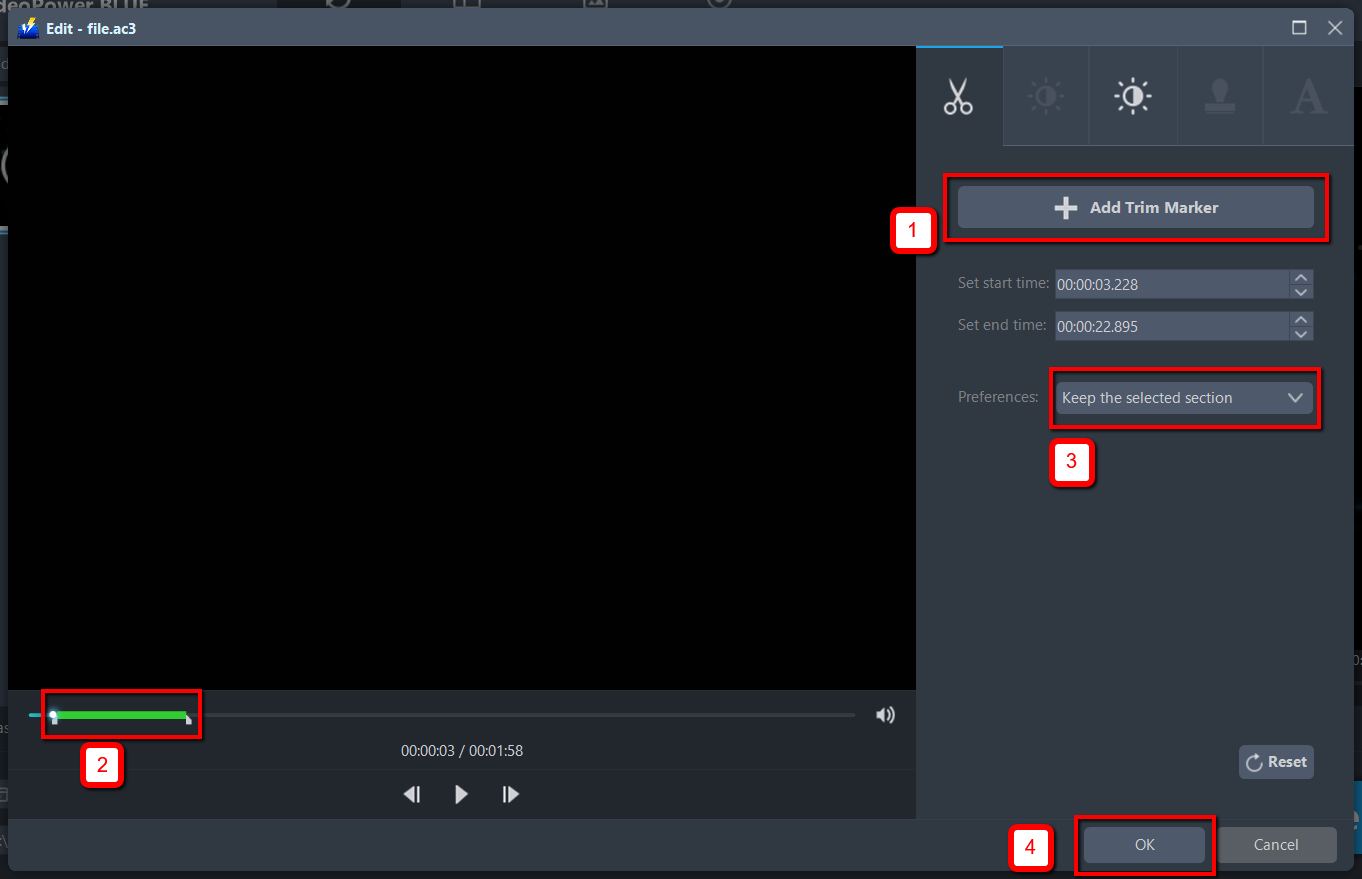
The editor will open. Here, you can make changes to the file – trim, cut, etc
For example, you can trim your audio as shown below:
1) Click “Add Trim Marker”.
2) Drag the mark as shown below to select the part you want to cut.
If you want to select multi-sections, please repeat 1 and 2.
3) Choose “Keep the selected section” or “Delete the selected section” from “Preferences”.
4) Click “OK” to save the setting.
Step 3: Convert AC3 to MP3 format
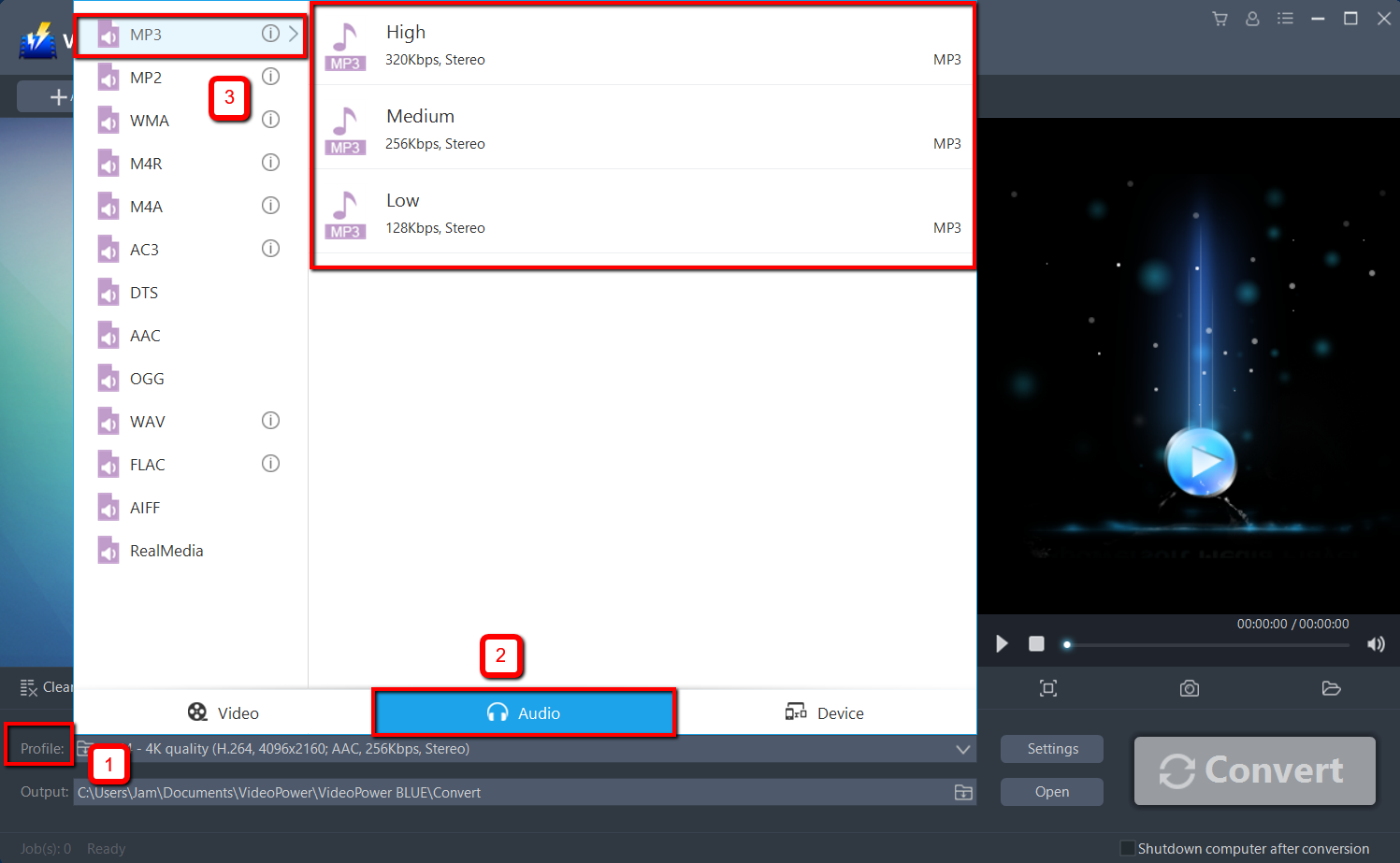
3.1 Set the output format
1) Click to open the “Profile” drop-down menu, then choose the format you want from the profile list.
2) Here you can click “Audio” and then “MP3”.
3) Choose the quality “High, Medium or Low” as per your need.
3.2 Start Conversion
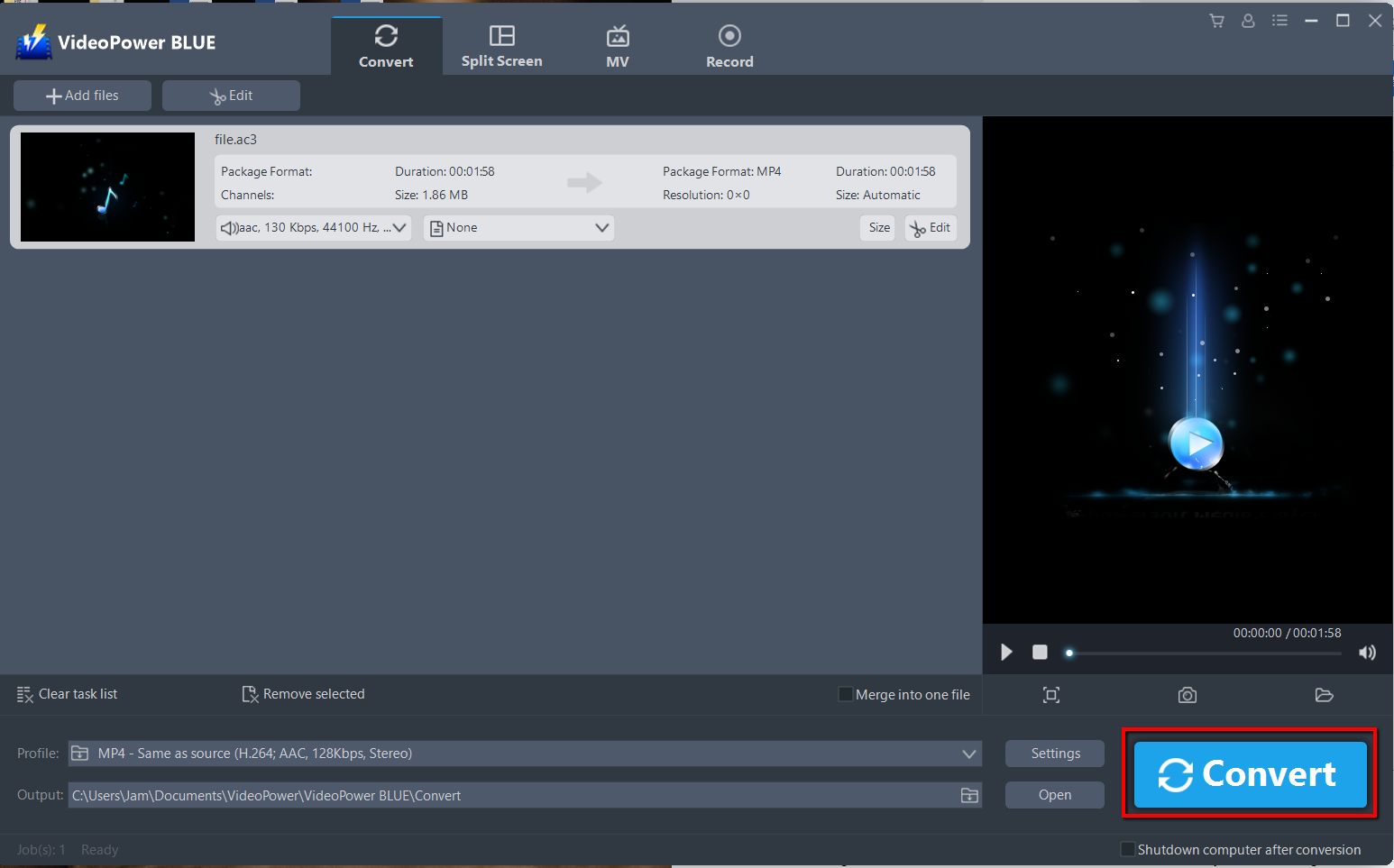
Return to the file list.
Click the “Convert” button, then the converted MP3 file will be saved in the default output folder.
3.3 Find the Converted MP3 file
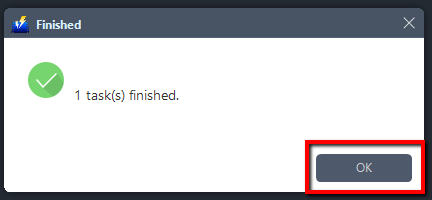
A pop-up window from the program will appear informing you that the conversion is complete.
Click “OK” to open the folder of your saved converted MP3 files.
Conclusion:
Times are changing and like AC3 file format, it’s getting behind and better file formats are getting more known. So converting AC3 to MP3 is not a bad idea at all.
VideoPower BLUE is definitely perfect for you. It’s fast and flexible with a built-in video editor that will enable you to edit slideshows or videos, apply watermarks, effects, and other basic video editing options such as trimming or cropping. Moreover, it has a split-screen tool for your photos and videos and a screen recorder which allows you to capture any on-screen activity on your computer.


