





Tips Index
M4A is an audio format that has a higher sound quality and occupies less storage space than that of an MP3 format.
The default ringtone format for iPhone is M4R, if you are an iPhone user and want to set the M4A music as a ringtone, you need to convert the M4A music file to M4R format.
If you want to convert M4A to M4R, you need an audio converter like VideoPower BLUE.
VideoPower BLUE is an easy-to-use software that has multiple functions and features such as basic video editing, screen activity recording, and audio and video conversion. Moreover, the software not only supports single file operations but also supports file batch operation.
Why not download the free trial version of this software and convert your M4A file to M4R format for free?
Step 1: Add the M4A file to the program
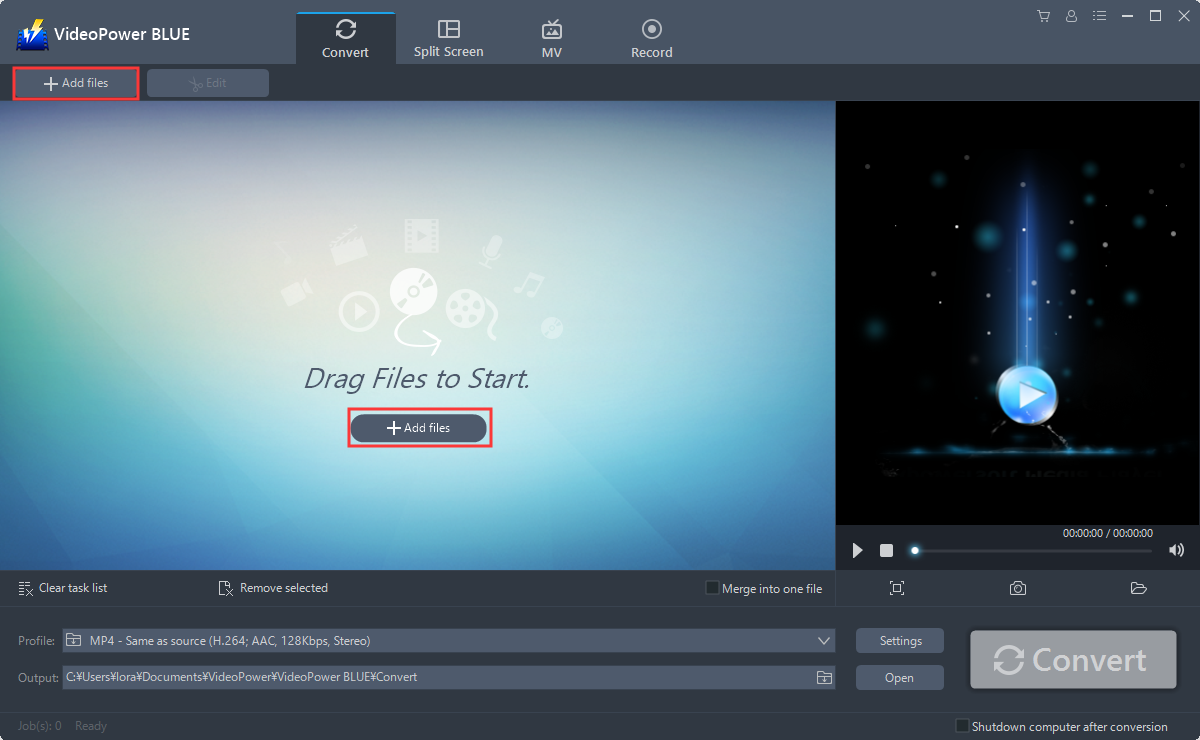
You can directly import the file to the program by clicking the “Add files” button or by drag and drop to the interface.
Step 2: Edit the M4A audio before conversion
If you need to edit the video file before conversion, follow the instructions below.
2.1 Open Editor
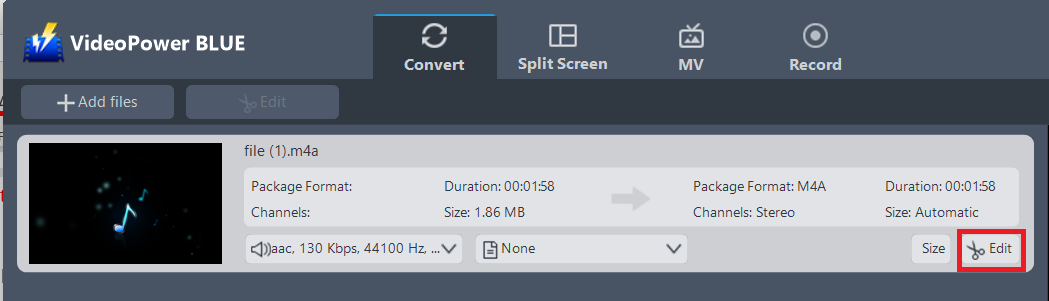
The imported file is displayed in the list. Click the “Edit” button on the right side of the file.
2.2 Edit
The built-in editor will pop up. Here you can make changes to the audio file – trim, cut, etc.
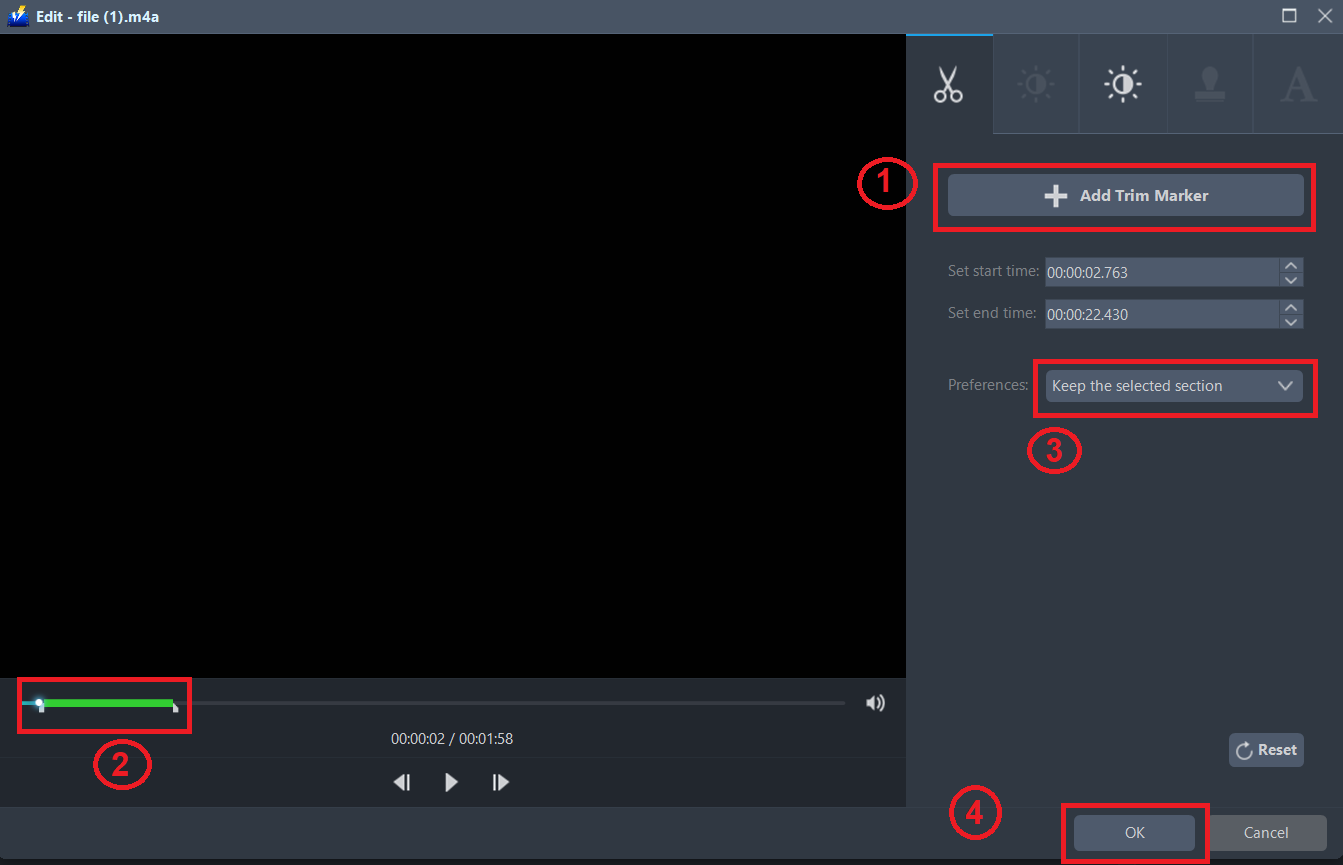
For example, you can trim your video as showing below:
1) Click “Add Trim Marker”.
2) Drag the mark as shown below to select the part you want to cut. If you want to select multi-sections, please repeat 1 and 2.
3) Choose “Keep the selected section” or “Delete the selected section” from “Preferences”.
4) Click “OK” to save the setting.
Step 3. Convert M4A to M4R
3.1 Set the output format
Click to open the “Profile” drop-down menu, then choose the format you want from the profile list.
1) Click the “Profile” bar
2) Choose “Audio”.
3) Set the format to “M4R – High”.

3.2 Start Conversion
Return to the file list.
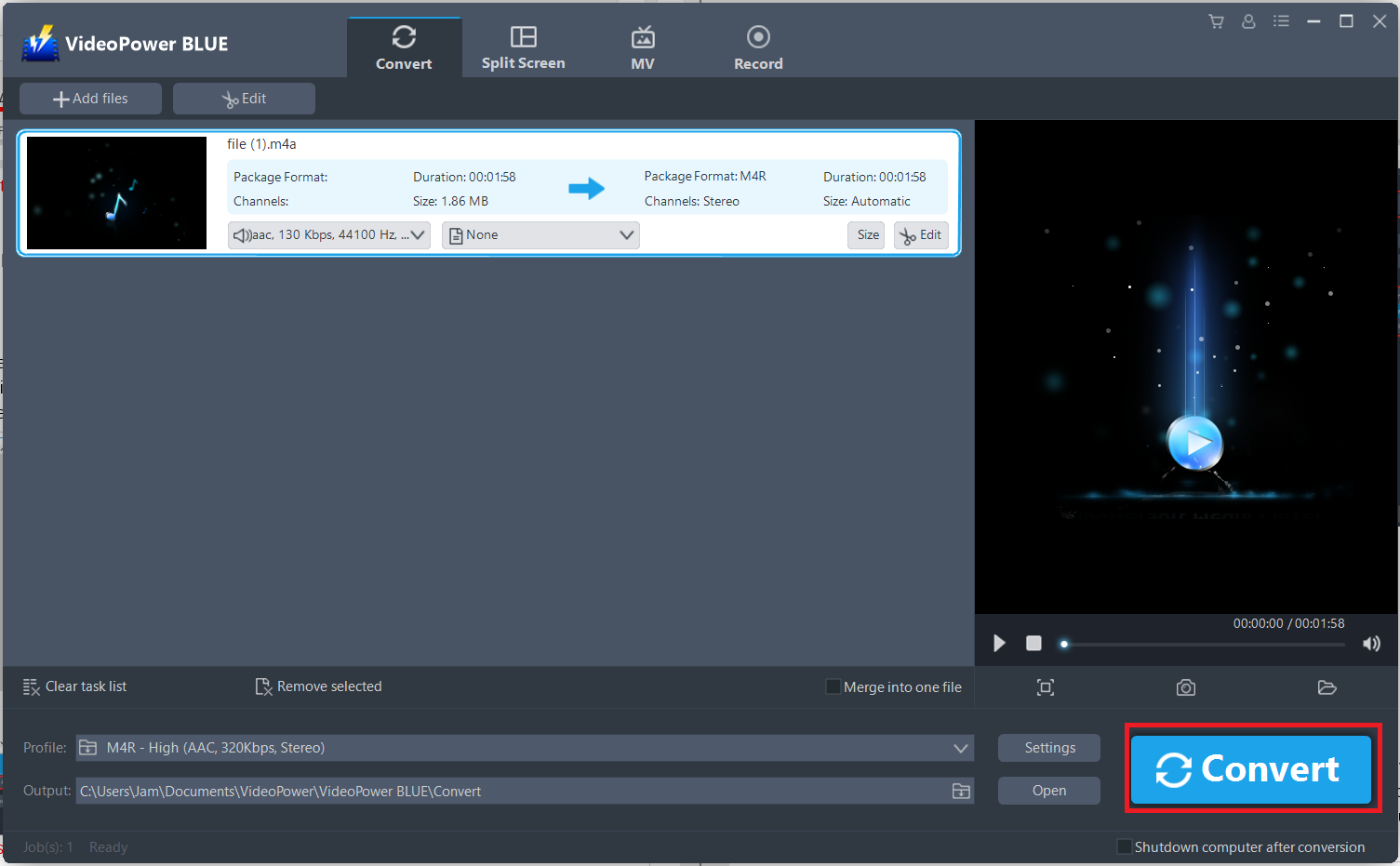
Click the “Convert” button, then the converted M4R file will be saved in the default output folder.
3.3 Conversion Complete
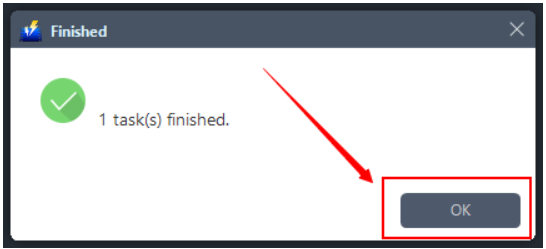
A pop-up window from the program will appear informing you that the conversion is complete.
Click “OK” to open the folder of your saved converted M4R files.
Or you can click the “Open” button to find the M4R audio file.

Conclusion:
VideoPower BLUE is can be used to convert M4A to any file format like M4R. It has a very friendly user interface that can easily direct people to launch a basic file conversion, and the resulted file will be instantly saved to our computer.
It’s fast and flexible with a built-in video editor that will enable you to edit slideshows or videos, apply watermarks, effects and other basic video editing options such as trimming or cropping. Moreover, it has a split-screen tool for your photos and videos and a screen recorder which allows you to capture any on-screen activity on your computer.


