





Tips Index
“Please help, how to merge multiple audio files into one audio file? We have around 10 recording audio files, each of which is about 3 minutes. I want to combine them into one audio file, is it possible?” Some people will have performance in the school community, company annual meetings, or other occasions, while many of the music using for singing and dancing needs to be combined into one file.
In the above cases, you can use an audio merge tool, VideoPower BLUE, which enables you to combine two or more audio/music into one audio file.
VideoPower BLUE is a simple tool, no complicated interface, can be done with a click of a mouse. There is no need to set complicated options. The way the system is designed makes it feel easier to just throw up a few songs and merge them without doing any editing, which might be what you’re after. The system will help you combine your music together even if you have never done it by yourself before because the program is completely easy to use.
Why don’t you download its free trial version and follow the below steps to merge your audio files into one?
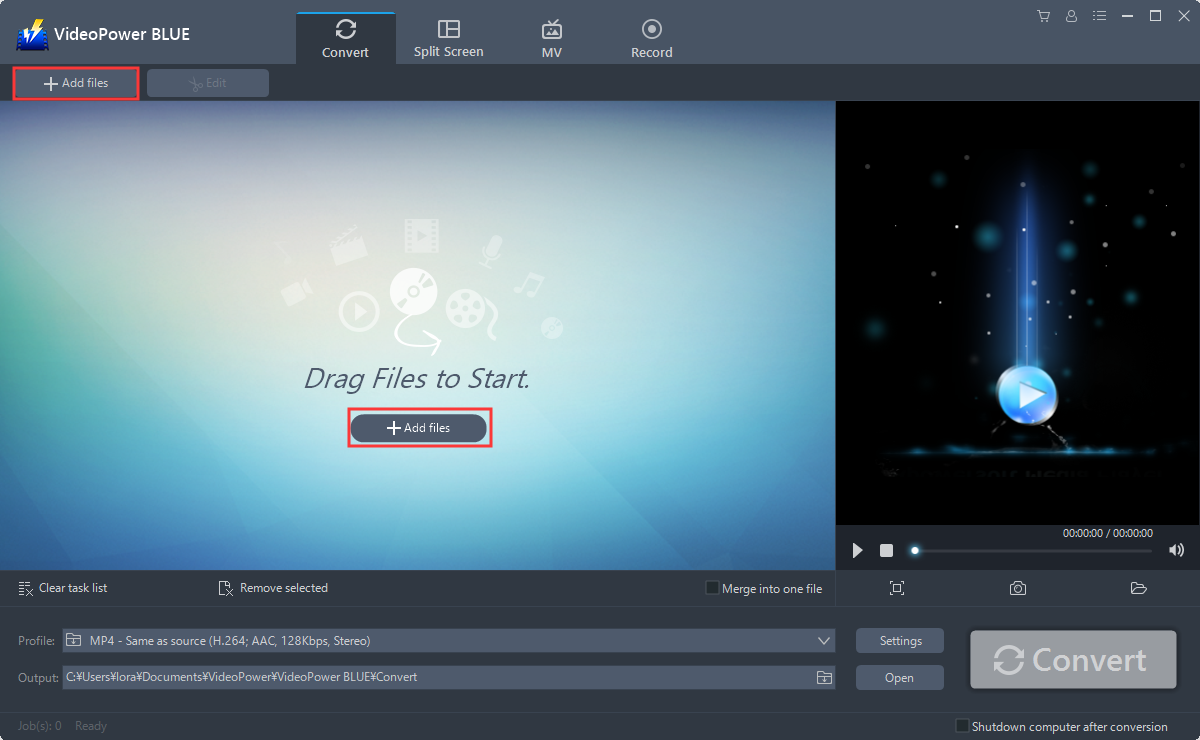
Step 1: Run VideoPower BLUE and Add files
After you have installed the software on your computer, it will launch automatically.
Go to the “Add files” button or select the audio files from your PC, or drag-and-drop the files to the interface directly.
Step 2: Edit video
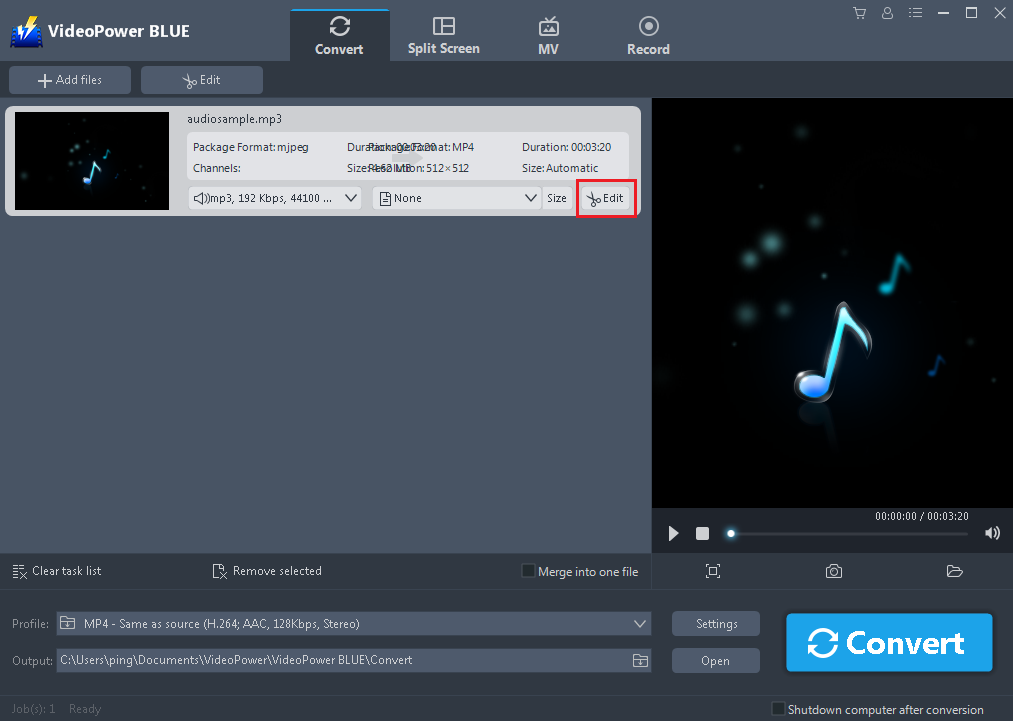
Click the “Edit” button at the right side of the added video to enter the Edit window so you can merge your files or make some more edits before you combine them.
Step 3: Reset output format
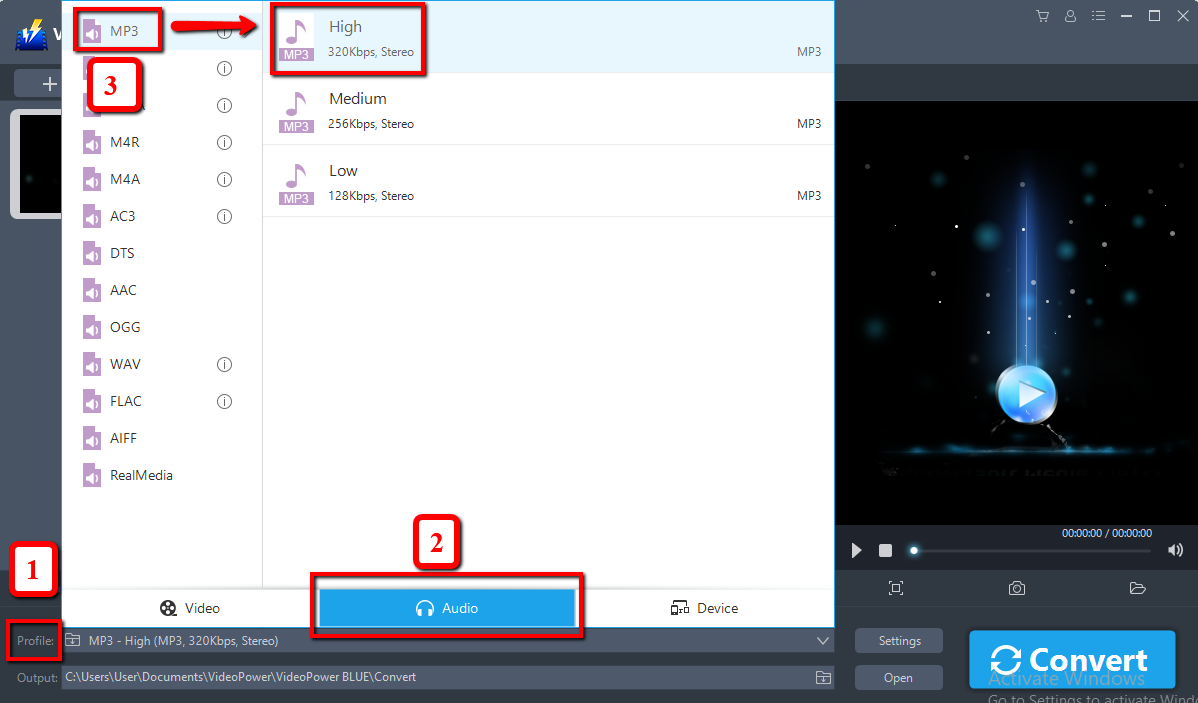
Before merging, you should change the output format first as the default output format is MP4.
1) Click the “Profile” bar
2) Choose “Audio”.
3) Set the format to “MP3 – High”.
Conclusion:
This is a wonderful software that has far advanced features compared to others. VideoPower BLUE is mainly a powerful converter that supports many video formats with video editing function. Merge multiple audio files into one file is such a hassle if you don’t have the perfect tool, but with this, you can sleep while you wait. You can use it to trim video, adjust video size, change video effects and add watermarks. Basically, it’s a quick and free way to convert and customize your media files.


