





Tips Index
Video is everywhere. A good video can bring people enjoyment. Usually, videos will contain sound and subtitles. Many users are wondering how to add subtitles to their own videos.
Well, in this article we will show you how to add a subtitle file that can be used with VideoPower BLUE.
VideoPower BLUE – most comprehensive video editing software. Many functions such as video and screen recording, video/audio conversion, cut editing, video collage, slideshow creation, etc. are integrated. While it features a fairly powerful and versatile interface that offers the user a variety of objects and effects, it’s still simple and pleasant to practice with. It offers a simple drag-and-drop interface and easy-to-follow instructions. It is professional quality in terms of its capacity and its range of functionalities.
You can try to use the software for free by downloading its trial version below.
Step 1: Add the video file to VideoPower BLUE
After you have installed the software on your computer, it will launch automatically.
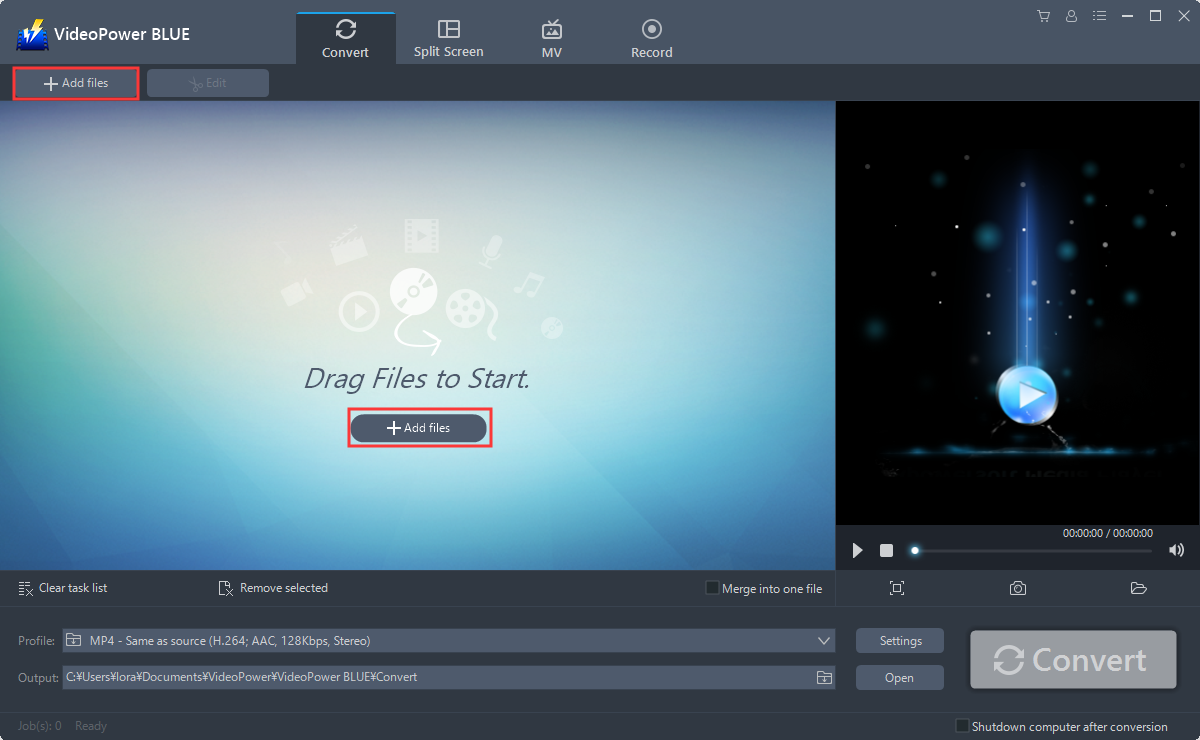
You can directly import the video file to the program for conversion. Click the “Add files” button or drag and drop files from the local drive. the files to the interface directly.
Step 2: Edit file
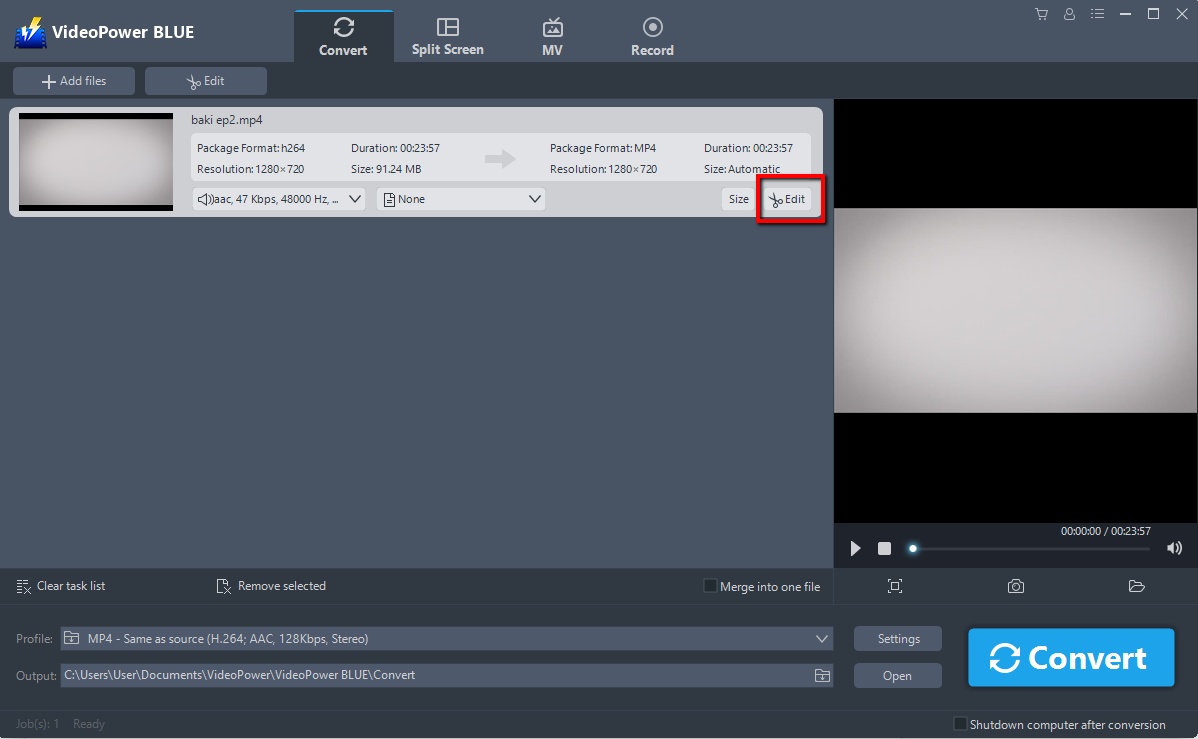
Click the “Edit” button at the right side of the added video file to enter the Edit window so you can add the subtitle or any design to your video.
Step 3: Add subtitles for the video
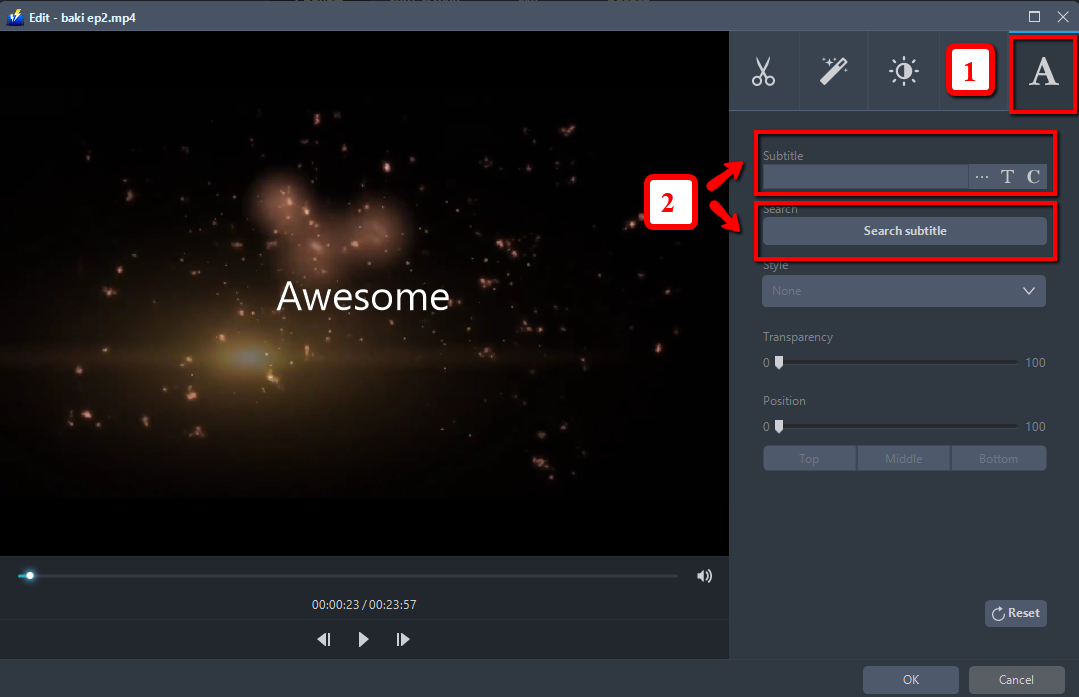
You can import external subtitles, or search subtitles for the corresponding subtitles from the Internet.
1) Click Subtitle icon.
2) Click Search Box (you can either click a subtitle saved on your computer or find it online).
Conclusion:
VideoPower BLUE is quite simple to use with an easy-to-understand interface. It has a built-in video editor that will enable you to edit slideshows or videos, apply watermarks, effects, and other basic video editing options such as trimming or cropping. This tool also enables you to put subtitles on your videos. Moreover, it has a split-screen tool for your photos and videos and a screen recorder which allows you to capture any on-screen activity on your computer. There’re so many advanced functions equipped in this program, which offer more options for you to convert and edit media files.


