





Tips Index
What is AVI format?
AVI (Audio-Video Interleaved) is a multimedia container format launched by Microsoft in November 1992 as part of its Windows video software.
AVI is a file format which combines the audio and video data in a file for synchronous playback purpose. Similar to DVD video format, AVI files support multiple audio and video streams. AVI information is mainly used in multimedia CD-ROM to save various video information such as TV, film and so on.
Solution for AVI format conversion
The AVI video is not lossless but audio and image can maintain high fidelity. However, AVI takes up a lot of memory storage, even as much as a DVD file takes.
Therefore, it’s a good idea to convert AVI format to a smaller file size format in order to save the memory storage space of your device.
Below is the step-by-step guide on how to convert AVI files to MP4 format. Other video formats include MKV, MOV, WMV, FLV, etc. are also supported.
Download the VideoPower BLUE software first, a format converter that can convert video/audio to a different format with ease.
With this software, you can convert videos to iTunes compatible formats as well.
Download and install the program on your PC with the link below to start the conversion.
Step 1: Add the AVI file to the converter product.
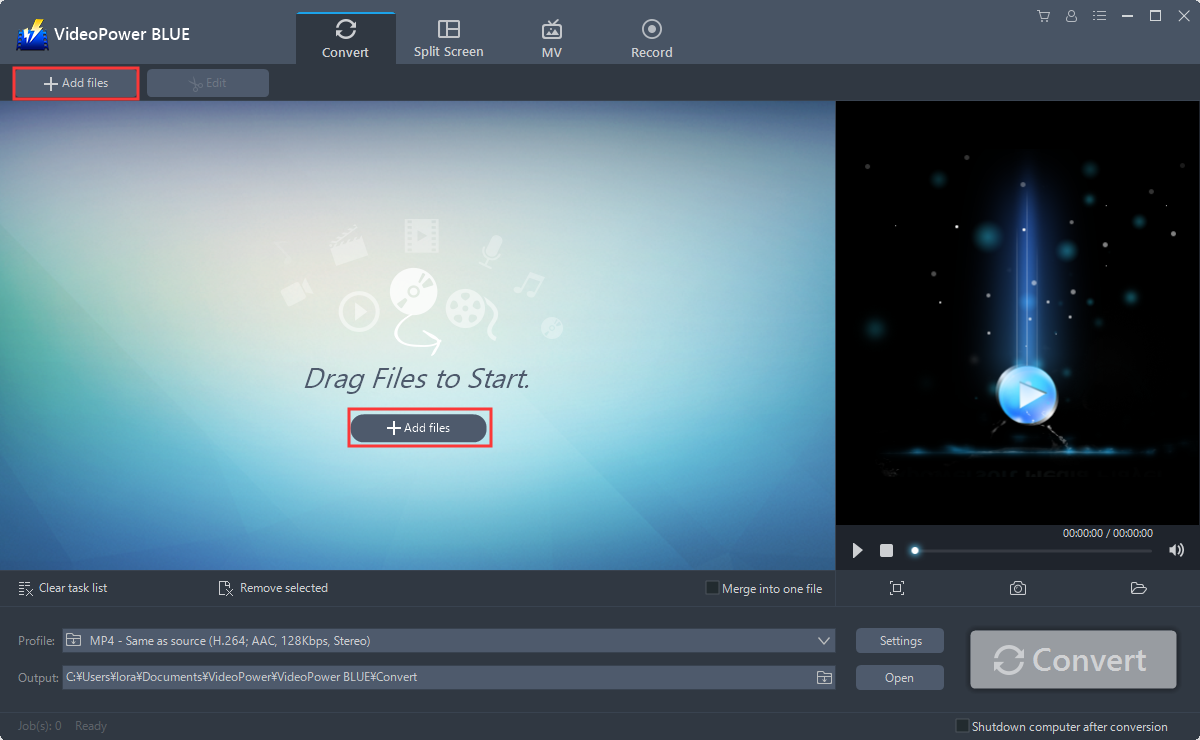
Run the program if you have installed the video converter software called VideoPower BLUE successfully on your PC. You can directly import the file to the program by clicking the “Add files” button or by drag-and-drop the file to the interface.
Step 2: Edit the AVI video.
If you need to edit the file before converting, just follow the instructions below.
2.1 Open Edit Window
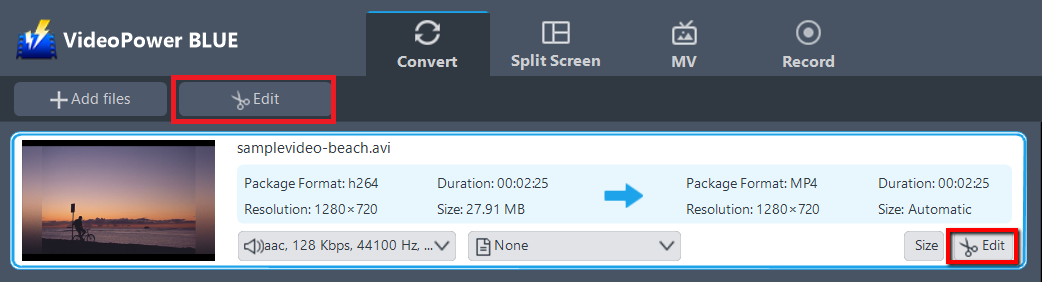
The imported file is displayed in the list. Click the “Edit” button on the right side of the file.
2.2 Start editing the imported AVI video
The built-in video editor will pop up, with its help, you can make the perfect movie. Adjust speed and volume, trim, cut, crop, rotate or flip videos. Add effects, subtitles, and watermark while adjusting brightness, contrast, and saturation that will make editing conveniently easier.
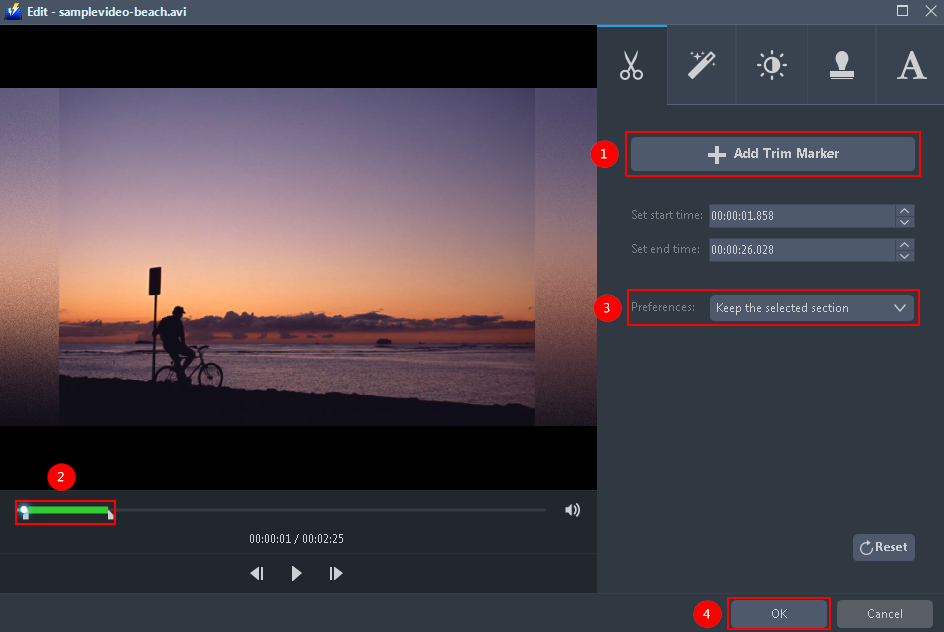
For example, you can trim your video as shown below:
1) Click “Add Trim Marker”.
2) Drag the mark as shown below to select the part you want to cut.
If you want to select multi-sections, please repeat 1 and
3) Choose “Keep the selected section” or “Delete the selected section” from “Preferences”.
4) Click “OK” to save the setting.
Step 3: Convert AVI to MP4 format.
3.1 Set the output format.
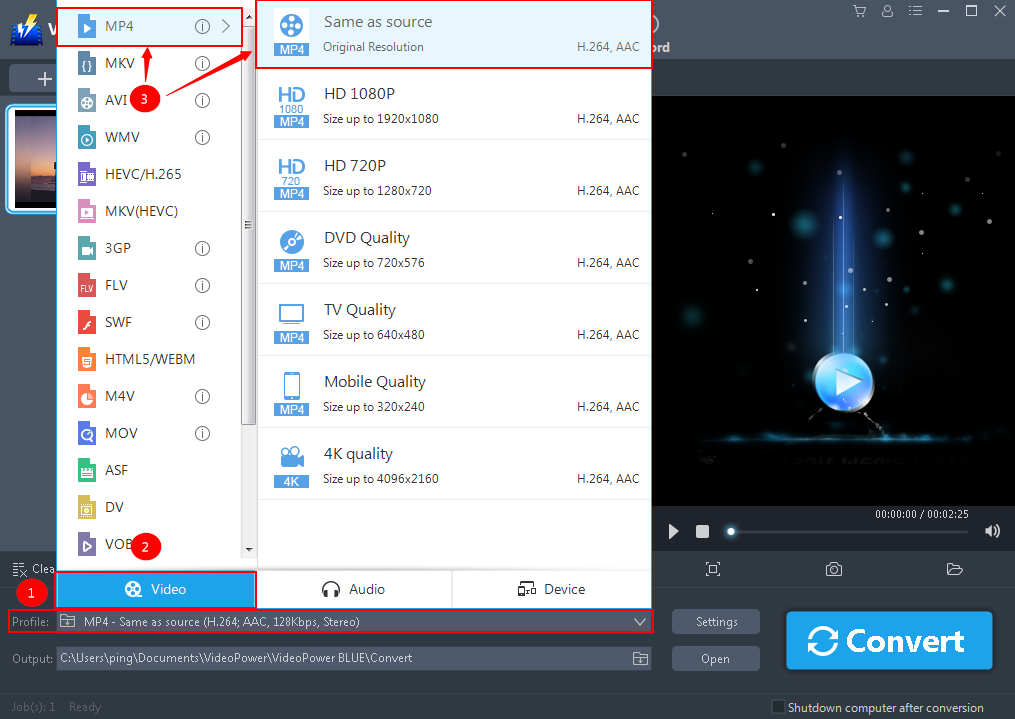
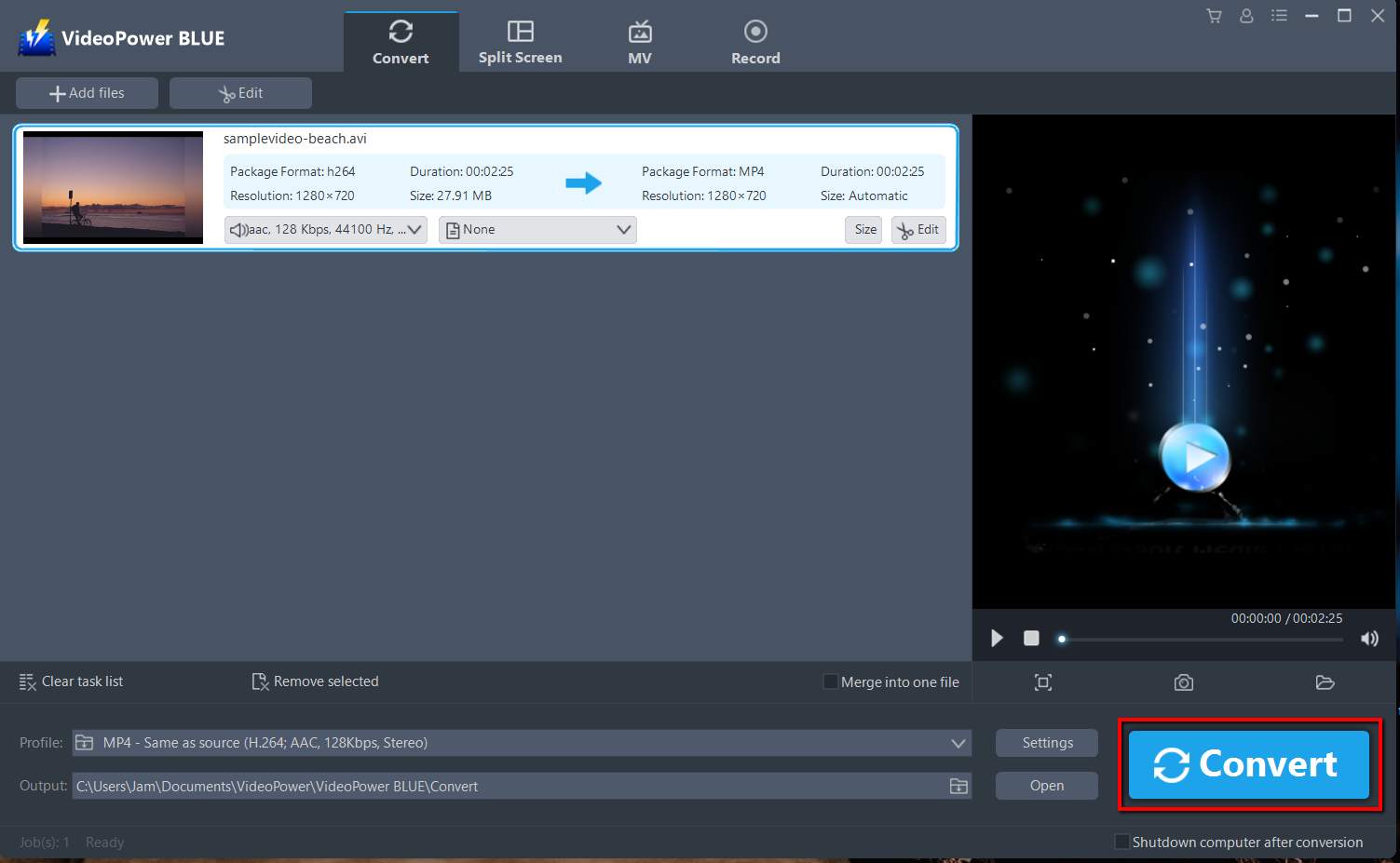
Click to open the “Profile” drop-down menu, then choose the format you want from the profile list. Here choose “Video”, “MP4”, and quality “Same as source” or other options like “HD”, “4K quality” as per your need.
3.2 Costumize settings
You can also customize frame rate, bitrate, codec, etc. manually. Just click the “Settings” button to enter the “Preset editor” window, then you can change the value and click “OK” to save the settings.

3.3 Start Conversion
Return to the file list and click the “Convert” button, then the converted MP4 file will be saved in the default output folder.
The program will pop up a window to inform you once the conversion is completed. Click “OK” to open the folder of your saved converted MP4 files.

Conclusion:
AVI is a great file format but then the problem along with it is that some media players in the new version cannot recognize the AVI video files because it is compressed in an old kind of code. Hence, it is quite necessary to convert it to a more compatible format.
Here comes VideoPower BLUE that is a multi-faceted software that has a lot of functions. These functions include recording screen activity, basic video, and audio editing, and file conversions. Due to its wide array of formats to choose from, it is the best converter out there.


