





Tips Index
Adjusting the video playback speed. There are various reasons why people want to play a video in slow motion. There are some instances in the video where the scene is too fast and you need to slow it down to understand it properly.
If the speed of the video is too fast, we cannot see the dance movements clearly, and we can’t learn it at all.
At this point, it is particularly important to slow down the speed of the playback. So how to slow down the video playback speed?
Standard media players usually don’t have this kind of function, that’s why you need to have specialized programs.
Here we need a tool called VideoPower BLUE to help. This is the best editor that helps you make slow-motion videos with powerful features. It can change video speed easily. It doesn’t only give you a way to play video in slow motion, but also provides you with the freedom to adjust the speed from 0.55x to 5.0x, and output the file in high quality at fast speed.
Step 1: Import video files to VideoPower BLUE
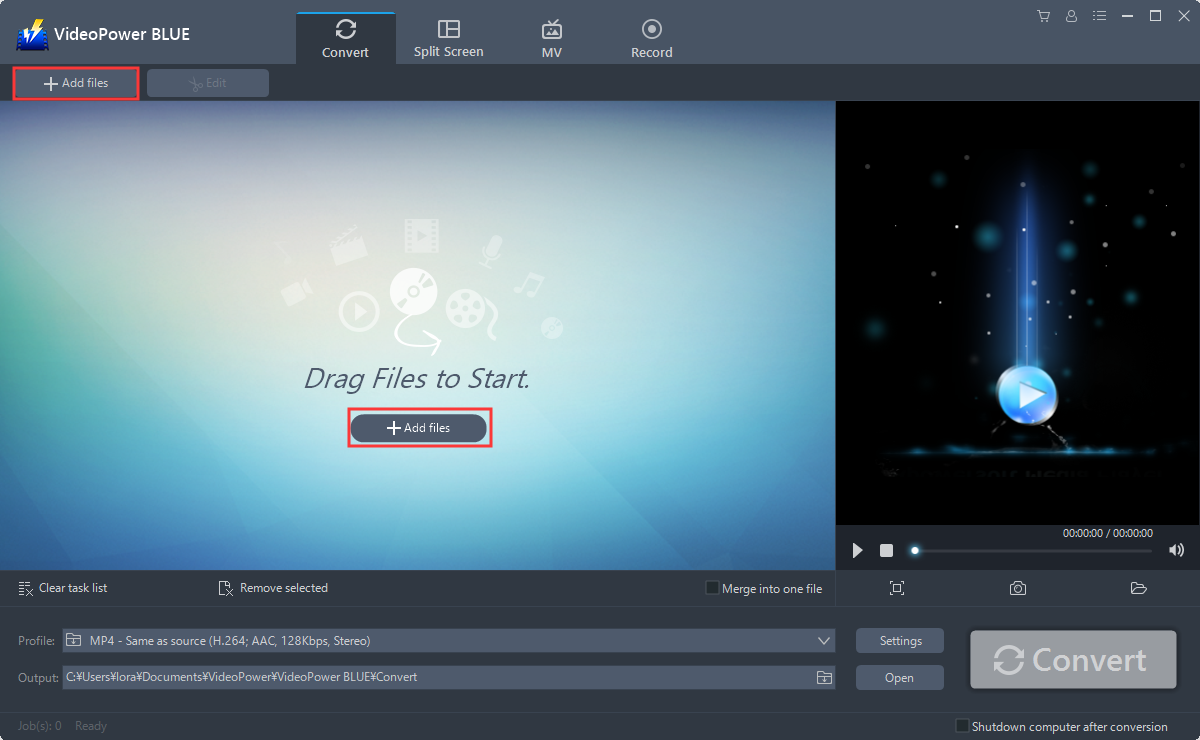
Launch VideoPower BLUE and go to “Add files” button to upload your video file to the program.
Step 2: Edit Video
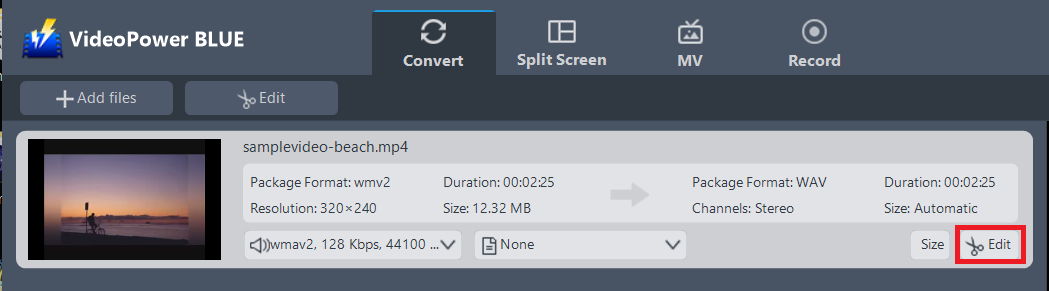
The imported file is displayed in the list.
Click the “Edit” button at the right side of the added video to enter the built-in video editor.
Here is how you can playback your video in slow motion:
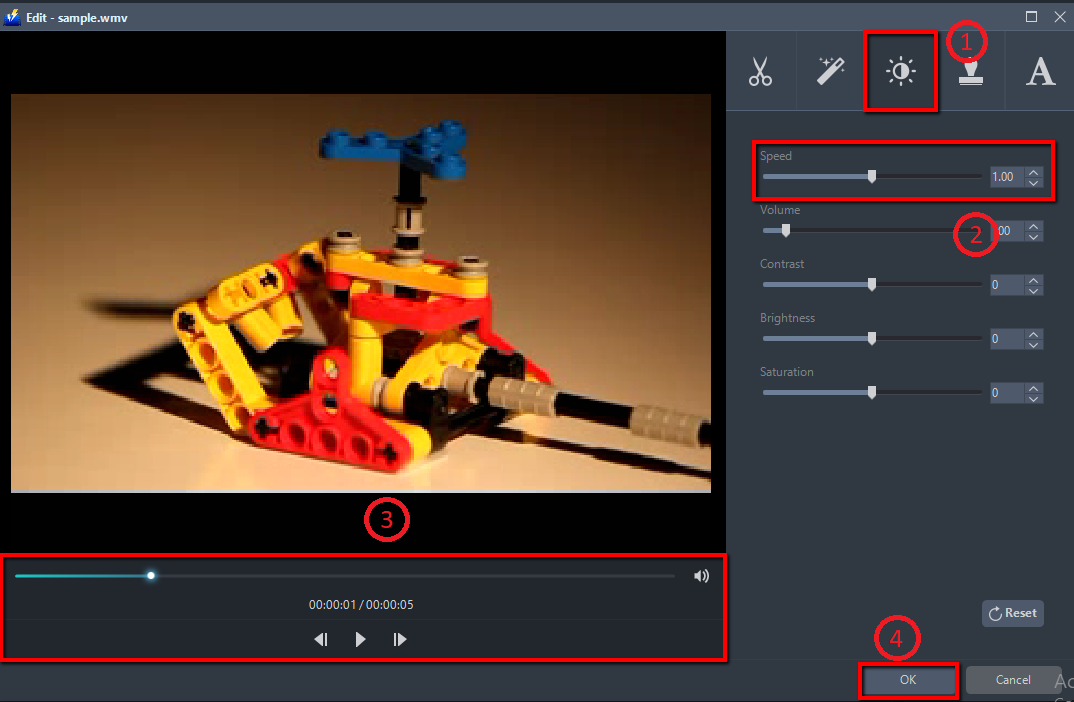
1) Click on the effect tab.
2) Slow down or speed up the playback by dragging the “Speed” slider to the left or right or adjust the speed by clicking the up or down buttons.
3) When you adjust the speed, you can preview the effect on the left window.
4) Click “OK” to save the changes.
Step 3: Save the edited video
3.1 Convert
When all the edits are done, click the “Convert” button, then the software will start to convert and save the edited video in MP4 format by default.

3.2 Conversion Complete
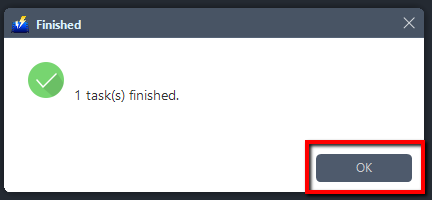
A pop-up window from the software will appear informing you that the conversion is complete.
Click “OK” to open the folder of your saved file.
Conclusion:
VideoPower BLUE is the best solution indeed for playback video in slow motion. As shown in this guide, this software is not limited to that, it is packed with great features to suit your needs.
This software is multi-faceted with a simple, easy-to-use and straightforward interface. It could convert files to various file formats, has a built-in video editor that will enable you to edit slideshows or videos, apply watermarks, effects, and other basic video editing options such as trimming or cropping.
Moreover, it has a split-screen tool for your photos and videos and a screen recorder which allows you to capture any on-screen activity on your computer.


