





Tips Index
SWF is a popular Adobe Flash format, which is usually used to display animated vector graphics on the webpages. It is an ideal format for browser games.
One of the advantages of using SWF file format is that its size is small enough to publish various animations on the web. Using this format, you can create compact animations that load quickly.
However, it may be a bit difficult if you want to convert your video into SWF. Because many format converters out there can’t convert video format to SWF format successfully.
So is it impossible to convert the format?
Of course not! VideoPower BLUE is one of the few converters that could convert your video files into SWF file format.
Download and install the program on your PC with the below link to start the conversion.
Step 1: Add the Video file to the program
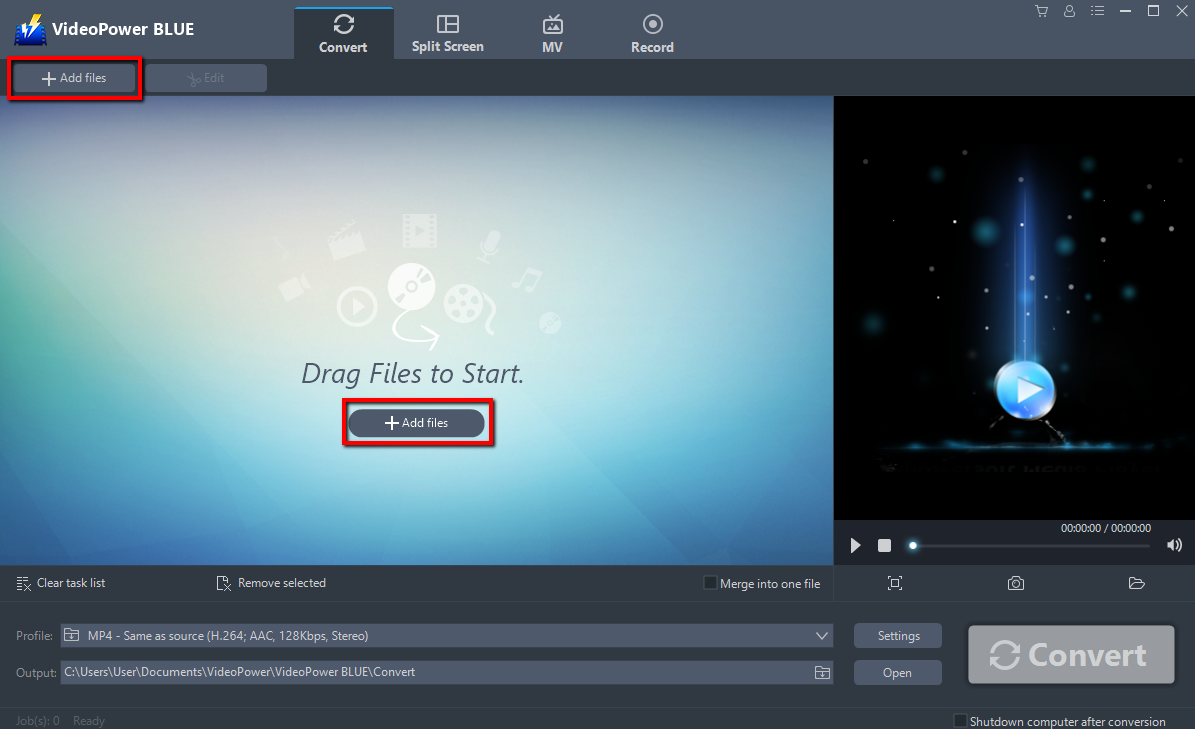
Run the program if you have installed the video converter software – VideoPower BLUE successfully on your PC. You can directly import the file to the program by clicking the “Add files” button or by drag-and-drop the file to the interface.
Step 2: Edit the Video
If you want to edit the audio first before converting, just follow the instructions below.
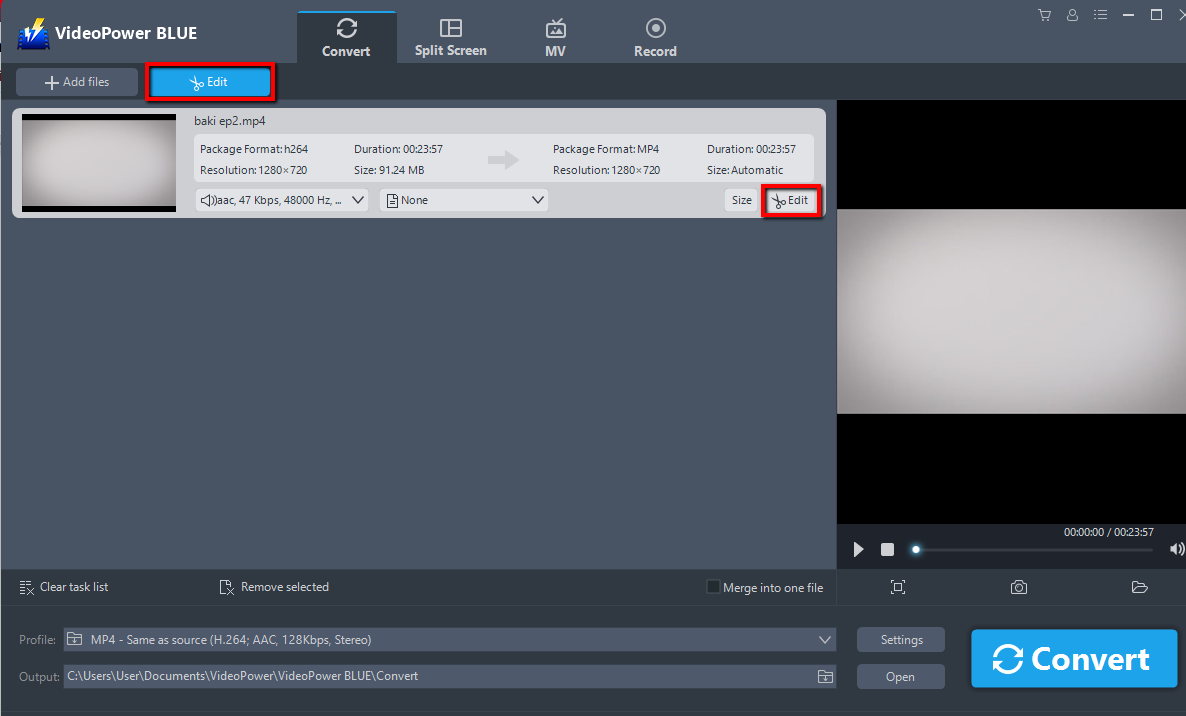
The imported Video file is displayed in the list.
Click the “Edit” button on the right side of the file.
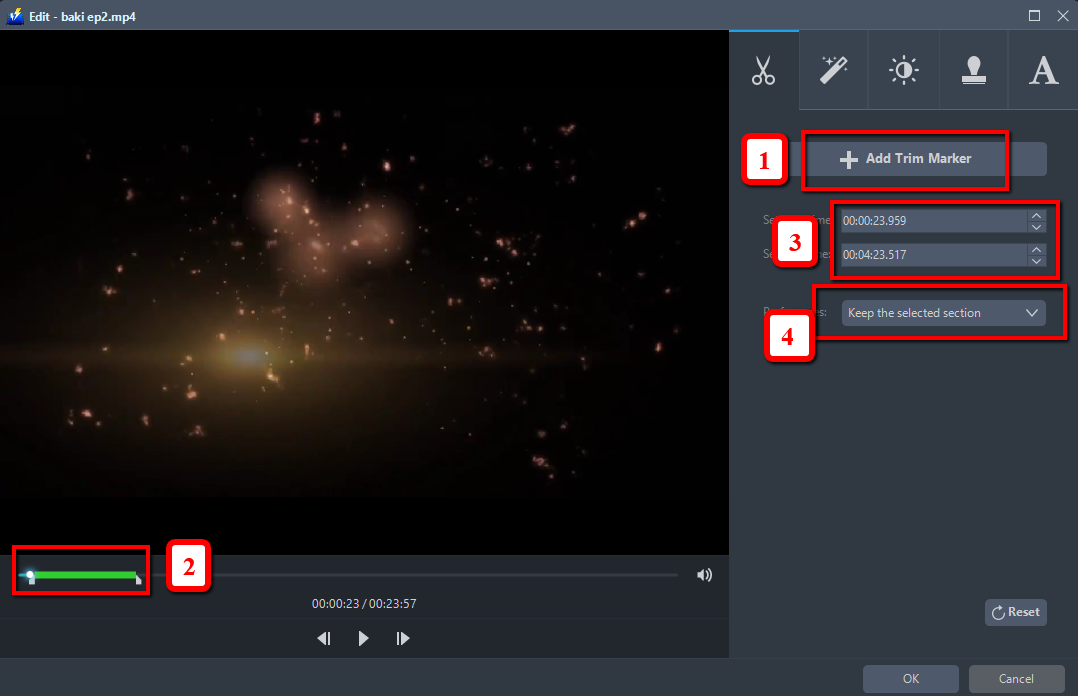
For example, you can trim your video as shown below:
1) Click “Add Trim Marker”.
2) Drag the mark as shown below to select the part you want to cut.
If you want to select multi-sections, please repeat 1 and 2.
3) Choose “Keep the selected section” or “Delete the selected section” from “Preferences”.
4) Click “OK” to save the changes made.
Step 3: Convert video to SWF format.
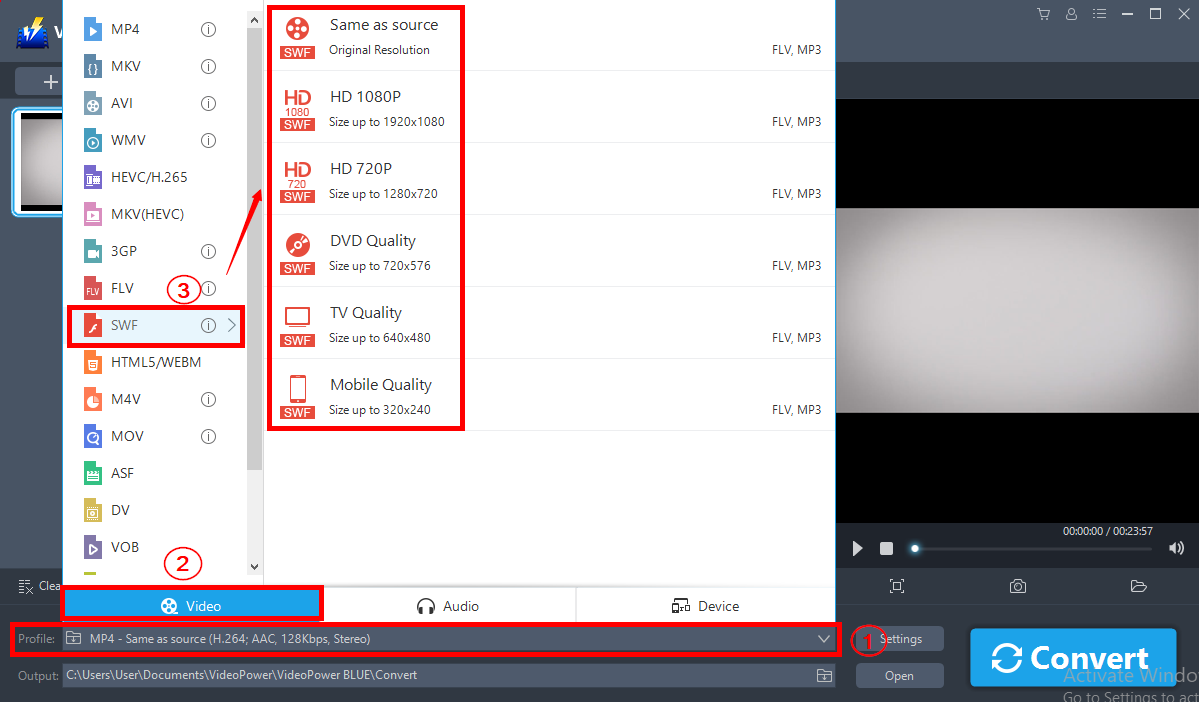
Before conversion, you should set the output format and folder first as the default output format is SWF.
1) Click the “Profile” bar.
2) Choose “Video”.
3) Set the format to “SWF-quality”.
Now click the big blue “Convert” button to start the conversion process.
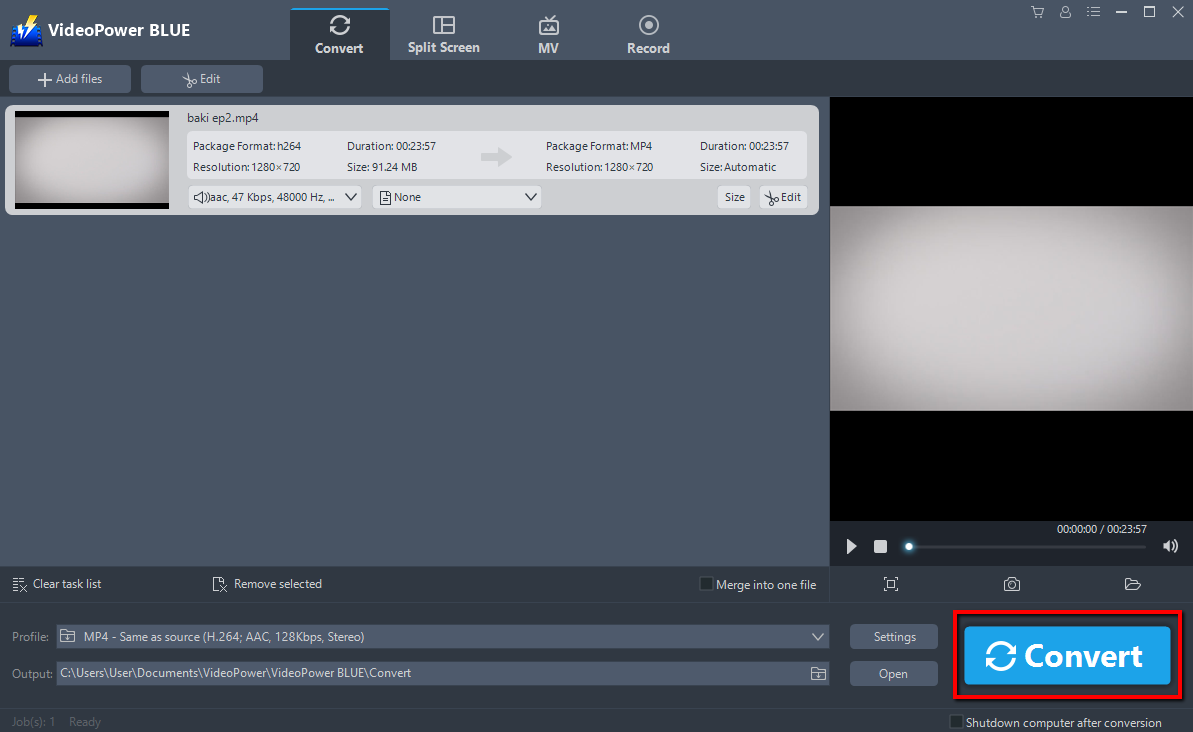
A pop-up window from the program will appear informing you that the conversion is complete. Click “OK” to open the folder of your saved converted SWF files.

Conclusion:
With this guide on how to convert videos to SWF format, you can easily convert videos to SWF and all other types of format whenever you want to using VideoPower BLUE. More importantly, this software is a multi-faceted software that is a simple, easy-to-use and straightforward interface. These functions are built-in video editor that will enable you to edit slideshows or videos, apply watermarks, effects, and other basic video editing options such as trimming or cropping. Moreover, it has a split screen tool for your photos and videos and a screen recorder which allows you to capture any on-screen activity on your computer.


