





Tips Index
TS, short for Transport Stream, is a packaging format for Japanese HD cameras. TS format is characterized by the requirement that any segment of the video stream can be decoded independently.
MP4 is arguably the most popular video format available. It is the most commonly used video file format, easier to access and is more universally compatible with devices than TS.
Therefore, it’s better to convert a TS video into MP4 format to make it more accessible.
You can try an easy-to-use video converter called VideoPower BLUE. It can convert TS to MP4 with super fast speed and no quality loss. You can not only convert TS to MP4 but also other common video formats like MOV, WMV, FLV, etc.
Free download the software with the link below and the following simple tutorial will guide you on how to convert TS to MP4.
VideoPower BLUE is a tool that allows you to convert TS to MP4 files.
You can try to use the software for free by downloading its trial version below.
Step 1: Add the TS file to the program.
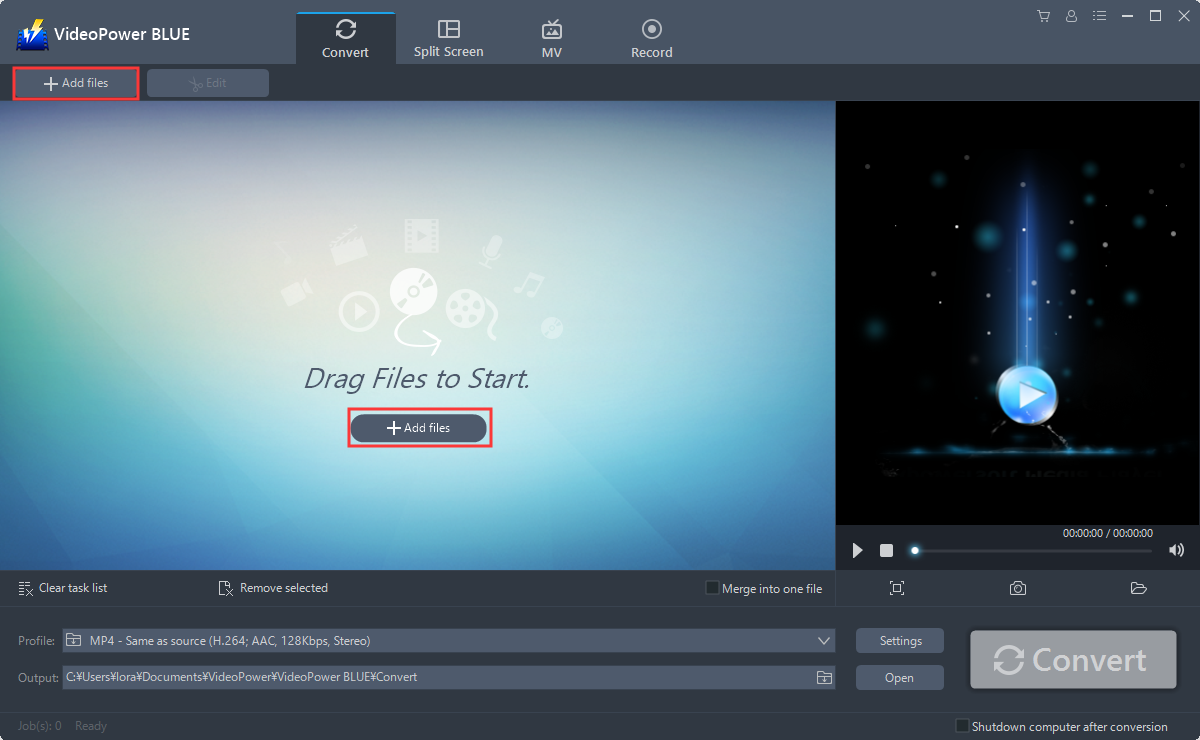
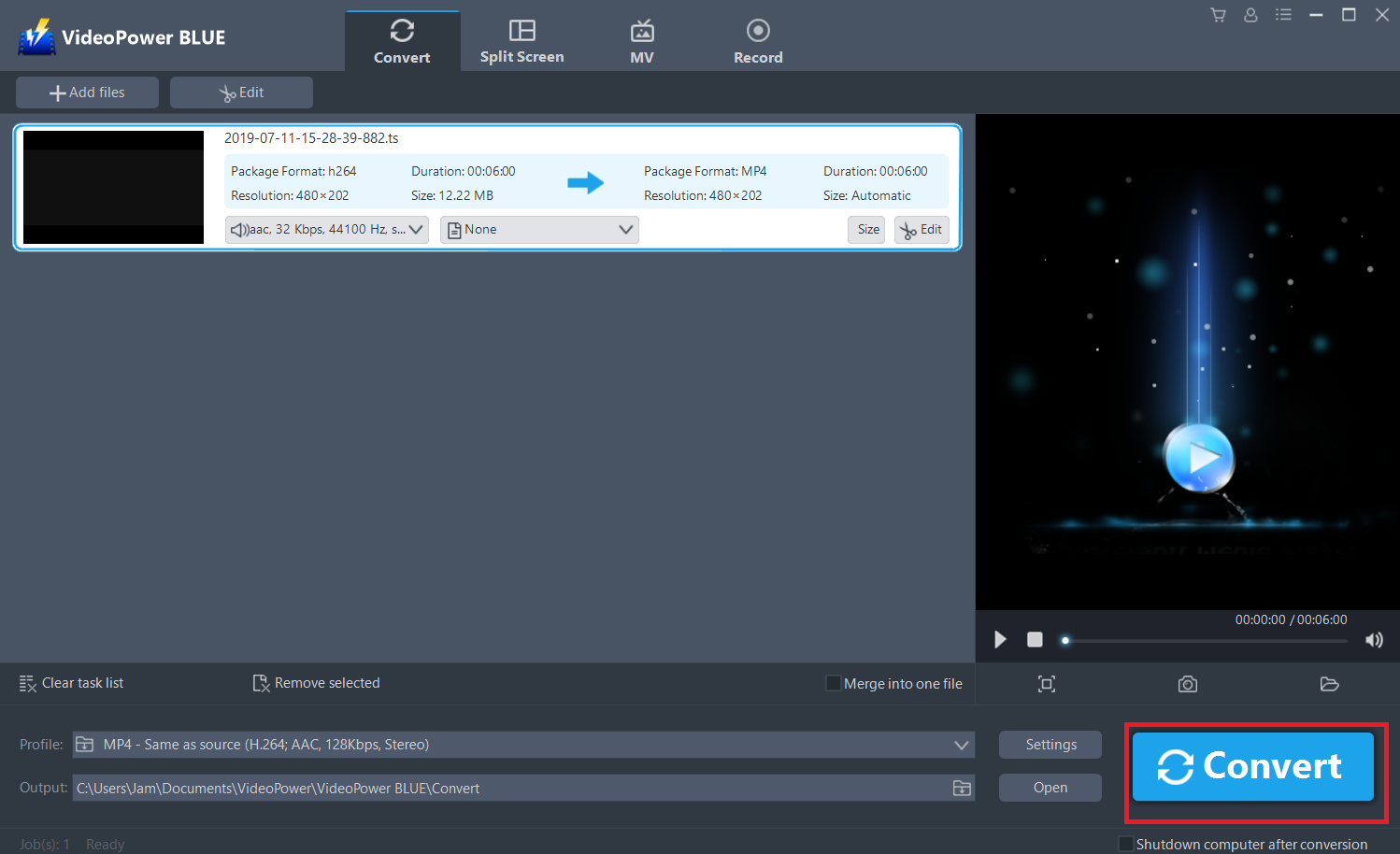
Run the program if you have installed the video converter software – VideoPower BLUE successfully on your PC. You can directly import the file to the program by clicking the “Add files” button or by drag-and-drop to the interface.
Step 2: Edit the TS video.
If you want to edit the video file before converting, just follow the instructions below.
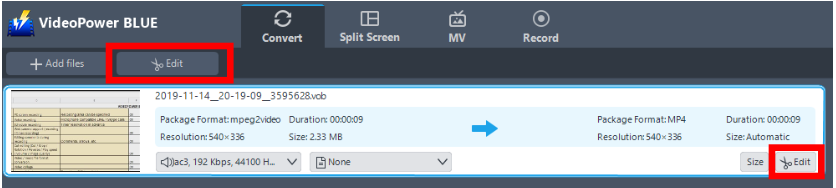
The imported TS file is displayed in the list.
Click the “Edit” button on the right side of the file.
The built-in video editor will pop up, with its help, you can make the perfect movie. Adjust speed and volume, trim, cut, crop, rotate or flip videos. Add effects, subtitles, and watermark while adjusting brightness, contrast, and saturation that will make editing conveniently easier.
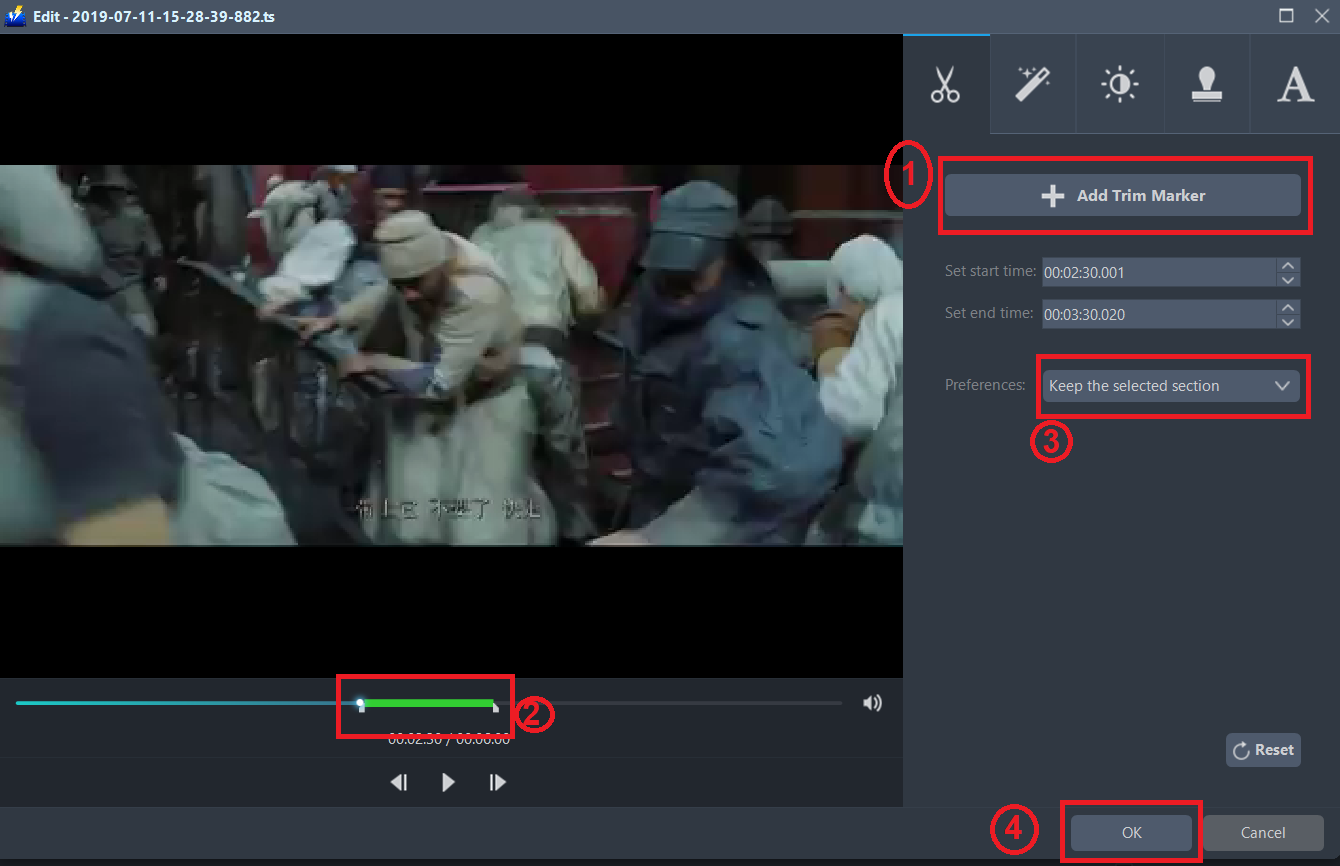
For example, you can trim your video as showing below:
1 ) Click “Add Trim Marker”.
2 ) Drag the mark as shown below to select the part you want to cut. If you want to select multi-sections, please repeat 1 and 2.
3 ) Choose “Keep the selected section” or “Delete the selected section” from “Preferences”.
4 ) Click “OK” to save the setting.
Step 3: Convert TS to MP4 format.
3.1 Set the output format.
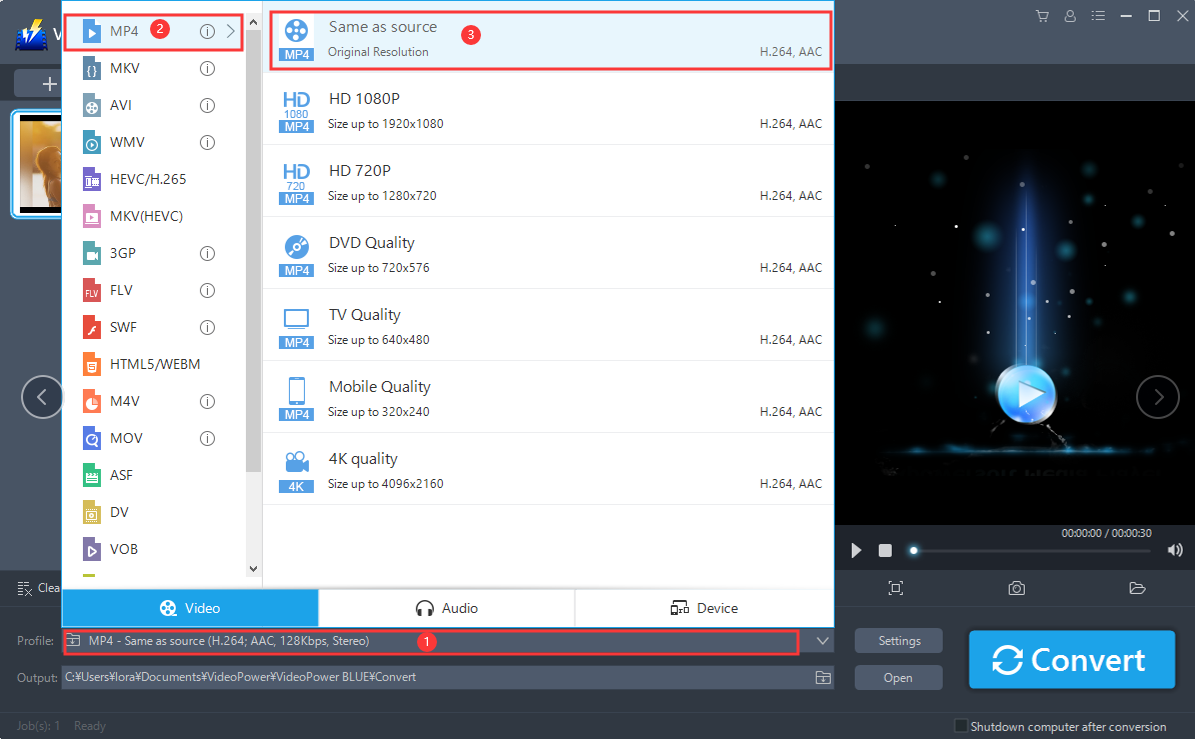
1 ) Click to open the “Profile” drop-down menu, then choose the format you want from the profile list.
2 ) Choose “Video”, “MP4”.
3 ) Select quality “Same as source” or other options like “HD”, “4K quality” as per your need.
3.2 Start Conversion
Return to the file list.
Click the “Convert” button, then the converted MP4 file will be saved in the default output folder.
A pop-up window from the program will appear informing you that the conversion is complete.
Click “OK” to open the folder of your saved converted MP4 files.

Or you can click the “Open” button to find the MP4 file.

Conclusion:
In converting TS files the conversion speed relies on the file size and the CPU speed of your PC. A desktop program like VideoPower BLUE ensures a fast speed to convert TS to MP4 without any interruption on network connection issues. Users can enjoy multiple functions by using this all-in-one desktop program. This software provides you various features such as recording, video editing which includes trimming, rotating, adjusting the resolution, speed, volume, brightness, adding subtitles, and a lot more.


