





Tips Index
There are music or certain sounds that iPhone users would like to use as their phone ringtones but because of compatibility issues, they can’t. Whether it’s a dialogue in a movie, an MP3 file, a laugh of your loved one, or a recorded sound you can make it as your iPhone ringtone by converting it to an M4R file format.
M4R, one of the formats created by Apple, is an audio file extension used on iPhone as the ringtone format. So how do you convert a file to become an M4R file format?
VideoPower BLUE is a powerful tool that has a lot of functions such as basic video editing, slideshow creation, screen recording, and audio and video conversion. This software can convert M4R files which can be used as a ringtone for any iPhone.
Download and install the program on your PC with the link below to start the conversion.
Step 1: Add the audio file to the program
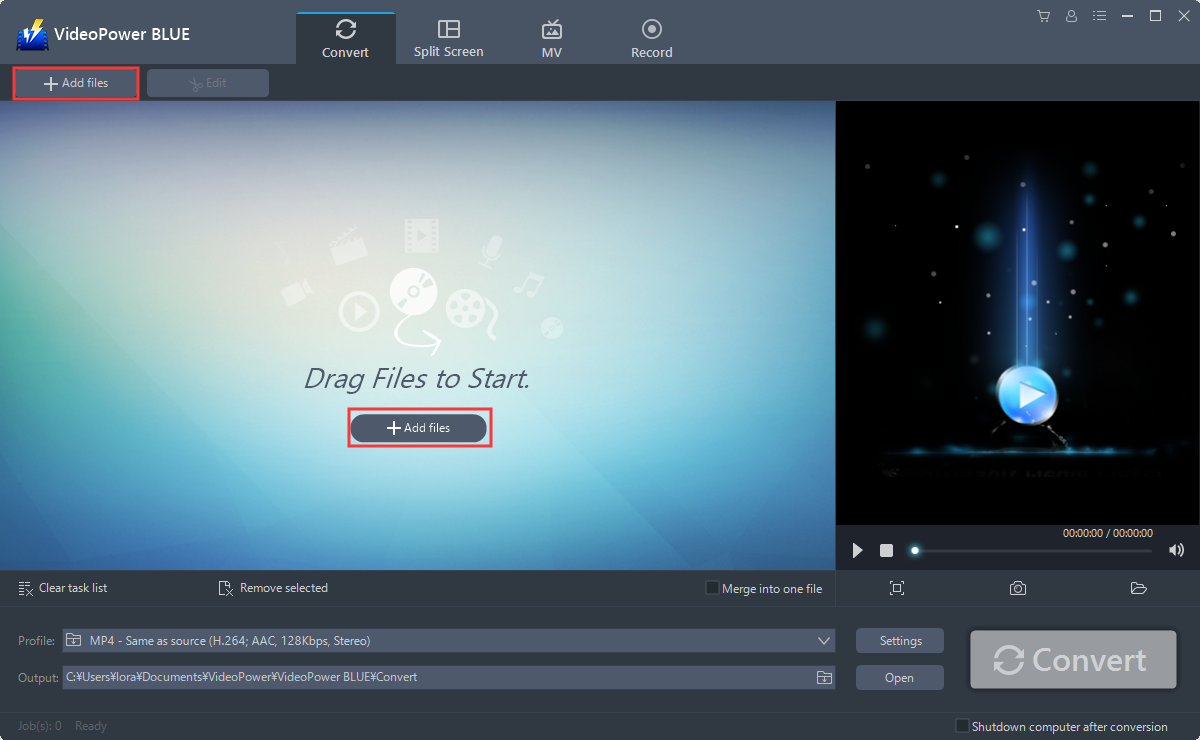
Run the program if you have installed the Audio Converter software – VideoPower BLUE successfully on your PC. You can directly import the file to the program by clicking the “Add files” button or by drag-and-drop the file to the interface.
Step 2: Edit the audio
If you need to edit the audio before converting, just follow the instructions below.
The imported audio file is displayed in the list.
Click the “Edit” button on the right side of the file.

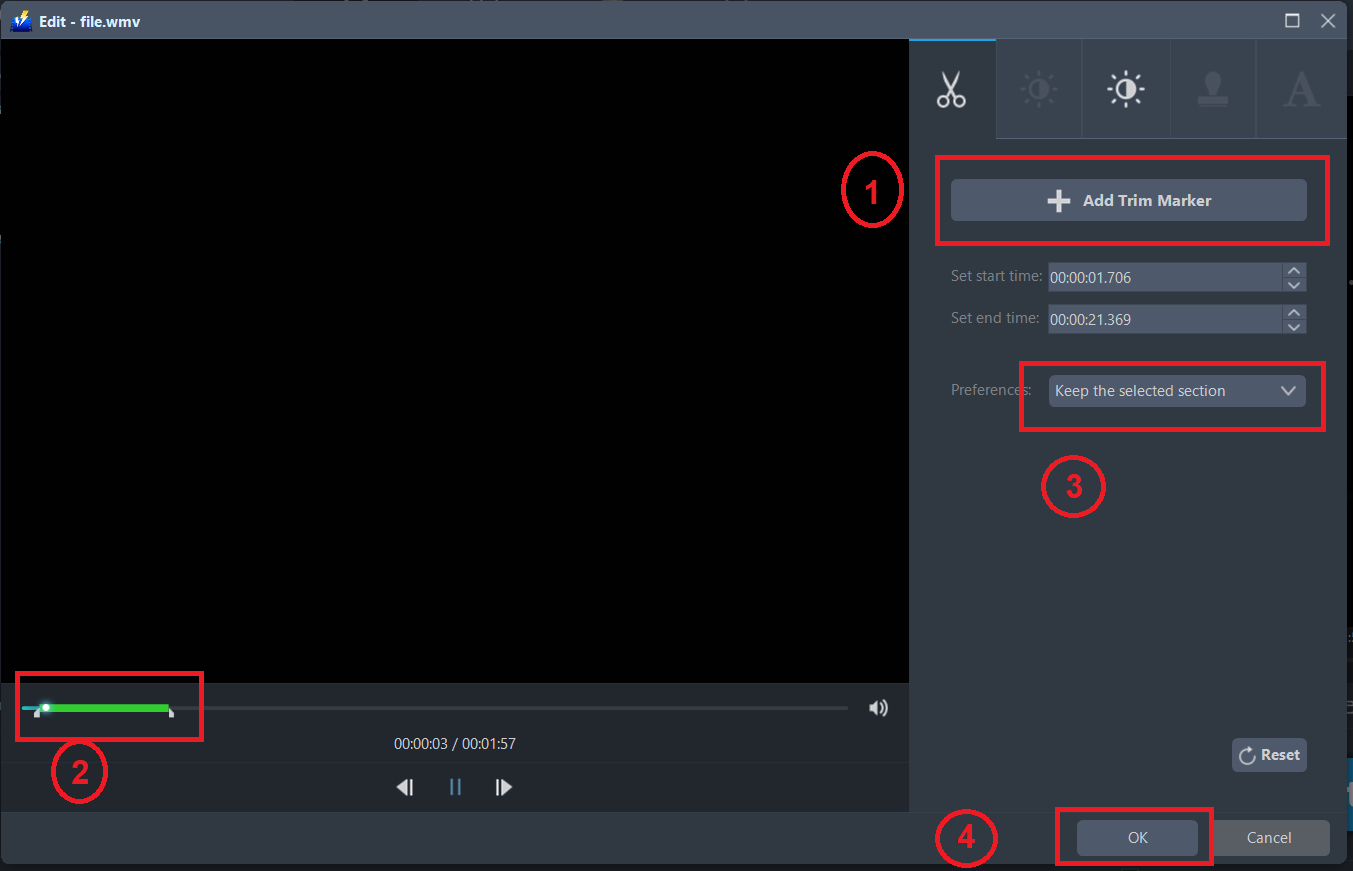
The editor will pop up. Here you can make changes to the file – trim, cut, etc.
For example, you can trim your audio as shown below:
1) Click “Add Trim Marker”.
2) Drag the mark as shown below to select the part you want to cut. If you want to select multi-sections, please repeat 1 and 2.
3) Choose “Keep the selected section” or “Delete the selected section” from “Preferences”.
4) Click “OK” to save the setting.
Step 3: Convert audio file to M4R format
3.1 Set the output format
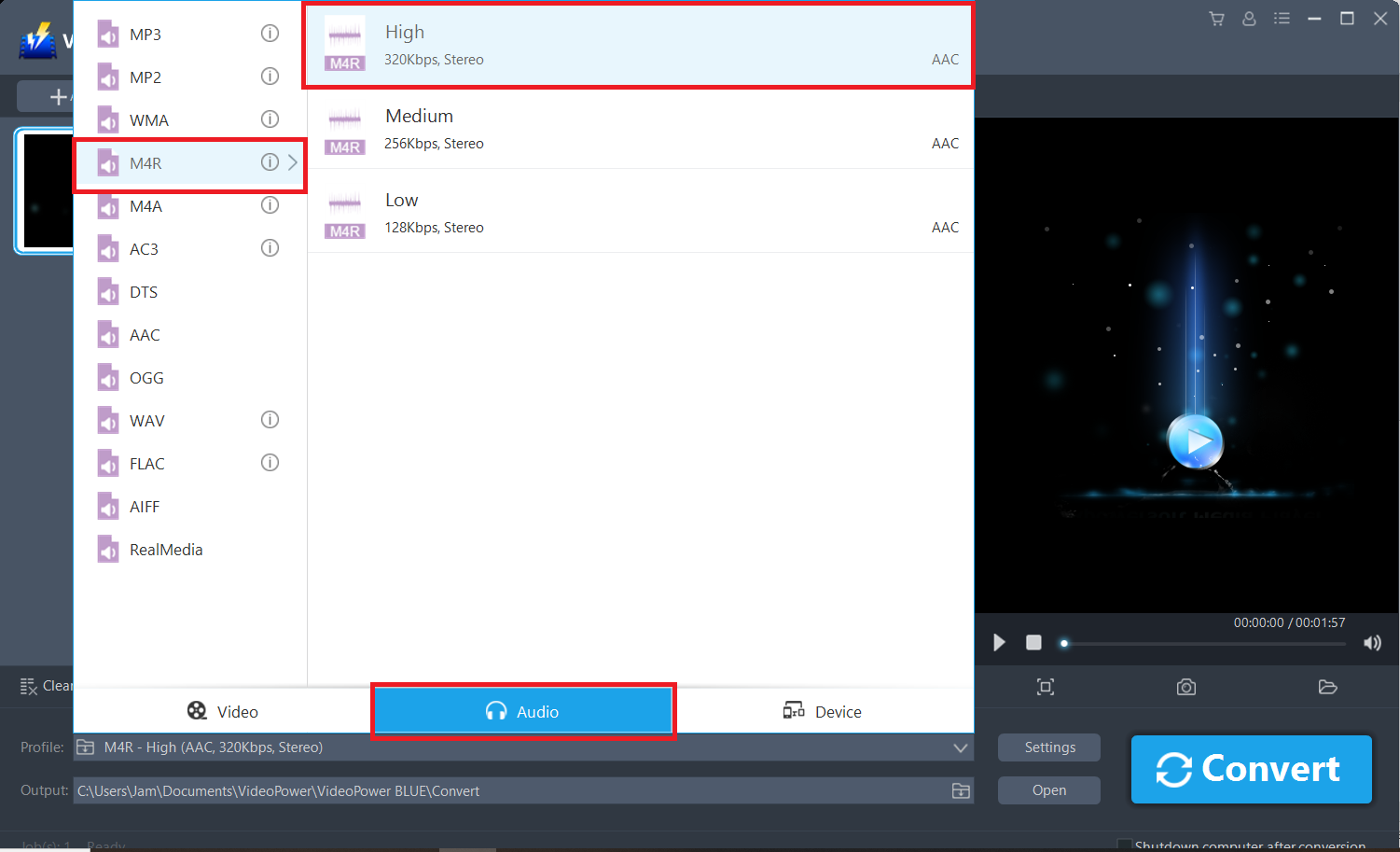
Click to open the “Profile” drop-down menu, then choose the format you want from the profile list. Here choose “Audio”, “M4R”, and quality “High.”
3.2 Start Conversion
Return to the file list.
Click the “Convert” button, then the converted M4R file will be saved in the default output folder.

3.3 Find the Converted M4R files
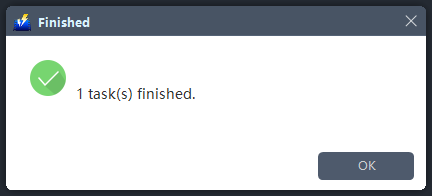
The program will pop up a window to inform you once the conversion is completed. Click “OK” to open the folder of your saved converted M4R files.
Or you can click the “Open” button to find the M4R audio.

Conclusion:
There are many reasons why one needs to change or customize their iPhone ringtone. Additionally, selecting a particular ringtone for a specific contact makes it easier to determine whose calling without the need to peek on your phone.
So how to make ringtone for iPhone6? VideoPower BLUE is the answer.
VideoPower BLUE software can convert all video and audio files into common formats and devices easily. It’s handy and reliable that you can even convert in batches simultaneously while preserving good quality.
It has a built-in video editor that will enable you to edit slideshows or videos, apply watermarks, effects, and other basic video editing options such as trimming or cropping. Moreover, it has a split-screen tool for your photos and videos and a screen recorder which allows you to capture any on-screen activity on your computer. There’re so many advanced functions equipped in this program, which offer more options for you to convert and edit media files.


