





Tips Index
What is WMA?
WMA (Windows Media Audio) is a new audio format introduced by Microsoft Corporation. Microsoft designed WMA to combat MP3 and Apple’s AAC compression methods. Since then, WMA has expanded from its initial lossy format into a wide range of sub-formats including low-bandwidth voice audio to lossless multi-channel surround sound. WMA has a higher compression ratio than MP3 with the same sound quality.
At low bitrate (below 128kbps), the sound quality of WMA is better than of MP3 at the same bitrate.
Advantages:
1) WMA compresses audio at a higher rate while keeping the high sound quality.
2) Microsoft claimed that WMA format has considerable copyright protection capability.
Disadvantages:
However, it doesn’t mean that WMA format is better than the MP3 format, because:
1) The WMA format has a compression ratio of 1/18 at 80kbps, but if you want better sound quality, the bitrate should be 128kbps or more. However, the WMA file size is almost equal to the MP3 format at this bitrate. Moreover, some low-end decoders may be unstable when playing the WMA format file.
2) Most MP3 players on the market have the same problem, that is, playing the WMA format consumes more power than playing the MP3 format of the same bitrate and length. Because the decoding of the WMA format is more complicated.
3) If you downloaded many WMA music files on the Internet and have the need to convert them into MP3 format, the most popular audio format, you can use VideoPower BLUE to help you.
This Audio Converter is able to perform WMA to MP3, MP2, AAC, OGG, FLAC, WAV and more.
You can try to use the software for free by downloading its trial version below.
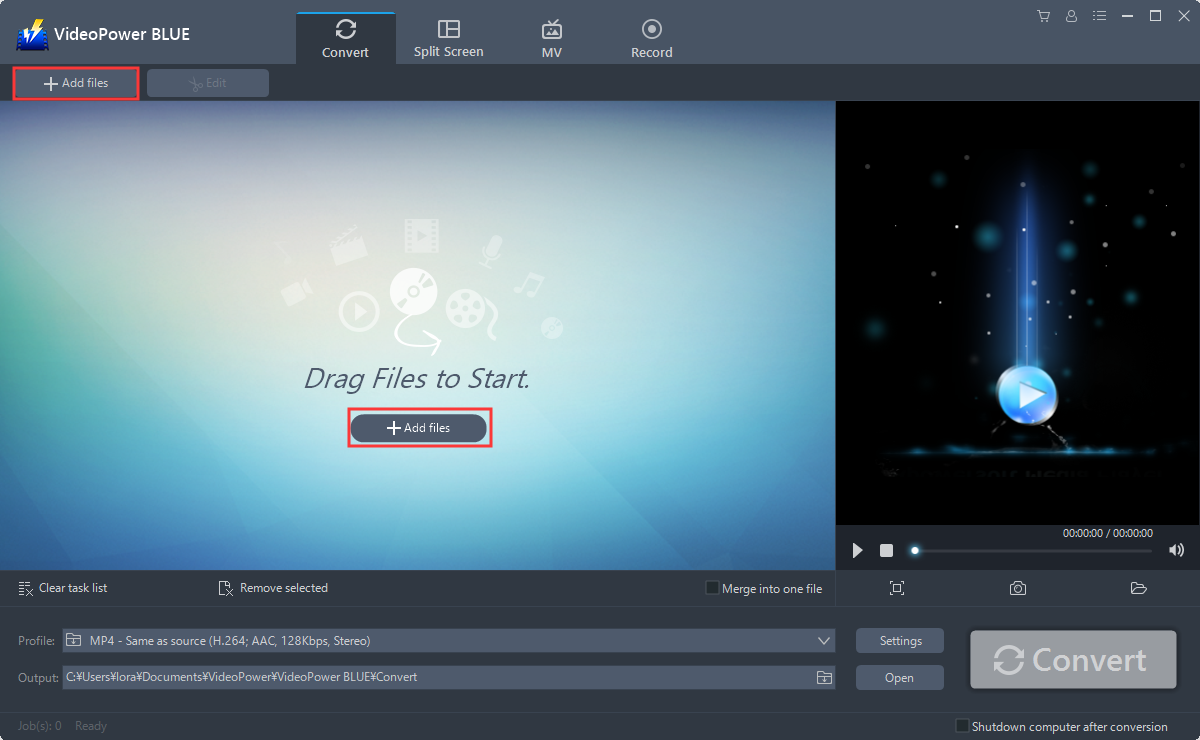
Step 1: Add the WMA file to the program.
Run the program if you have installed the audio converter software – VideoPower BLUE successfully on your PC. You can directly import the file to the program by clicking the “Add files” button or by drag-and-drop to the interface.
Step 2: Edit the WMA audio.
If you want to edit the audio before converting, just follow the instructions below.
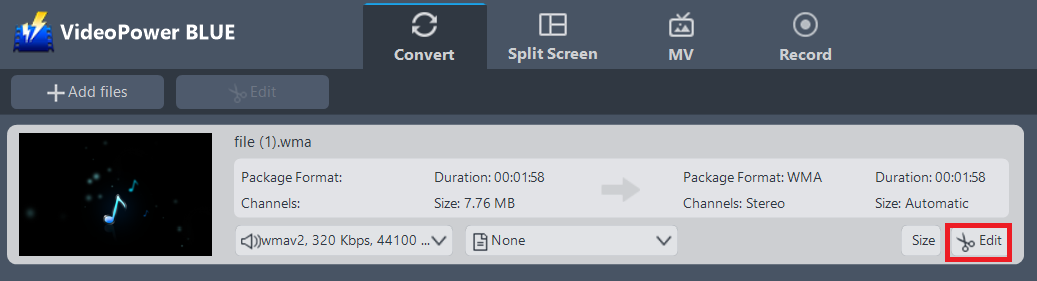
The imported WMA file is displayed in the list.
Click the “Edit” button on the right side of the file.
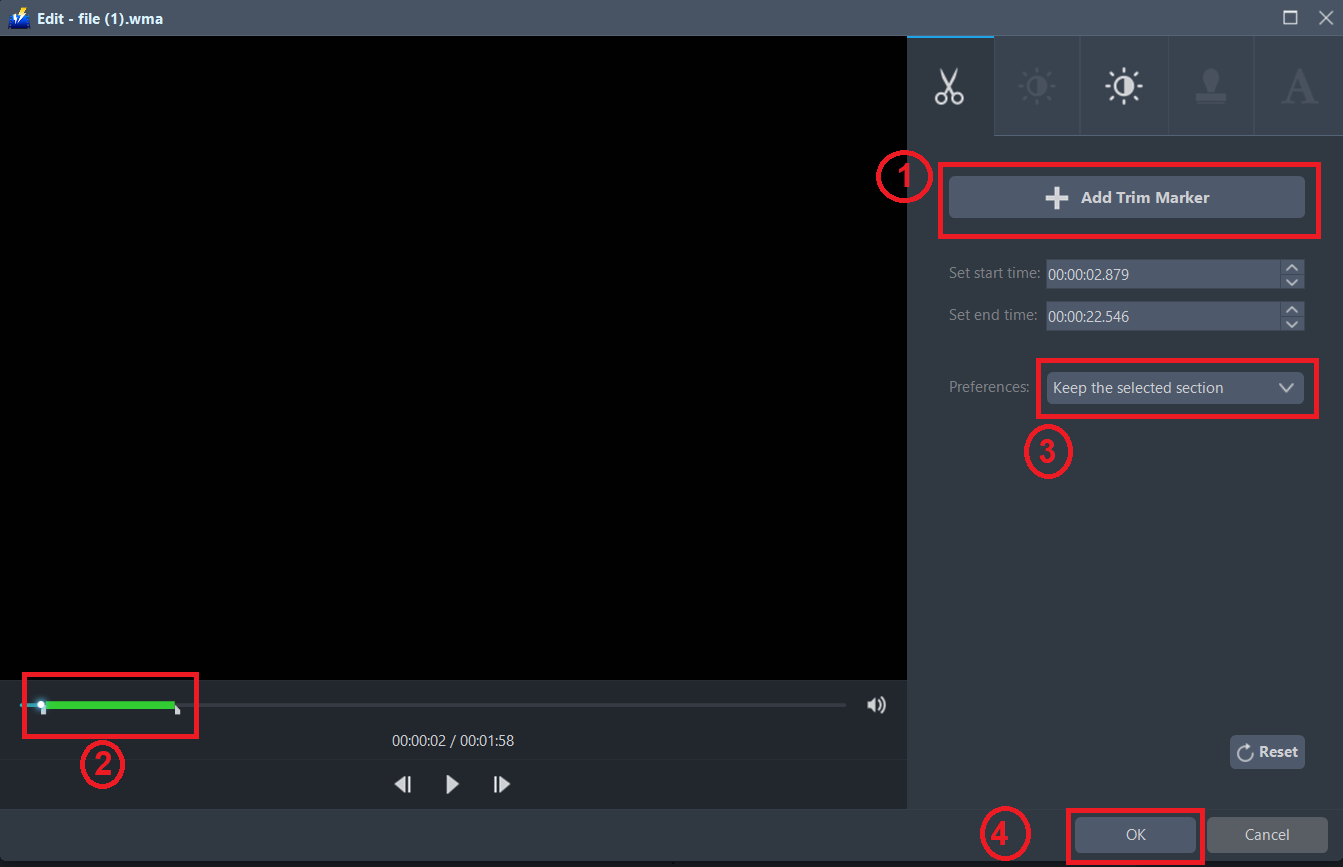
For example, you can trim your audio as shown below:
1 ) Click “Add Trim Marker”.
2 ) Drag the mark as shown below to select the part you want to cut. If you want to select multi-sections, please repeat 1 and 2.
3 ) Choose “Keep the selected section” or “Delete the selected section” from “Preferences”.
4 ) Click “OK” to save the setting.
Step 3: Convert WMA to MP3 format.
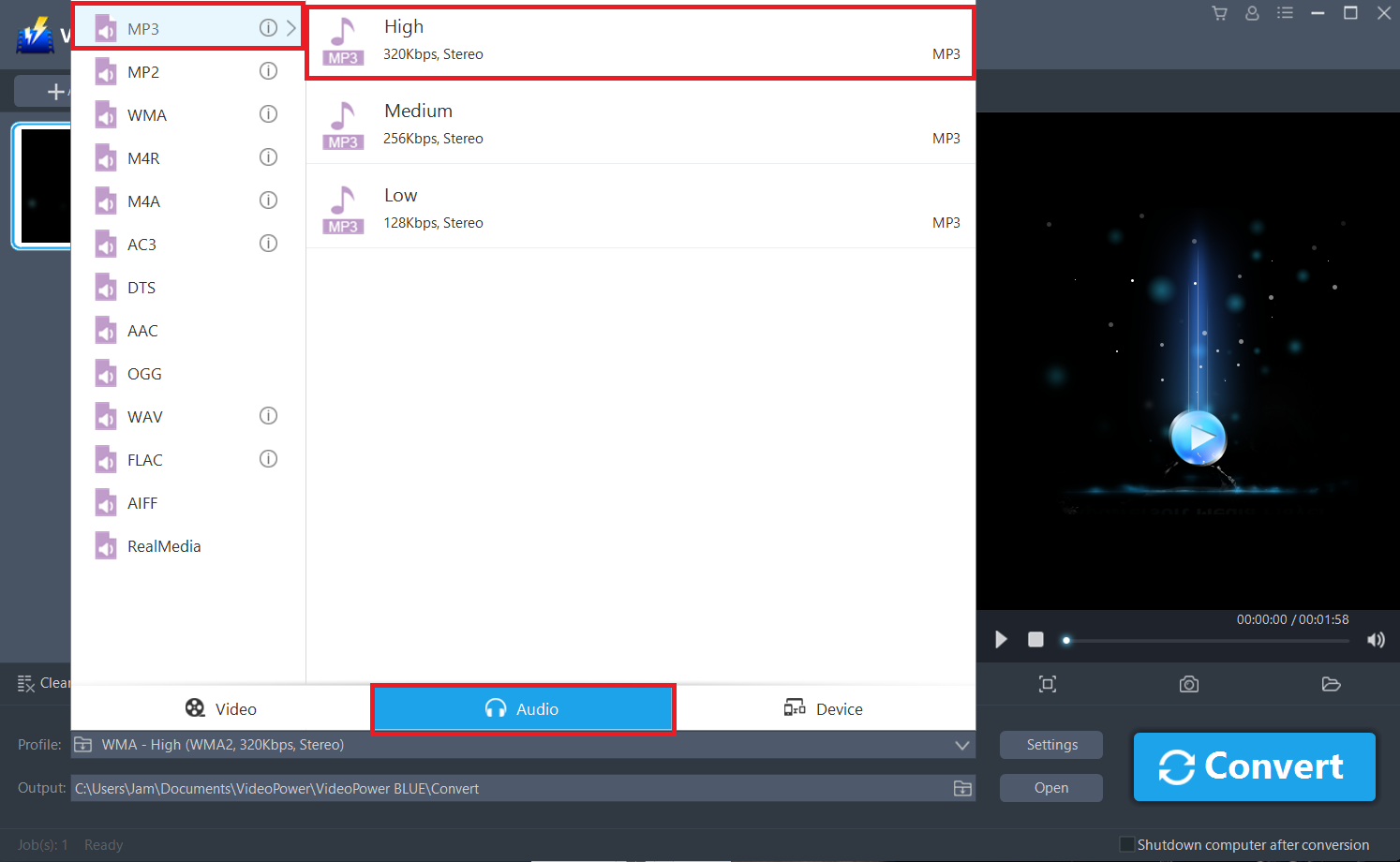
3.1 Set the output format.
Click to open the “Profile” drop-down menu, then choose the format you want from the profile list. Here choose “Audio”, “MP3”, and quality “High.”
3.2 Start Conversion.
Return to the file list.
Click the “Convert” button, then the converted MP3 file will be saved in the default output folder.
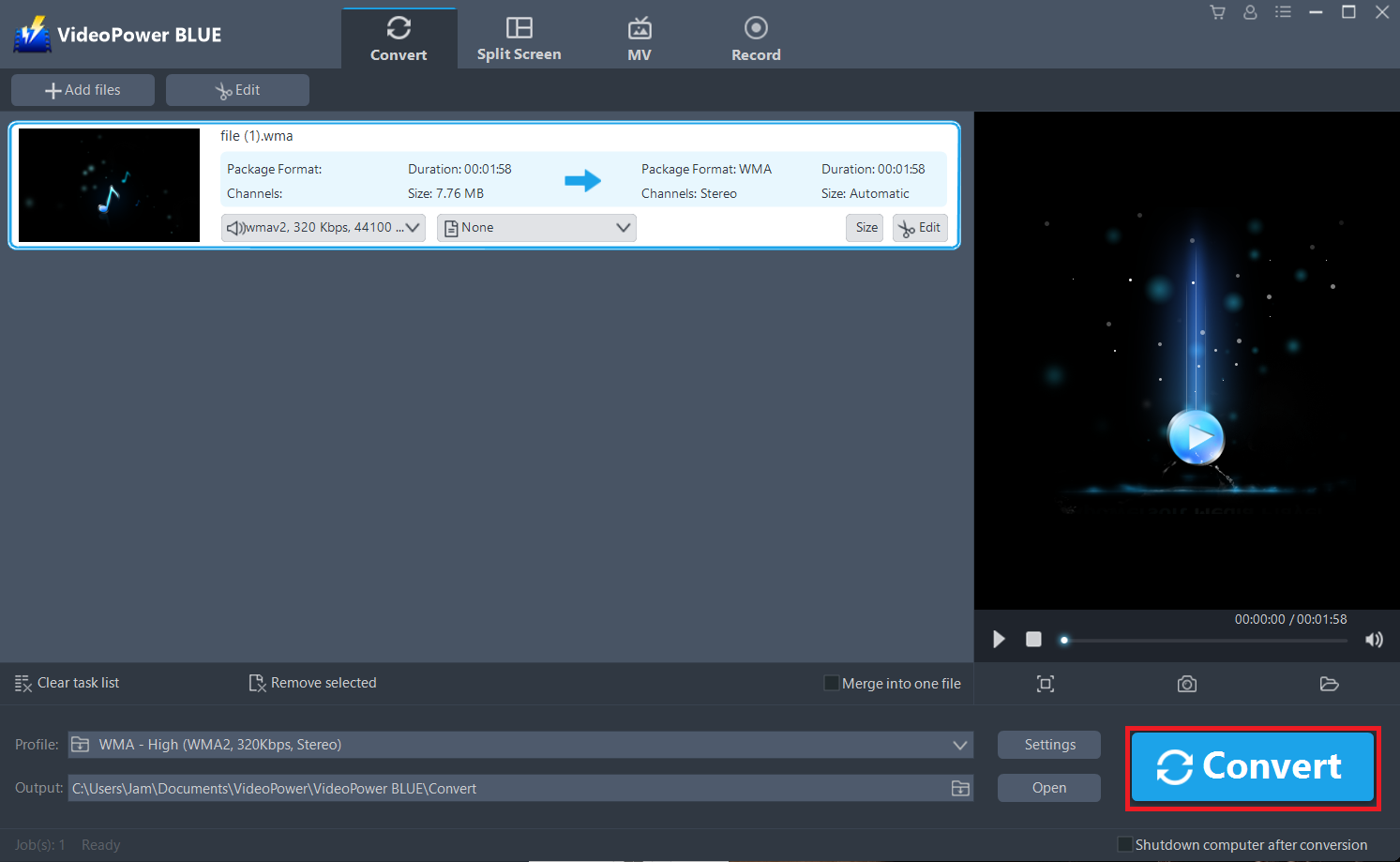
A pop-up window from the program will appear informing you that the conversion is complete.
Click “OK” to open the folder of your saved converted MP3 files.
Or you can click the “Open” button to find the MP3 file.

Conclusion:
One of the best converter software is VideoPower BLUE. Even though a lot of file format is great they use lots of storage memory. Therefore, it is not a good choice for saving music on portable devices. Converting files to WMA file format is a nice solution to solve the inconvenience of compatibility.
VideoPower BLUE is a software can convert all video and audio files into common formats and devices easily. It’s handy and reliable that you can even convert in batches simultaneously.


