





Tips Index
When it comes to the WMA format, people are probably unfamiliar with it.
WMA is short for Windows Media Audio, which is developed by Microsoft. The WMA format is designed to reduce data traffic but maintains sound quality to achieve higher compression ratios.
Its compression rate can generally reach 1:18, and the size of the generated files is only half of the corresponding MP3 file.
Since the WMA format is better than the MP3 format in terms of sound quality and compression ratio, many online music playback platforms now use this format. And many users want to convert MP3 music files to WMA format too.
Here is the easiest way to convert MP3 to WMA. Firstly, you need an audio converter software.
VideoPower BLUE is a useful tool that can convert MP3 to WMA. Aside from that, it’s also a software that can do multiple functions such as screen activity recording, basic video editing, and audio and video conversion.
Click the download button below and start the conversion!
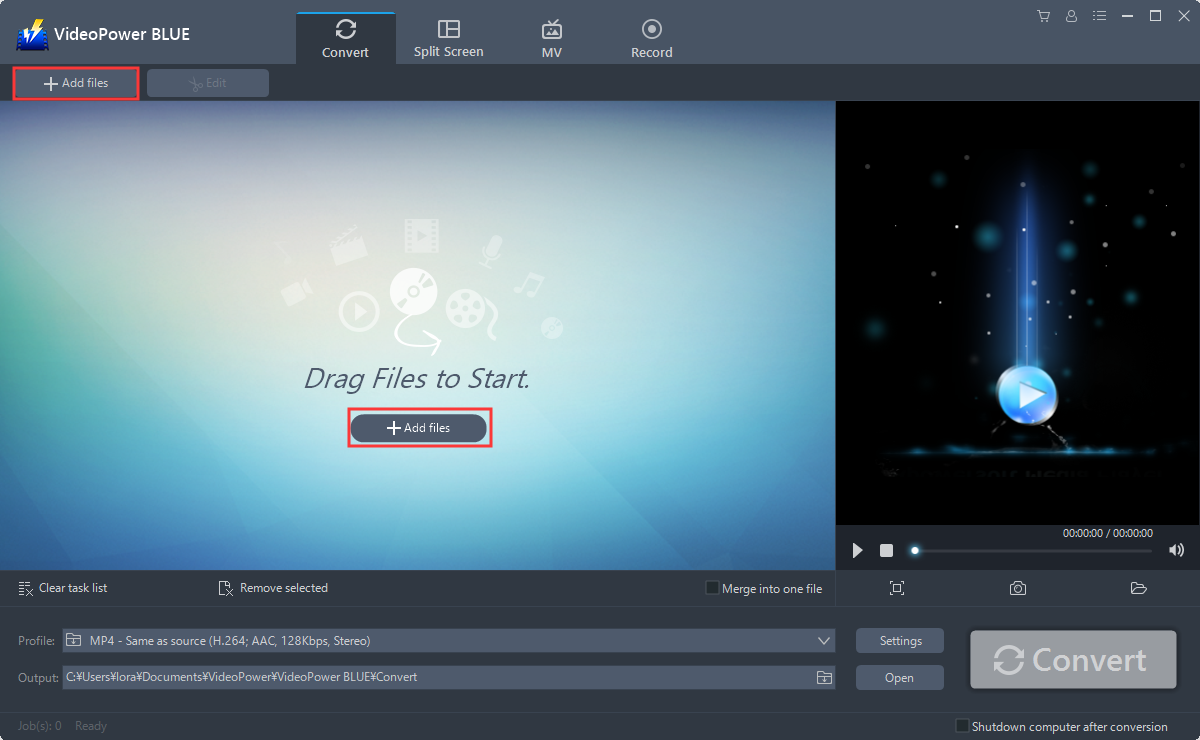
Step 1: Add the MP3 file to the program
You can directly import the MP3 file to the program by clicking the “Add files” button or by drag-and-drop the file to the interface.
Step 2: Edit the MP3 audio
If you need to edit the audio before converting, just follow the instructions below.
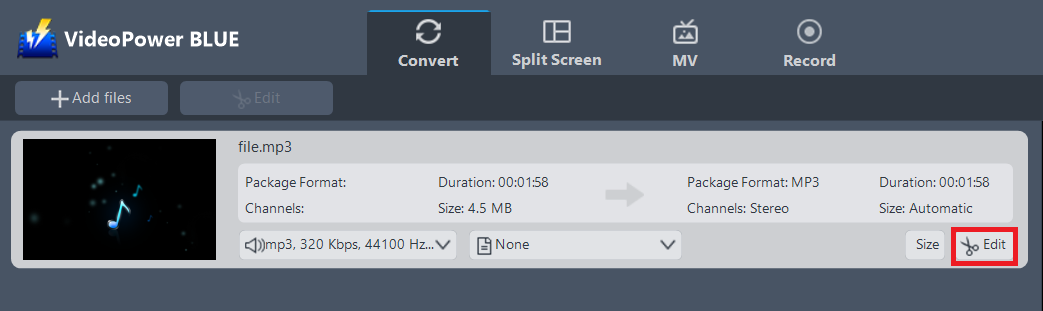
2.1 Open Editor
The imported MP3 file is displayed in the list.
Click the “Edit” button on the right side of the file.
2.2 Edit audio
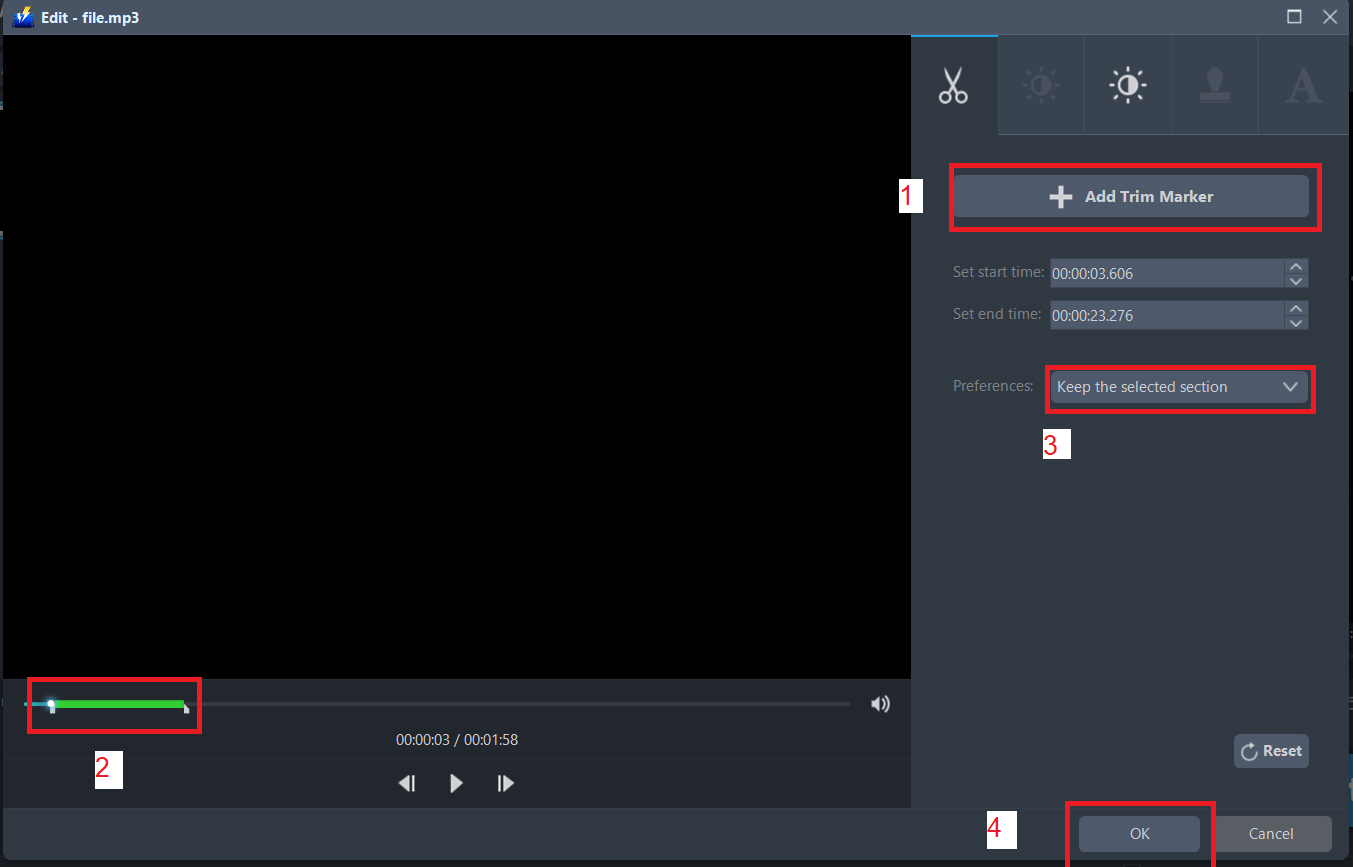
The built-in editor will pop up and you can adjust the audio’s speed and volume, trim, cut, etc.
For example, you can trim your video as showing below:
1) Click “Add Trim Marker”.
2) Drag the mark as shown below to select the part you want to cut.
3) If you want to select multi-sections, please repeat 1 and 2.
4) Choose “Keep the selected section” or “Delete the selected section” from “Preferences”.
5) Click “OK” to save the setting.
Step 3: Convert MP3 to WMA format
3.1 Set the output format
Click to open the “Profile” drop-down menu, then choose the format you want from the profile list. Here choose “Audio”, “WMA”, and choose “High” quality.

3.2 Start Conversion
Return to the file list.
Click the “Convert” button, then the converted WMA file will be saved in the default output folder.
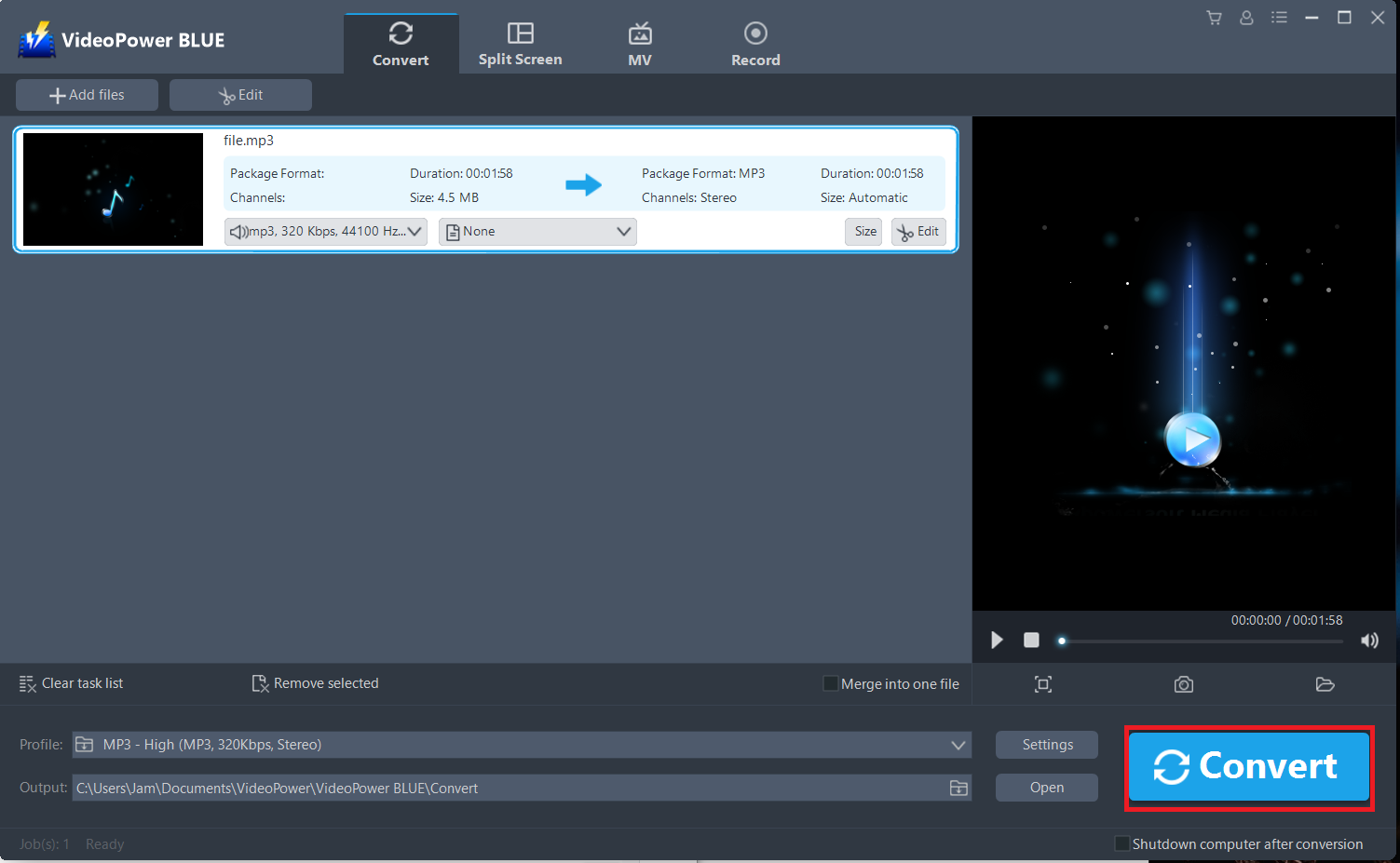
You can also customize frame rate, bitrate, codec, etc. manually. Just click the “Settings” button to enter the “Preset editor” window, then you can change the value and click “OK” to save the settings.

A pop-up window from the program will appear informing you that the conversion is complete.
Click “OK” to open the folder of your saved converted MP4 files.
Or you can click the “Open” button to find the mp4 file.

Conclusion:
Since the WMA format is better than the MP3 format in terms of sound quality and compression ratio, many online music playback platforms now use this format and many users want to convert MP3 music files to WMA format too.
Using VideoPower BLUE assures that smooth and easy conversion. It has a user-friendly and satisfactory interface and fast conversion speed while preserving original quality and that is the reason why it is popular with users.
Here is the easiest way to convert MP3 to WMA. Firstly, you need an audio converter software.


