





Tips Index
DAV file is a video file created by the DVR365 digital video recorder. Similar cameras include DSD304, DSD308, or DSD316 DVR. The video files acquired by CCTV camera device is compressed by MGPE and saved by encryption.
The DAV file format is created by the SightBoss Central Station software of the video recorder, which can be played on a computer by DVR365 player.
However, at present, most players cannot play DAV videos properly.
Therefore, we will introduce a practical DAV Converter, which can convert DAV video format into AVI format. So that it can be played on all players.
To convert, you would need VideoPower BLUE.
VideoPower BLUE is a powerful software that has multiple functions and features such as screen recording, basic video editing, and audio and video conversion. This program can convert DAV to AVI.
Step 1: Add the DAV file to the program
Run the program if you have installed the Video Converter software – VideoPower BLUE successfully on your PC. You can directly import the file to the program by clicking the “Add files” button or by drag-and-drop the file to the interface.

Step 2: Edit the DAV video
If you want to edit the file first before converting, just follow the instructions below.
The imported DAV file is displayed in the list.
Click the “Edit” button on the right side of the file.

The built-in video editor will pop up, with its help, you can make the perfect movie. Adjust speed and volume, trim, cut, crop, rotate or flip videos. Add effects, subtitles, and watermark while adjusting brightness, contrast, and saturation that will make editing conveniently easier.
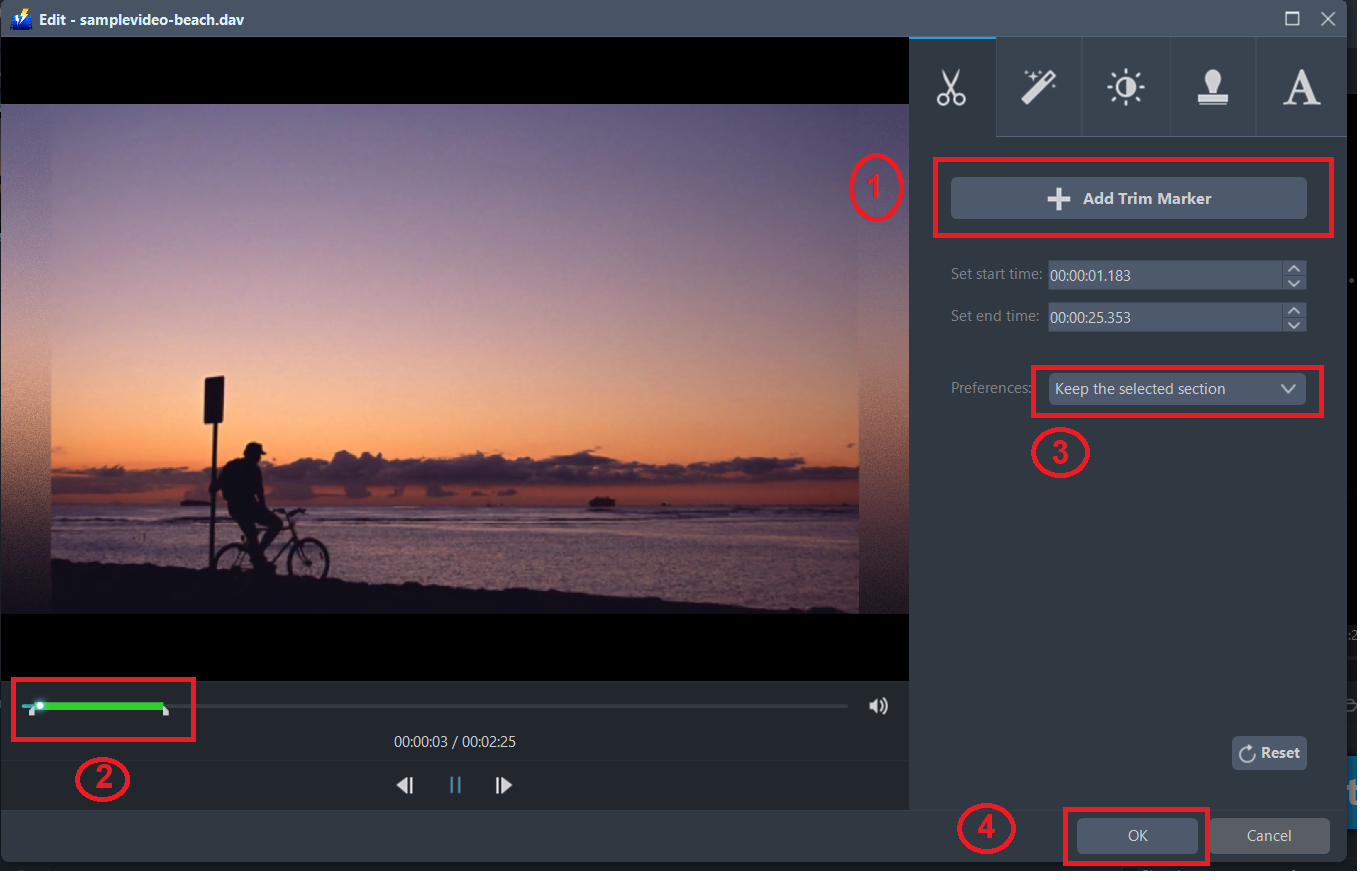
For example, you can trim your video as shown below:
1) Click “Add Trim Marker”.
2) Drag the mark as shown below to select the part you want to cut. If you want to select multi-sections, please repeat 1 and 2.
3) Choose “Keep the selected section” or “Delete the selected section” from “Preferences”.
4) Click “OK” to save the setting.
Step 3: Convert DAV to AVI format
3.1 Set the output format.
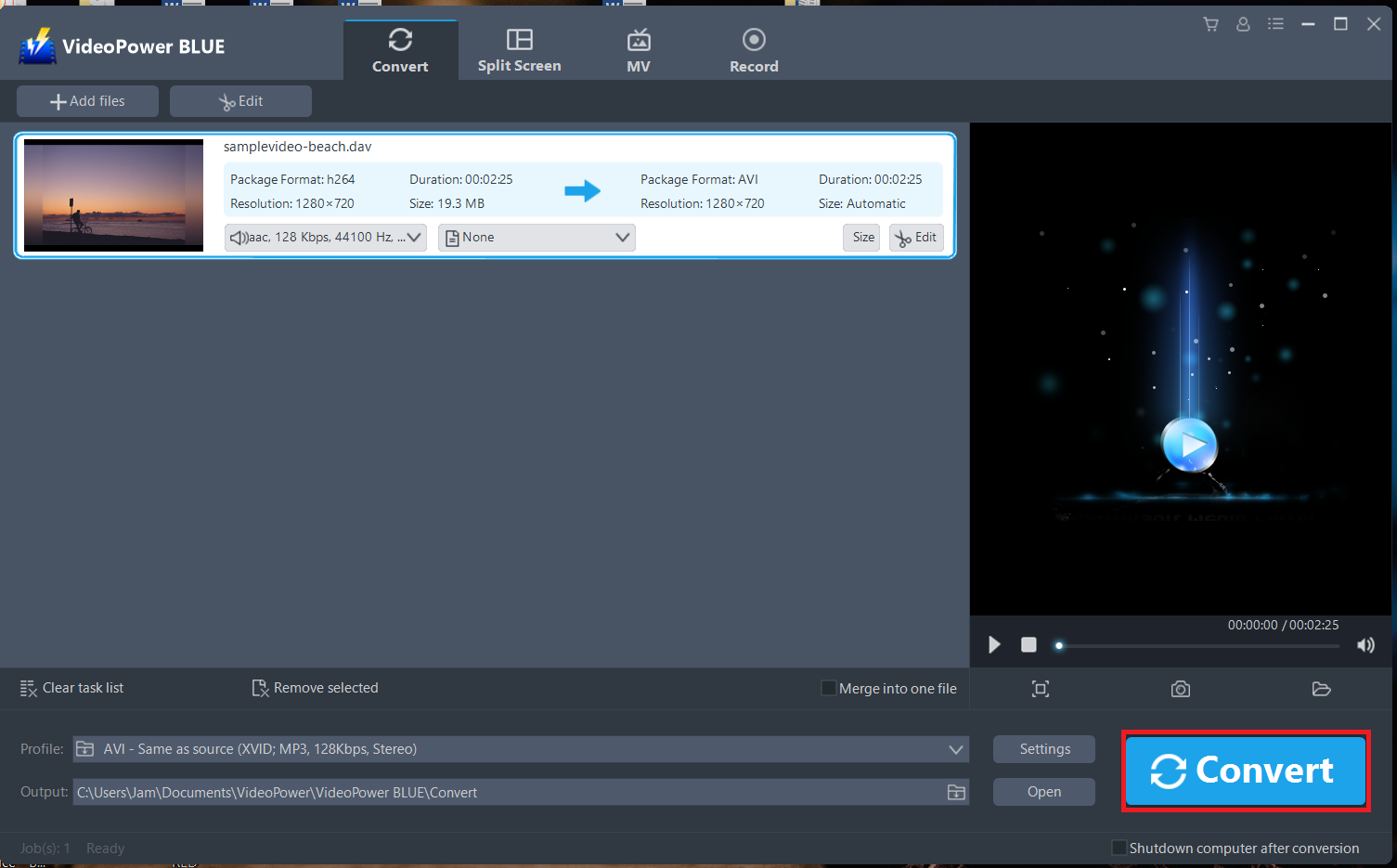
Click to open the “Profile” drop-down menu, then choose the format you want from the profile list. Here choose “Video”, “MP4”, and quality “Same as source” or other options like “HD”, “4K quality” as per your need.

3.2 Start Conversion
Return to the file list.
Click the “Convert” button, then the converted MP4 file will be saved in the default output folder.
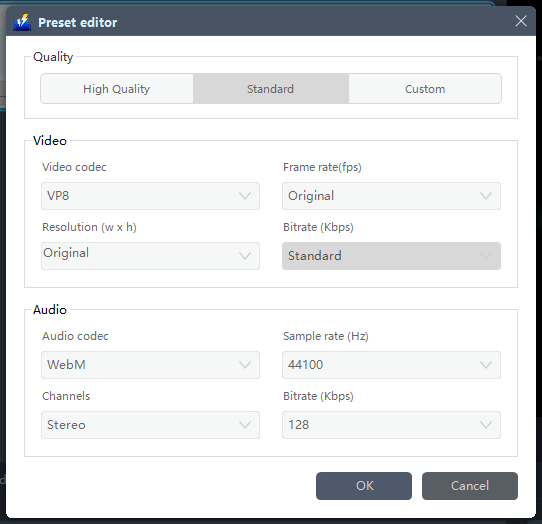
You can also customize frame rate, bitrate, codec, etc. manually. Just click the “Settings” button to enter the “Preset editor” window, then you can change the value and click “OK” to save the settings.
3.3 Find the Converted MP4 files
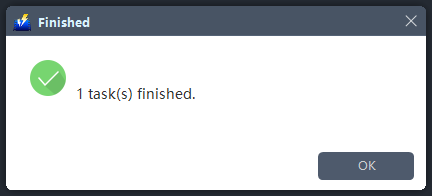
A pop-up window from the program will appear informing you that the conversion is complete.
Click “OK” to open the folder of your saved converted MP4 files.
Conclusion:
Along with the age of rapid development of multimedia technology, converting DAV files into a more common and compatible format like AVI is necessary.
VideoPower BLUE is considered to be the best converter out there due to the wide array of formats to choose from when converting files.
It supports any video formats with video editing function, enables adding subtitles, applies watermarks, makes MV and split-screen videos. More importantly, it can record screen activity in many different ways, offline and online.


