





Tips Index
Brief Introduction of M4A
M4A is a file name extension that is used as a compressed audio file in the MPEG-4 container. Files that are in M4A format typically contain audio.
This file format was not popular until Apple Inc. firstly used it in iTunes and iPod for songs using either Advanced Audio Coding (AAC) or Apple Lossless (ALAC) codec to differentiate from other MPEG-4 audio files since 2007.
Compared with MP3, M4A can compress audio at the same bitrate in smaller file sizes.
Supported software
Apple iTunes, QuickTime Player, Microsoft Windows Media Player, Media Player Classic, KSP Sound Player, Winamp Media Player, Roxio Creator, NCH Swift Sound, and WavePad.
Solution for M4A format conversion
Due to the poor compatibility with other devices and software, it is more convenient to convert M4A to MP3 format.
Below is the step-by-step guide on how to convert M4A files to MP3 format. Other audio formats include WMA, M4R, MP2, M4A, AAC, OGG, etc. are also supported.
Download the VideoPower BLUE software first, a format converter that can convert video/audio to a different format with ease. Users can also extract audio from SWF file with this software.
You can try to use the software for free by downloading its trial version below.
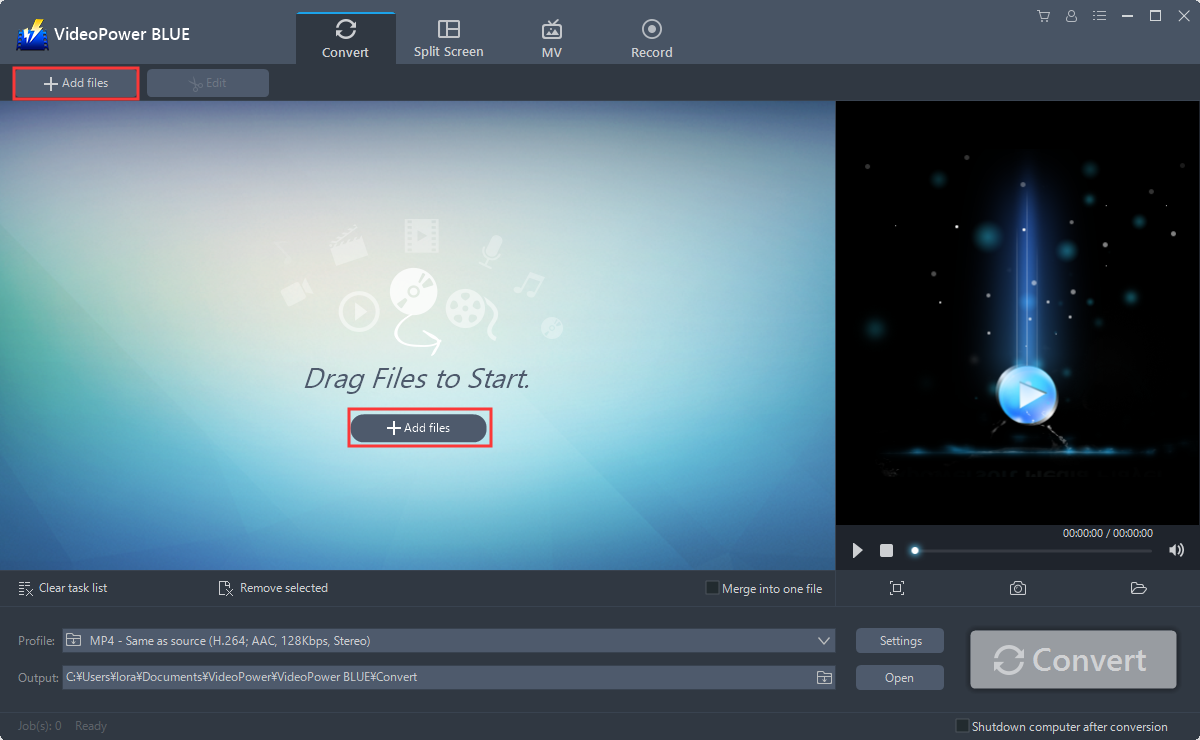
Step 1: Add the M4A file to VideoPower BLUE.
Run the program if you have installed the Video Converter software successfully on your PC. You can directly import the M4A file to the program by clicking the “Add files” button or by drag-and-drop the file to the interface.
Step 2: Edit file before conversion
If you need to edit the file before conversion, follow the instructions below.
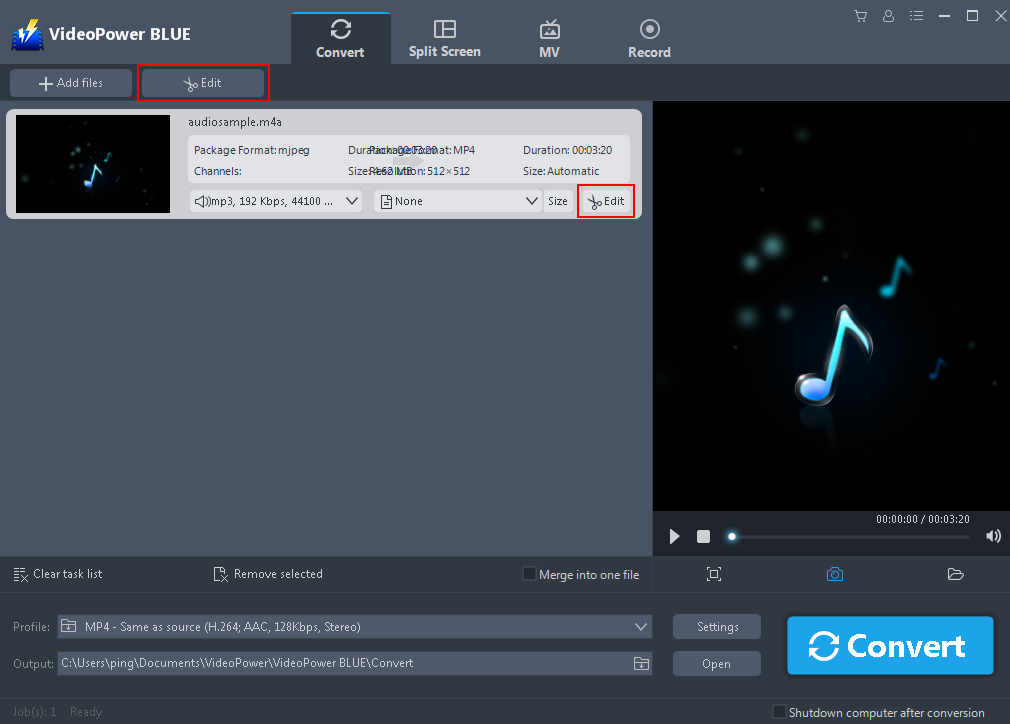
2.1 Open Edit Window
The imported file is displayed in the list. Click the “Edit” button on the right side of the file to open editing window.
2.2 Start Editing
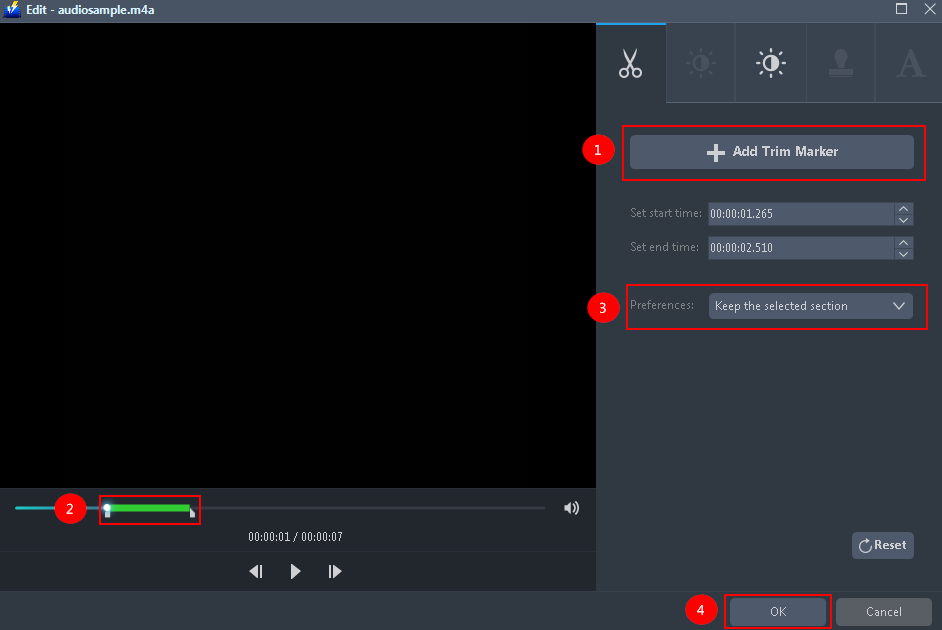
The built-in audio editor will pop up. Adjust speed and volume, or add trim.
For example, you can trim your audio as shown below:
1) Click “Add Trim Marker”.
2) Drag the mark as shown below to select the part you want to cut. If you want to select multi-sections, please repeat 1 and 2.
3) Choose “Keep the selected section” or “Delete the selected section” from “Preferences”.
4) Click “OK” to save the setting.
Step 3: Convert M4A to MP3 format.
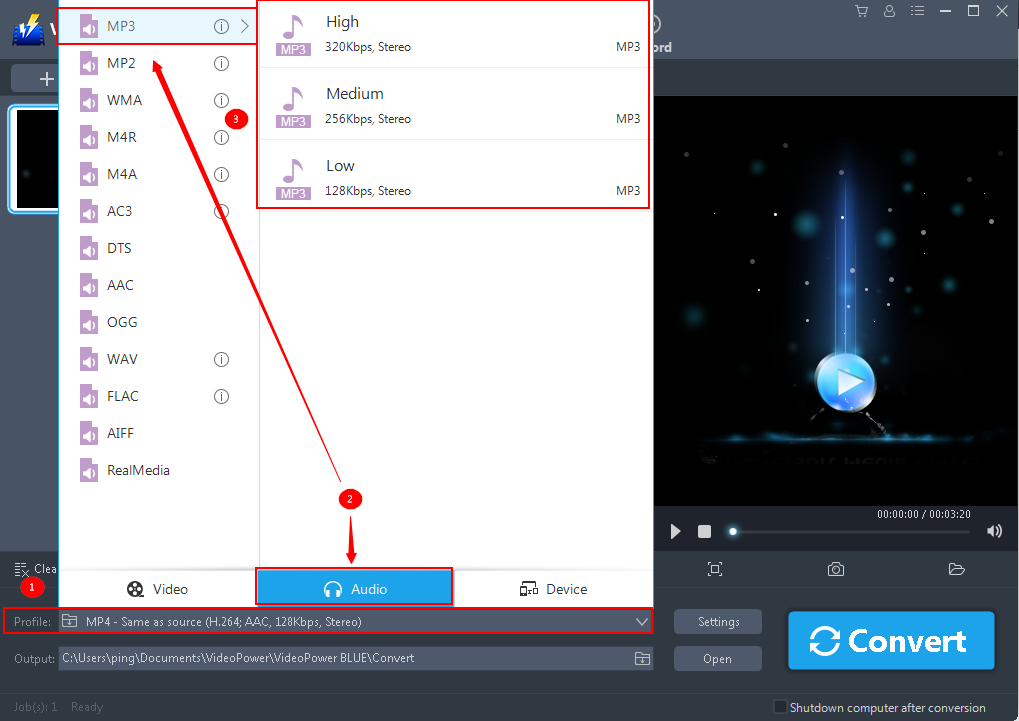
3.1 Set the output format.
1) Click to open the “Profile” drop-down menu, then choose the format you want from the profile list.
2) Here you can directly choose the MP4 format from the list.
3) You may now choose the quality you prefer.
3.2 Start Conversion
Return to the file list and click the “Convert” button, then the converted MP4 file will be saved in the default output folder.
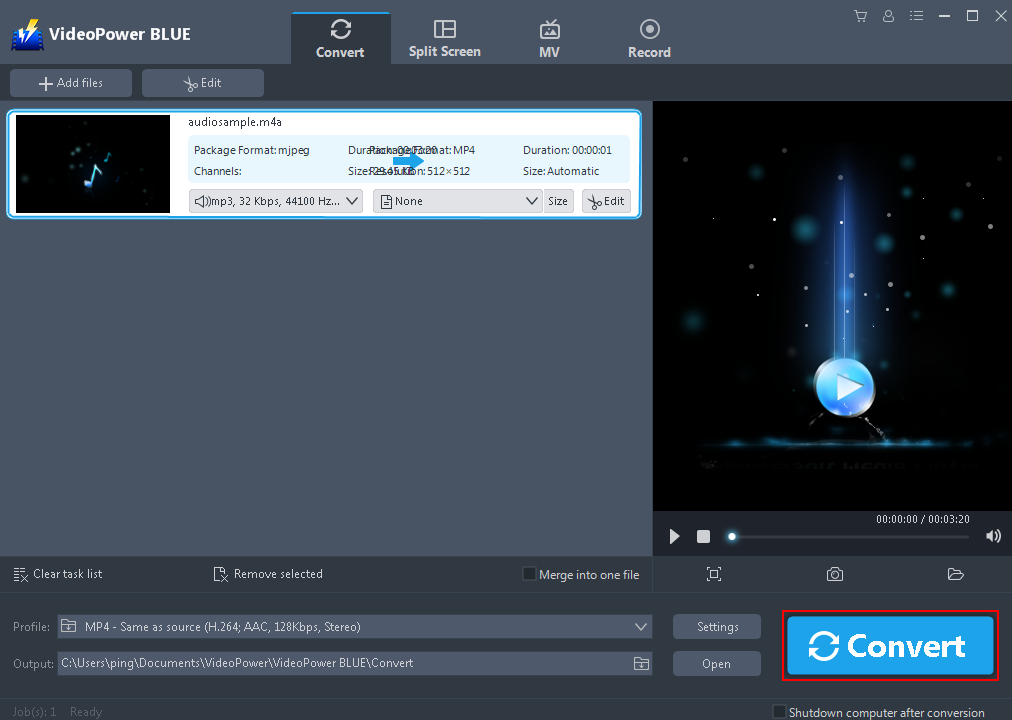
3.3 Find the Converted file
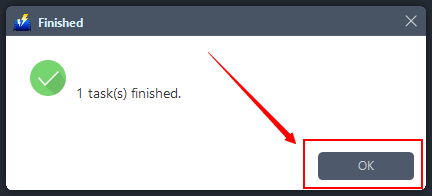
The program will pop up a window to inform you once the conversion is completed. Click “OK” to open the folder of your saved converted files.
Conclusion:
M4A audio files are limited to PC, iPod, iTunes, and other Apple devices. So converting it to a much more compatible file format is necessary if you are not a user of those devices.
VideoPower BLUE not only supports the conversion of M4A files but it also features any video and audio conversion, screen recording activity, basic video and audio editing such as effects, watermarks, subtitles, trimming and cropping.


