





Tips Index
AIFC or Audio Interchange File Format is an audio format developed by Apple Inc. which is used for storing audio data and as we all know, Apple file formats are not compatible enough with most devices or players.
Editing the AIFC file would a big problem if the editor cannot accept the file. So converting AIFC to MP3 is an easier way.
Here we would like to recommend that you use VideoPower BLUE, a powerful and versatile video converter that supports AIFC to MP3 format and many more.
VideoPower BLUE is great software with a variety of options and features including screen capture and recording, editing, music, and conversion that can convert AIFC to MP3.
You can try to use the software for free by downloading its trial version below.
Step 1: Add the AIFC file to convert it to MP3
You can directly import the AIFC file to the program by clicking the “Add files” button or by drag-and-drop to the interface.

Step 2: Edit AIFC file before conversion
If you need to edit the AIFC file before converting it to MP3, click the “Edit” button on the right side of the file.
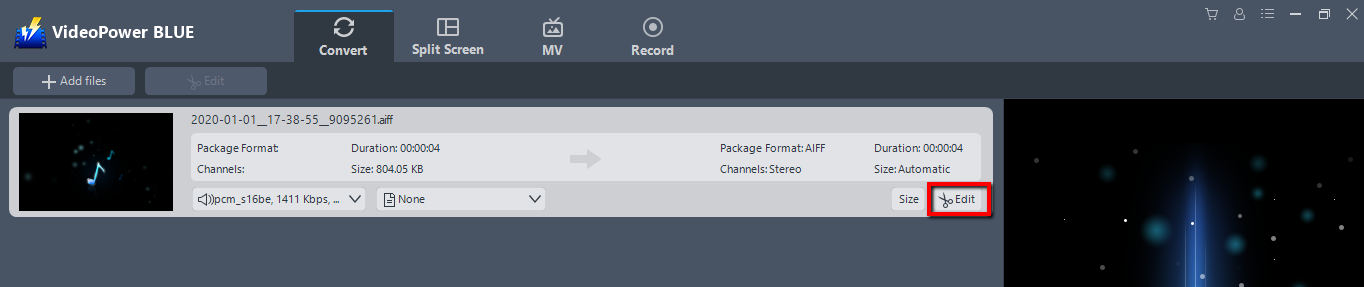
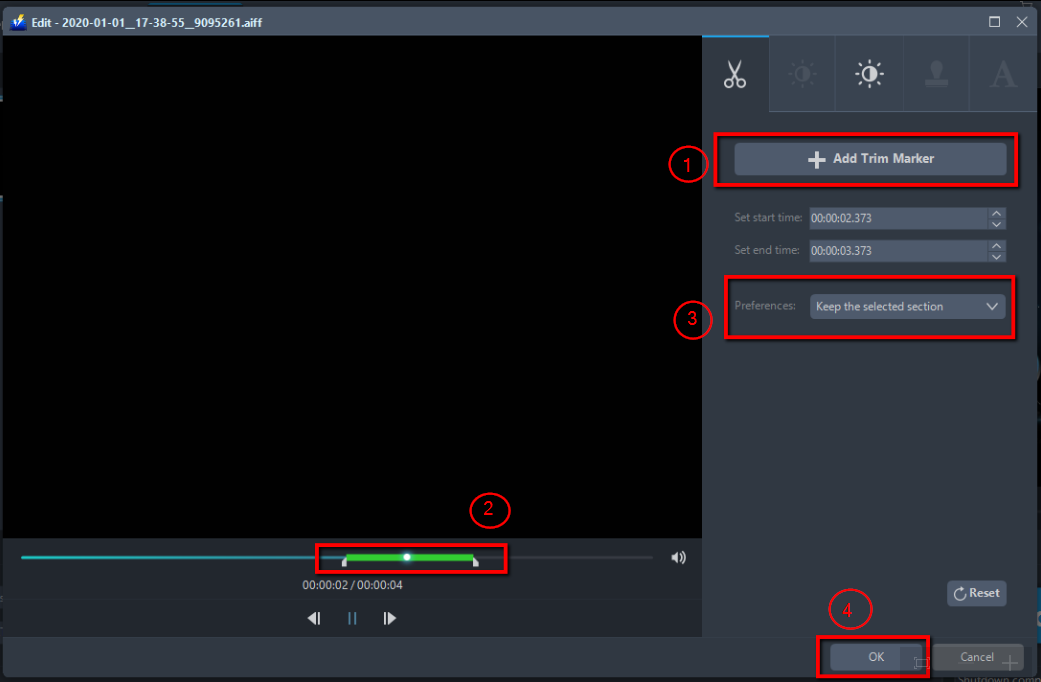
The built-in audio editor will pop up. Adjust speed and volume, or add trim.
For example, you can trim your audio as shown below:
1) Click “Add Trim Marker”.
2) Drag the mark as shown below to select the part you want to cut.
If you want to select multi-sections, please repeat 1 and 2.
3) Choose “Keep the selected section” or “Delete the selected section” from “Preferences”.
4) Click “OK” to save the setting.
Step 3: Convert AIFC to MP3 format
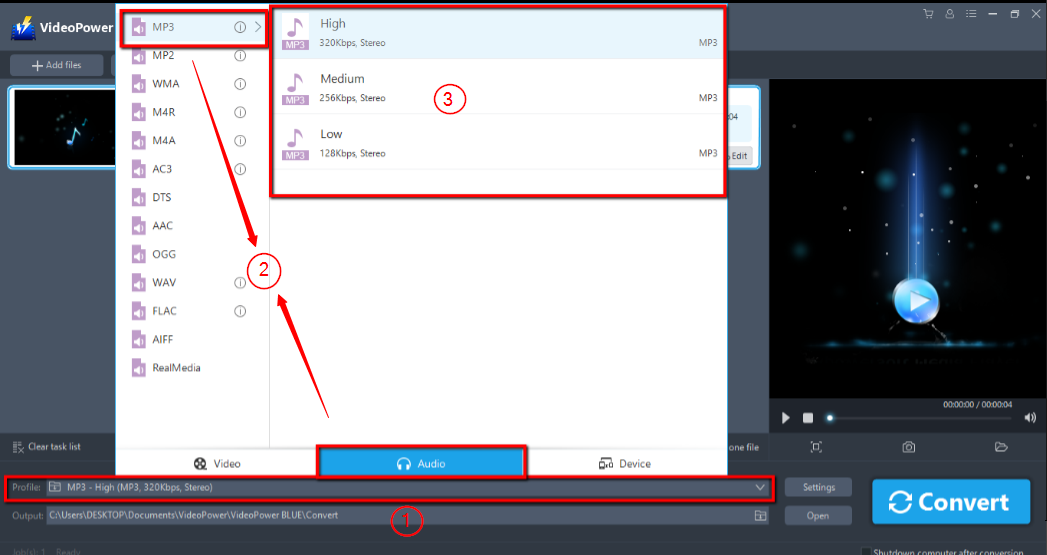
3.1 Set the output format
1) Click to open the “Profile” drop-down menu, then choose the format you want from the profile list.
2) Here you can click “Audio” and then “MP3”.
3) Choose the quality “High, Medium or Low” as per your need.
3.2 Start Conversion
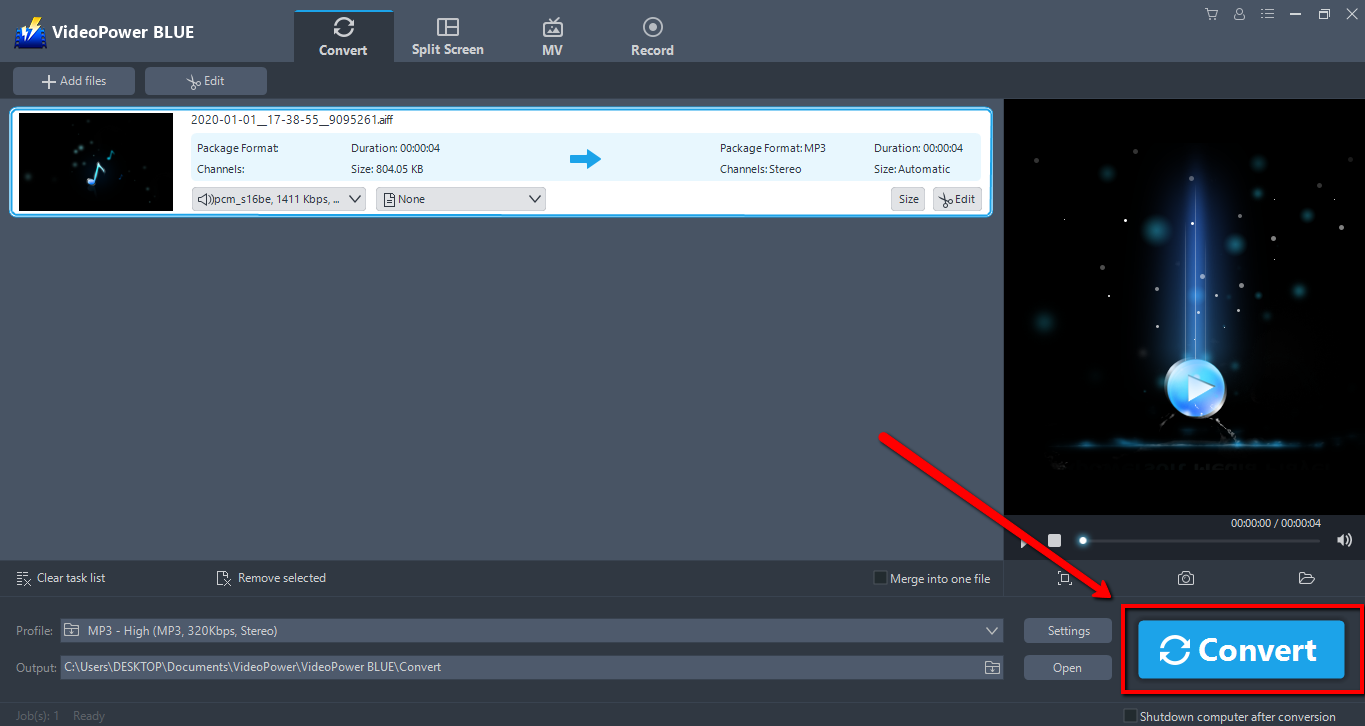
Return to the file list.
Click the “Convert” button, then the converted MP3 file will be saved in the default output folder.
3.3 Find the Converted MP3 file
A pop-up window from the program will appear informing you that the conversion is complete.
Click “OK” to open the folder of your saved converted MP3 files.

Conclusion:
VideoPower BLUE a powerful converter that supports any conversion of video and audio formats with video editing function, enables adding subtitles, apply watermarks, make MV and split-screen videos. More importantly, it can record screen activity in many different ways, offline and online.


