





Tips Index
M4B is an audio format specifically designed for Audiobook. iTunes uses it to store audiobooks since M4B file format can store bookmarks and chapters, which means it allows you to resume playback at the point where it was paused.
However, there are times that you would like to listen to them on your MP3 player, may it be in your android device, your car, or other more portable devices. But only to realize that these M4B files can not be played from iTunes media into MP3 player or USB storage device because of the compatibility. So converting these files to MP3 format is one of the workable ways.
VideoPower BLUE is a trusted software which enables you to convert M4B audiobooks to MP3 easily with a simple to use easy-to-understand interface. The conversion speed of this software is very high. One of its most highlighted features is it supports nearly all types of video and audio files to be converted.
This is a powerful program with multiple functions and options such as batch conversion, basic video editing, and quality modification, screen recording, and editing.
Let’s take a look at these simple steps on how to convert iTunes M4B audiobooks to MP3 with VideoPower BLUE Audio Converter.
Download and install the program on your PC by clicking the download button below to start the conversion.
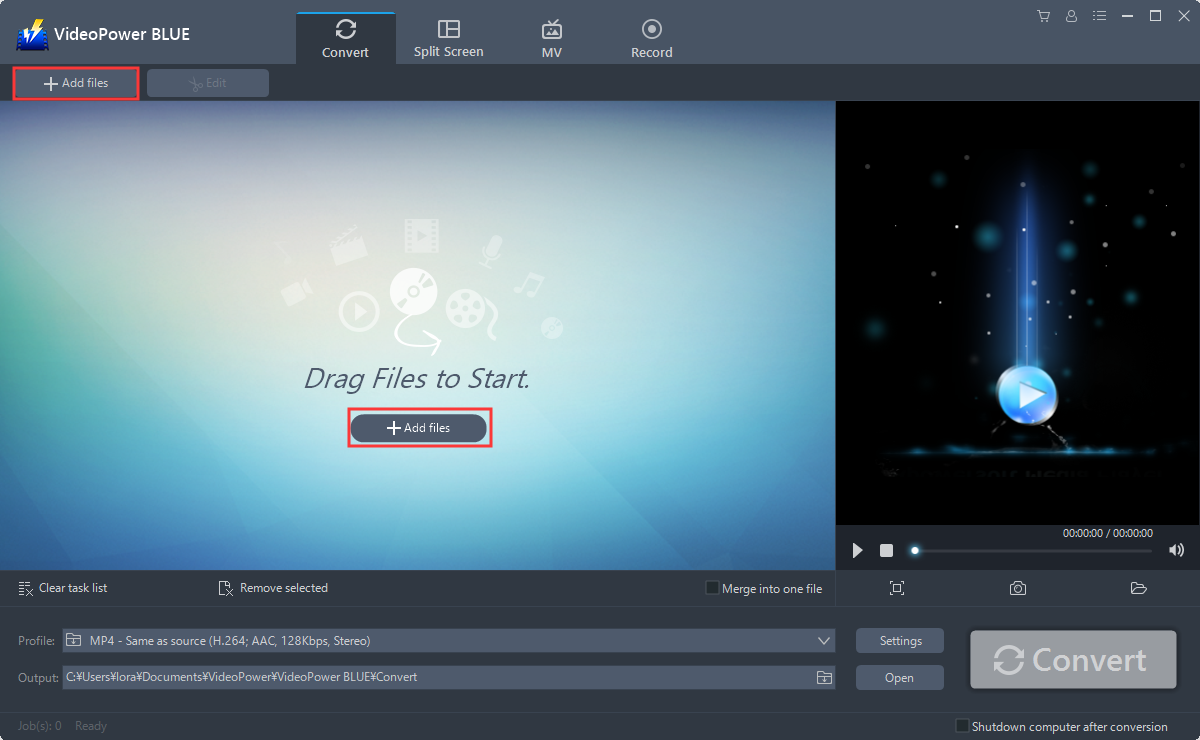
Step 1: Add the M4B file to VideoPower BLUE
You can directly import the M4B files to the program for conversion.
Click the “Add files” button or drag and drop files from the local drive into the interface directly.
Step 2: Edit the Audiobook
If you need to edit the video file before conversion, follow the instructions below.
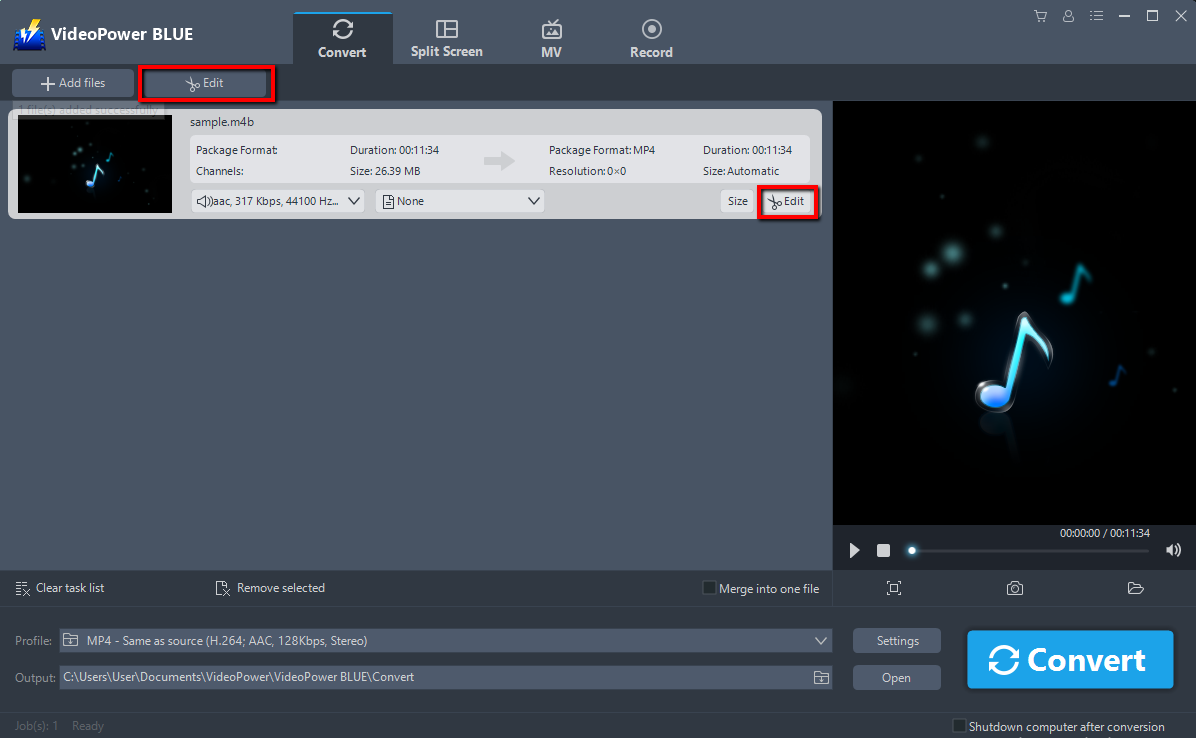
The imported file is displayed in the list.
Click the “Edit” button on the right side of the added file. The Edit window will appear where you can make some changes to your file.
Step 3: Convert M4B to MP3
3.1 Set the output format
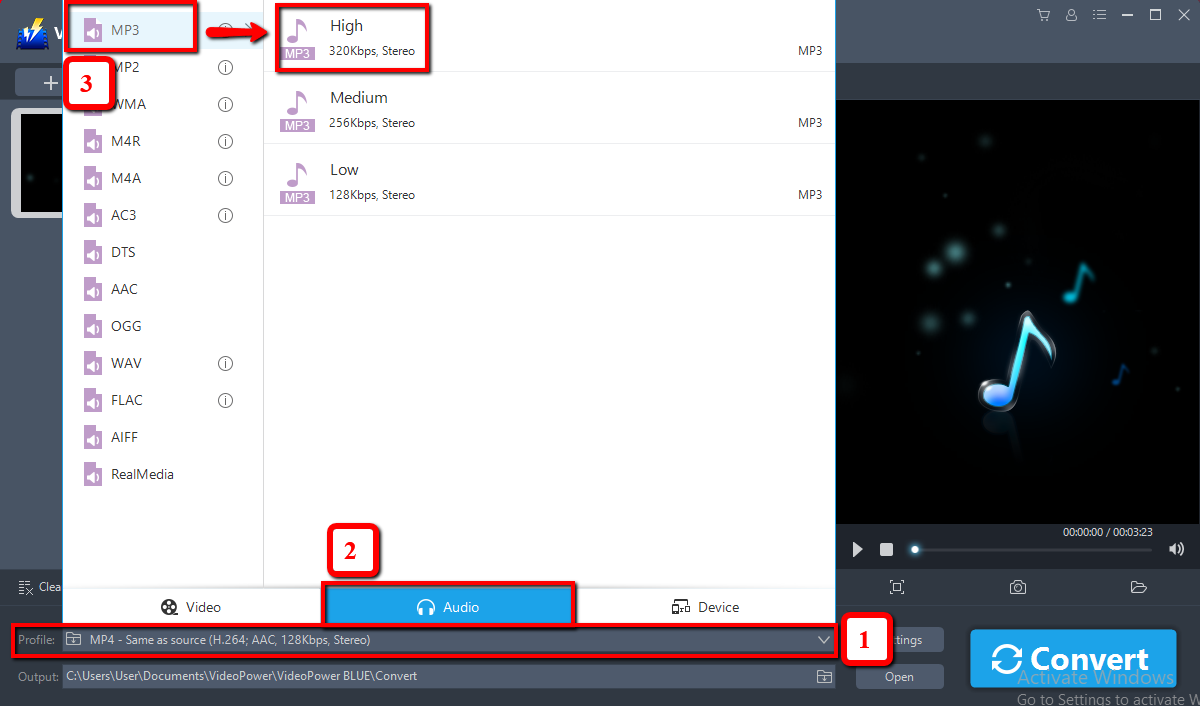
You should change the output format first before conversion as the default output format is MP4.
1) Click the “Profile” bar
2) Choose “Audio”.
3) Set the format to “MP3 – High”.
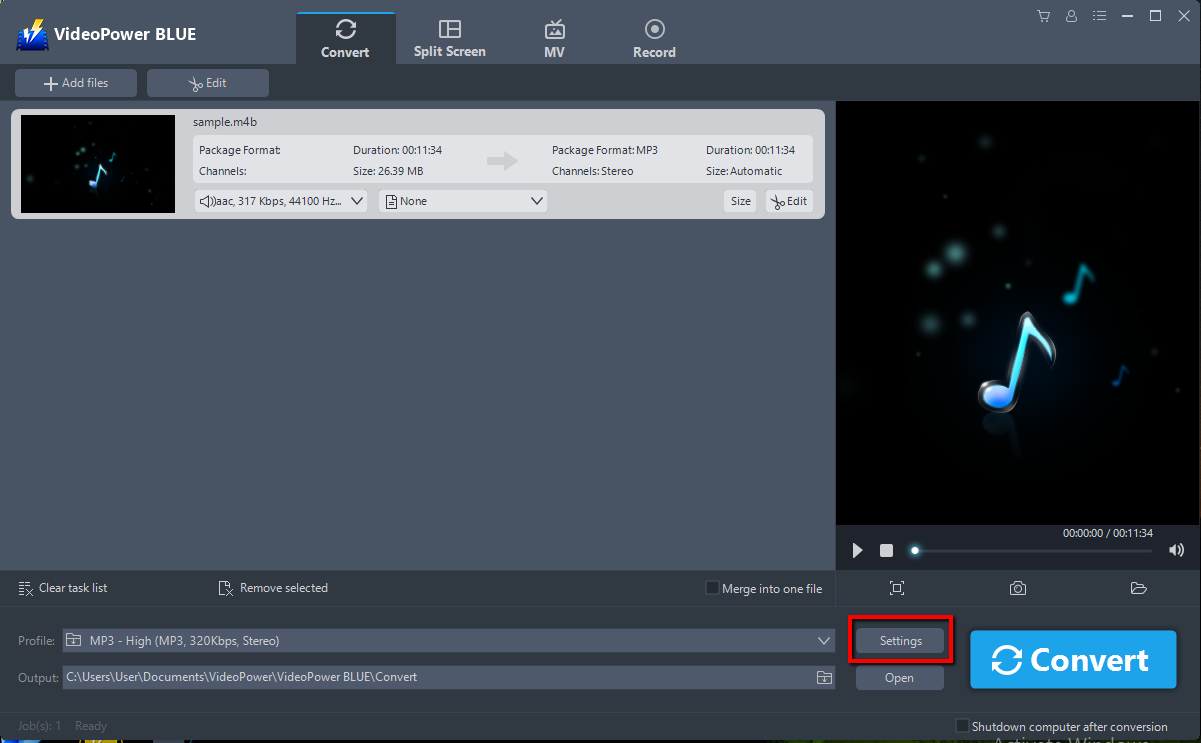
If you are not satisfied with the default settings, you can customize the parameter in “Preset Editor” by going to “Settings”.
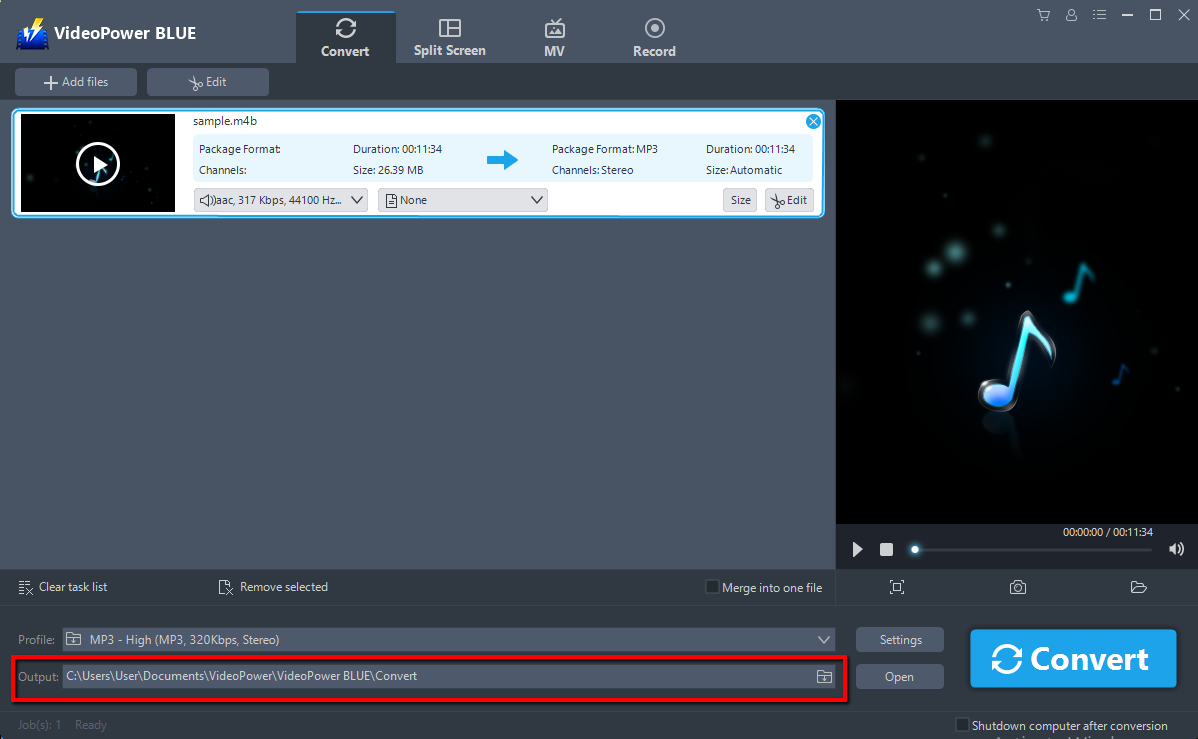
3.2 Set the Location Storage
Set a location to save the converted files. Click the “Output” icon and choose a destination as you like.
3.3 Start the Conversion
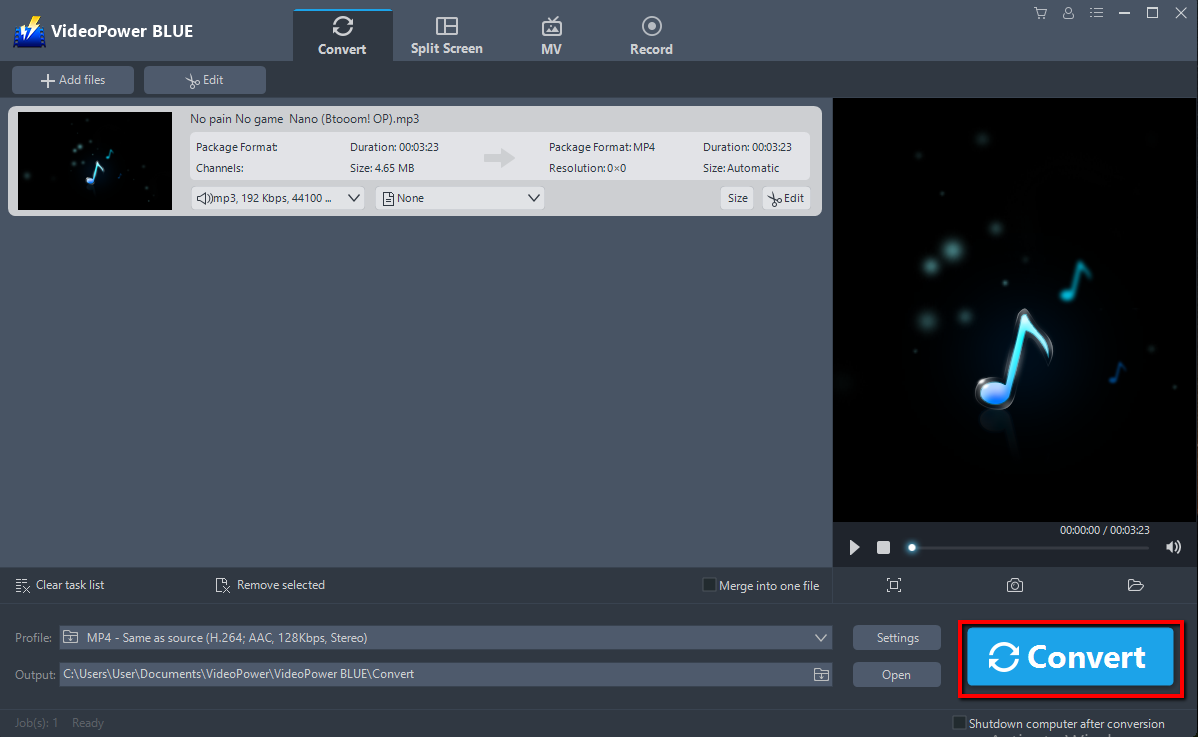
Return to the file list.
Now click the big blue “Convert” button to start the conversion process.
3.4 Conversion Complete
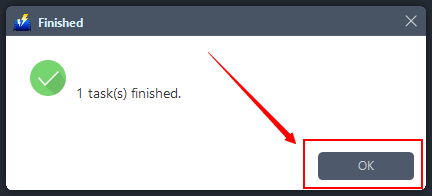
A pop-up window from the program will appear informing you that the conversion is complete. Click “OK” to open the folder of your saved converted files.
Conclusion:
VideoPower BLUE, a powerful converter that supports many video formats with video editing function, enables adding subtitles, apply watermarks, make MV and split-screen videos. More importantly, it can record screen activity in many different ways, offline and online.
It is quite simple to use with an easy-to-understand interface. the conversion speed is very high. One of its most highlighted features is it supports nearly all types of video/audio files to be converted here. Batch conversion, basic video editing, and quality modification are available on it.
Convert videos to formats that work on your mobile phone, tablet, TV media player, game console, computer, or web browser.


