





Index
YELLOW
5. Recording Schedule Task
Even if you are not in front of the computer, you can create a recording task and record it automatically at the scheduled time.
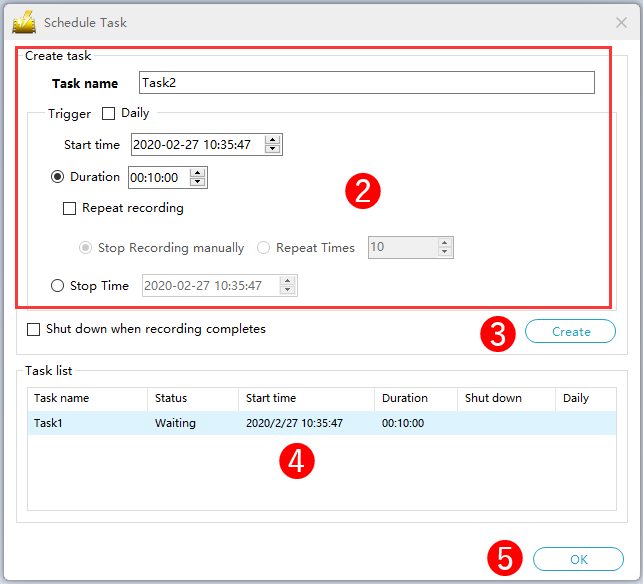
1) Click “Schedule Task” at the bottom left of the recording tab screen.

2) Enter the task name and set the recording start time and duration.
3) Click the “Create” button.
4) The created task is displayed in the task list. You can delete or stop a task by right-clicking the task name.
5) Click “OK” to save the above settings and close the scheduled task screen.
6) The following task information is displayed at the bottom of the software main screen. When the set time is reached, recording starts automatically.
