Index
YELLOW
6. Library
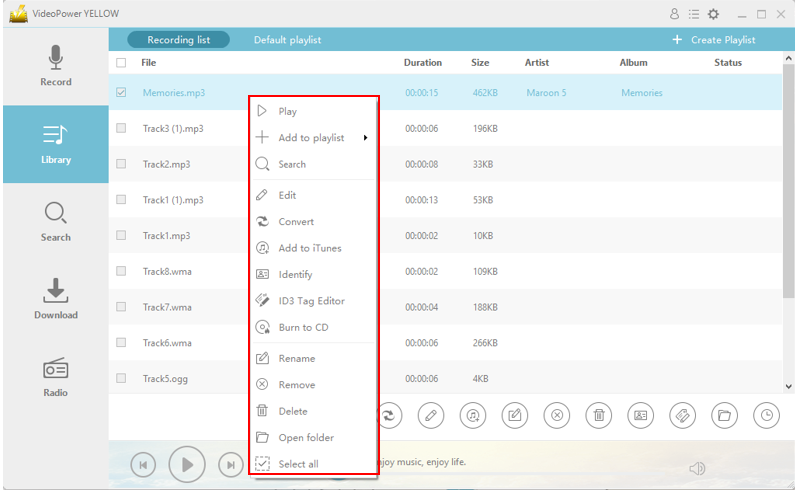
Click the “Library” tab to see all recorded files.
Click the filename menu or button at the bottom of the screen to use the following options.
- Play: Play music with the built-in player.
- Add to playlist: Add audio or music to the playlist.
- Search: Opens the “Search” tab, searches the specified file name, and downloads.
- Edit: Opens the “Audio Waveform Editing Tool”. Use to cut unnecessary parts, extract necessary parts, adjust volume, improve audio file by editing some parts, etc.
- Conversion: Opens the “Voice Conversion Tool”. You can load multiple files and convert them to various formats simultaneously.
“You can also merge multiple files into one file”. - Add to iTunes: Opens “Transfer Music to iTunes”. You can convert multiple files to MP3 that can be transferred to the iTunes library and transfer them at once.
- Identification: ID3 information (song name, artist, album, thumbnail image, etc.) of recorded music can be recognized automatically.
- Create CD: Opens the “CD writer” tool. Add video and audio to create music CDs.
- Rename: After recording, rename the library file list and the file name in the saving destination.
- Remove: You can delete the selected music from the library file list.
- Delete: Deletes the selected song from the library file list and the saving destination.
- Open folder: Opens the folder where the recorded file is saved.
- Select all: You can select all files in the current playlist.
For the usage guide of each tool, refer to
⇒ 9. Tools