




Index
RED
4. Download Videos
Using this product’s “Download” menu, you can easily download your desired video in three ways.
This program can download videos in three ways:
4.1 Pasting URL
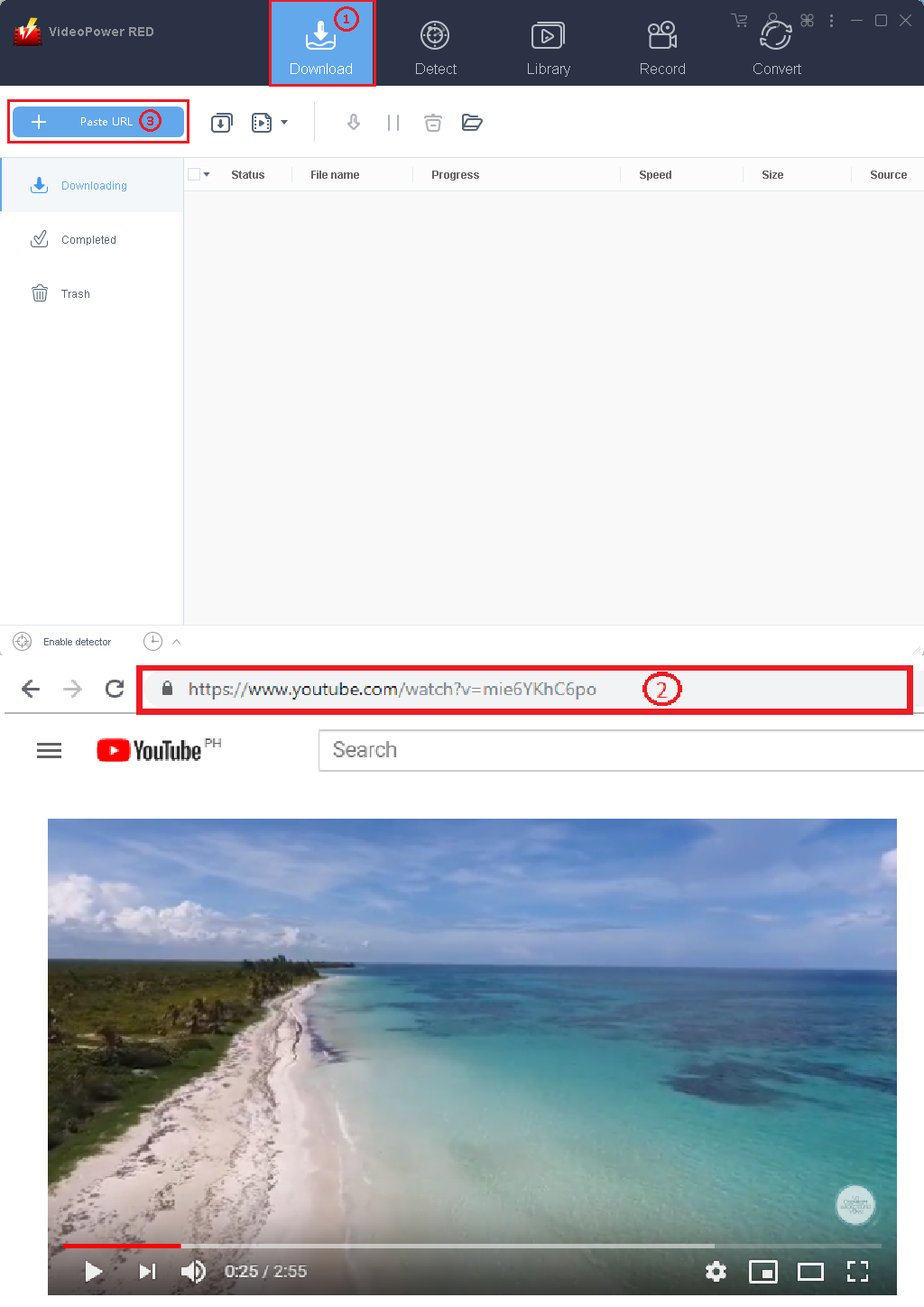
Download the video file by just following these steps:
1) click the “Download” menu button.
2) copy video URL from your desired video.
3) click “Paste URL” then the video will automatically download.
4.2 Automatic Detection (Auto-detection)
The auto-detect plays and downloads video in a built-in browser. It downloads videos especially those that are being played automatically with RTMP, HTTP, HTTPS, and other streaming protocols.
When you play a video on the Auto-Detect page, the program can detect the actual video file and download it immediately.
There are browser kernels such as IE, Chrome, Firefox, Safari, IOS, Android, etc where you can download more videos by switching browser kernels.
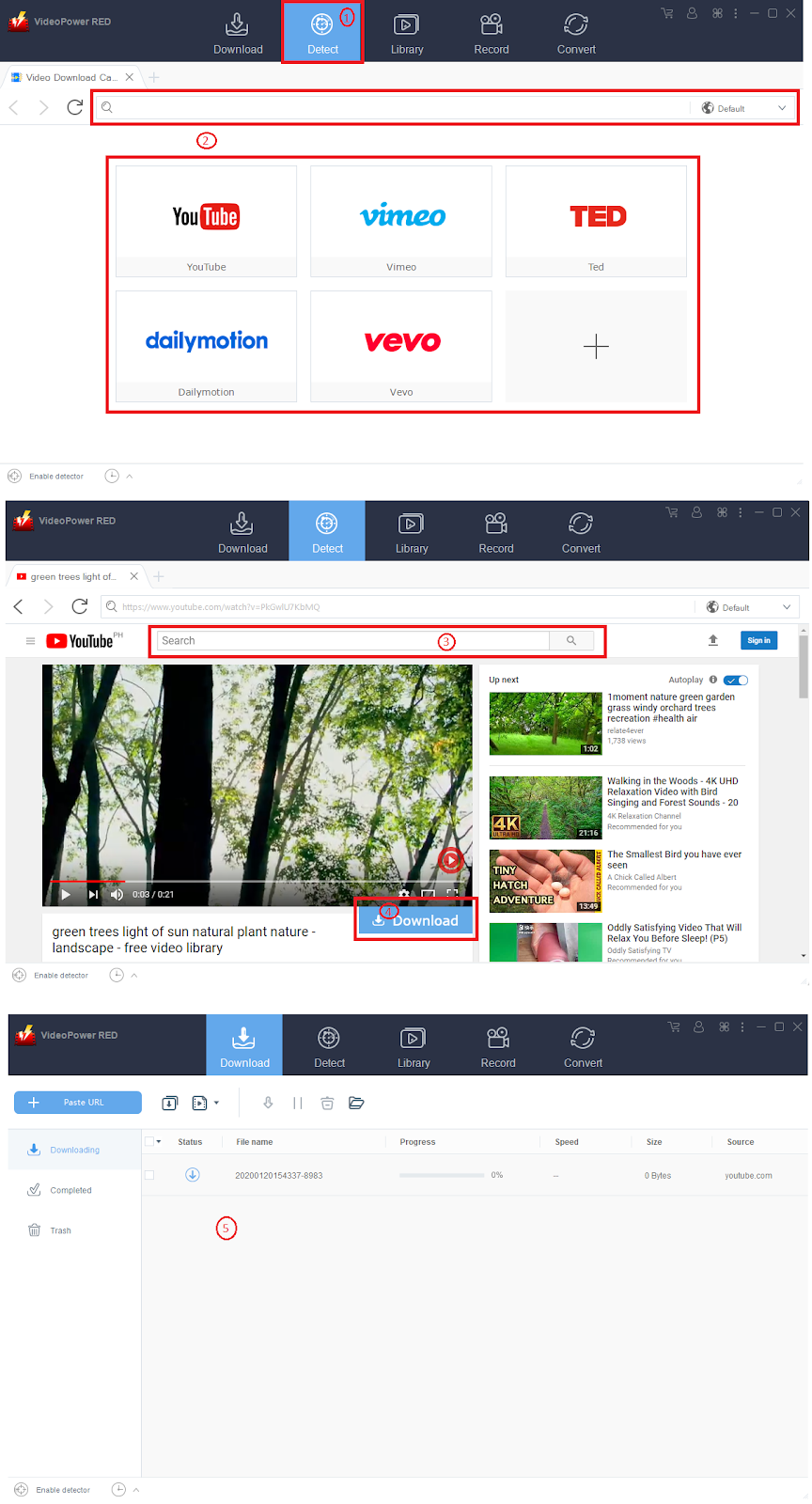
Follow these steps:
1. Click “Detect” tab
2. Choose the desired site
3. Search the desired video file
4. Click the “Download” button below the playback
(Note: Only YouTube site will show download button, other webs will download automatically)
5. Navigate on the Downloading Screen.
4.3.Detector: Download from PC Browse
Detector:
It downloads videos from a PC browser. This program can intelligently recognize and download videos played on browsers installed on Windows such as Chrome, Firefox, and IE.
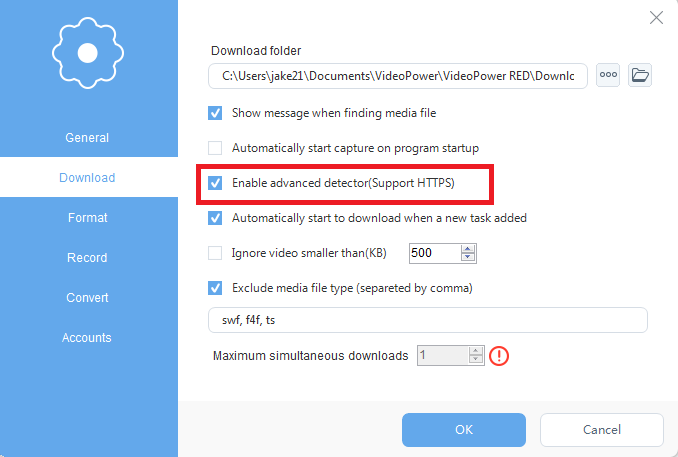
Select “Settings”, then “Download” and select “Enable advanced detection function (supports HTTPS)”, and save the settings.
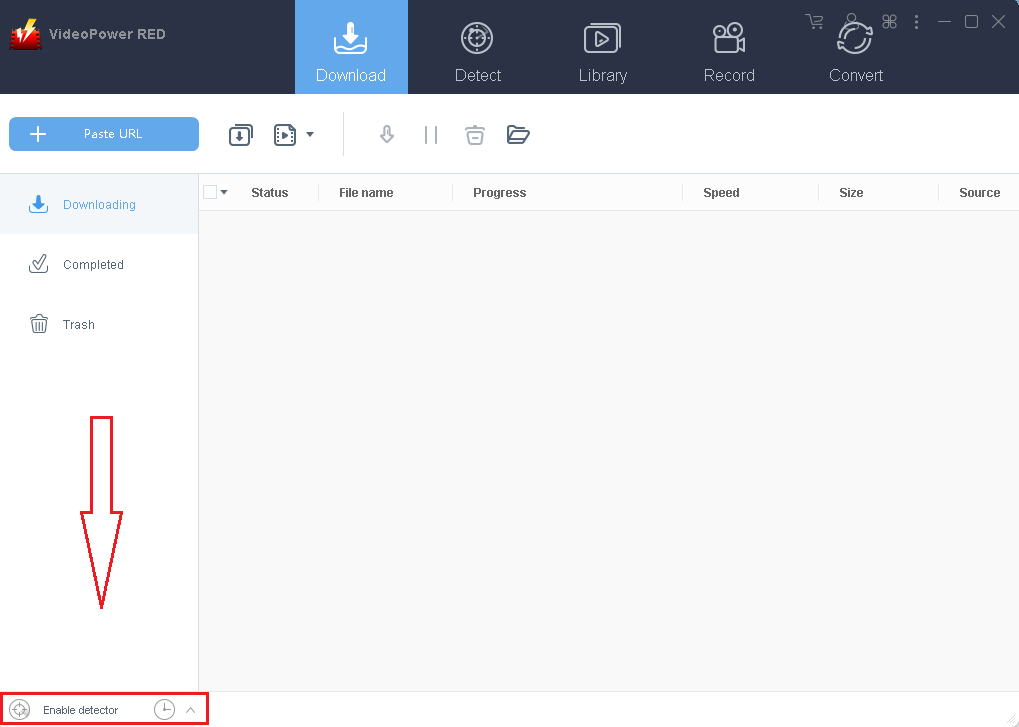
To activate the Detector you can click on the “Enable Detector” button at the bottom left of the download screen to display the “Disable detector (advanced)”