





Index
BLUE
6. Video collage (Split Screen)
Easily create multi-screen videos with the video collage feature.
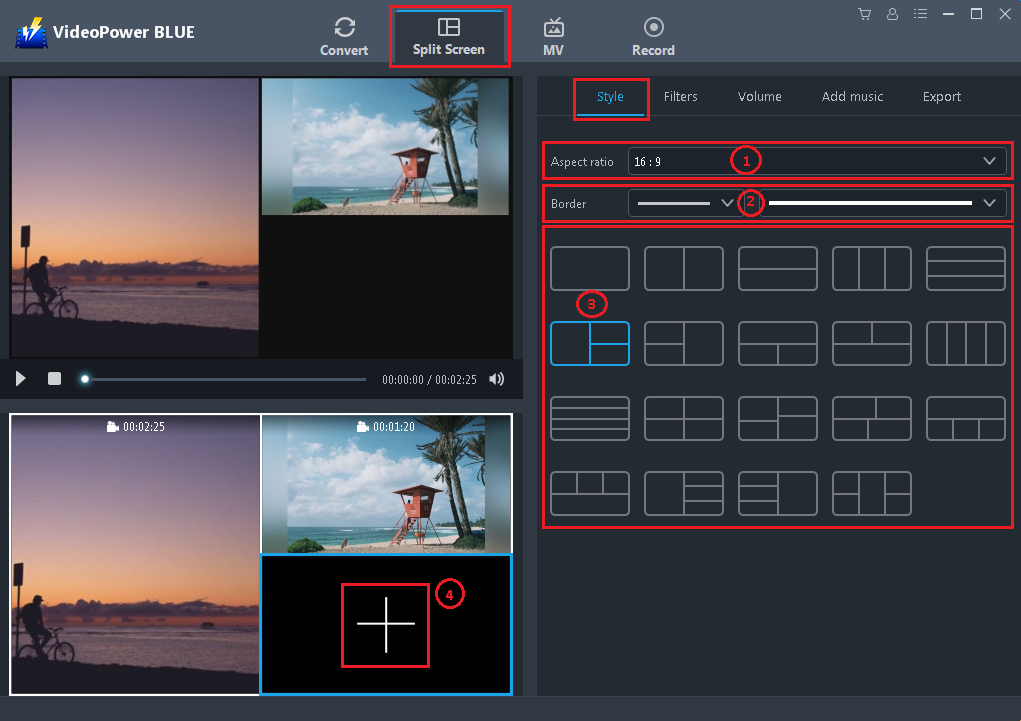
A video collage has five tabs: style, filter, volume, add background music, and export.
6.1 Style
1) Select the aspect ratio of the video to be created. There are three options: 16: 9, 4: 3, and 1: 1.
2) Select the border width and color of the screen division.
3) Select a multi-screen template.
4) Click “+” to add a video for each block.
If necessary,
5) Trim the video.
6) Click the volume button to silence the added video.
7) Right-click the video screen to replace or remove the video.

6.2 Filters
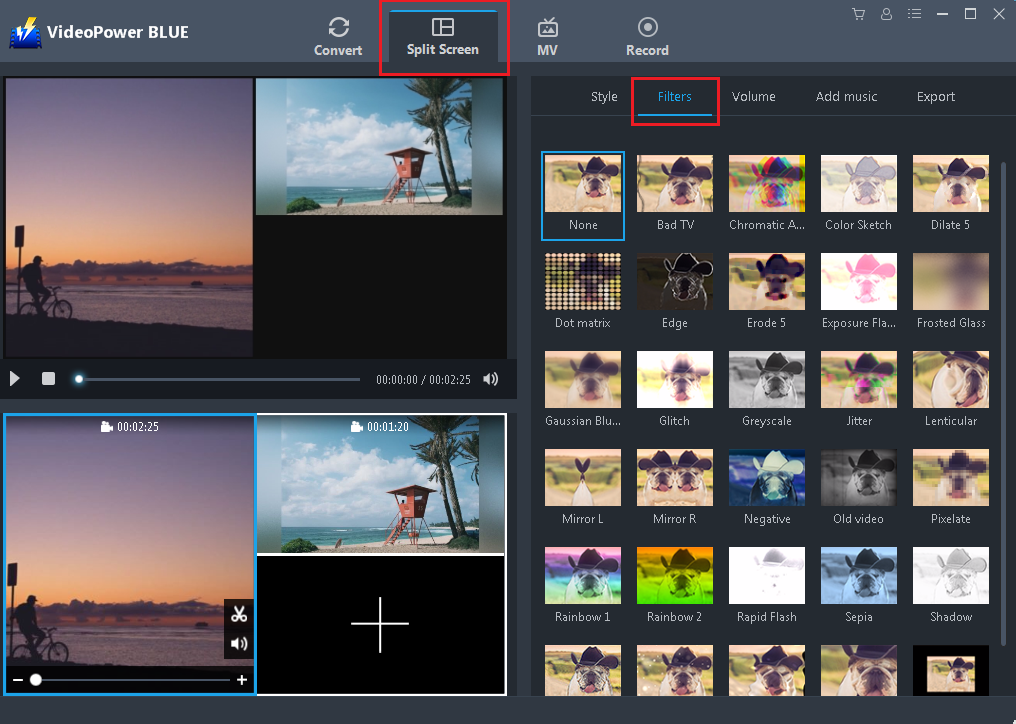
Dozens of video filters are present and can be used.
Select None if you don’t need it.
6.3 Volume (Adjust the volume of each video)
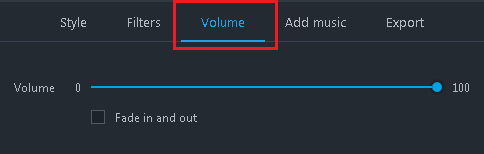
Select the video and adjust the volume to the desired loudness or softness of the video’s audio.
You can also set an audio effect called “Fade In / Fade Out”.
6.4 Add background music
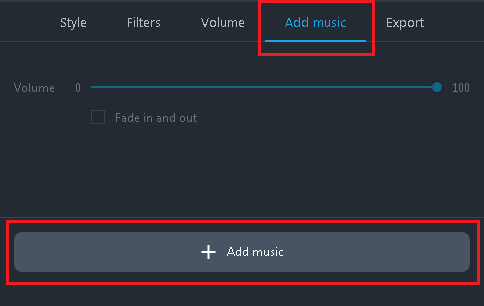
Click the “Add Music” button to add background music to the video collage.
After adding multiple kinds of music, arrange them and play it back to check. The added background music (BGM) should match the total video time length.
6.5 Export and Save Video
The video resolution can be 480P, 720P or 1080P.
Click “Output” to save the edited video collage as an MP4 video with the selected resolution.
