





Metacafe is an online video-sharing website, this platform co-exists and co-plays with Youtube, Dailymotion, Vimeo, and other rising video sharing sites. Metacafe usually has a content of short-lived clips and videos. It categorizes music, short documentaries, sports, and other miscellaneous topics. It is a good site for your video downloads. So how to download Metacafe videos to computer.
People have always been on the run to different video-sharing websites ever since for music, movie, and random video downloads. Usually, people download in online video converting and download sites, but there are several issues to be addressed when downloading videos on an online site. The major issue with converting and downloading sites is that they have several pop-up advertisements that halt your downloading objective and sometimes have misleading download buttons that usually leads you to another advertisement. These sites also have malware and viruses together downloaded with the file.
VideoPower RED is an HD video downloader that downloads both videos and music online on any website, especially Metacafe. It can also download on Youtube, Dailymotion, etc. It is the best video downloader for pc.
You can try to use the software for free by downloading its trial version below.
Method 1: Copy and Paste
Step 1: Copy and Paste the URL and download
To start downloading videos, copy the link of the video that you need to download and launch VideoPower RED. Click the “Paste URL” button at the upper left most part of the “Download” section and video will be processed in the “Downloading” tab.

Step 2: Check the downloaded file
Go to the “Downloaded” tab to see and check the downloaded blog videos. Right-click the file if you want to do more operations like “Play” to watch the video playback.

Method 2: Auto-Detect (Embedded Detector)
Step 1: Open Video through an Embedded Detector
This embedded browser has an embedded detector that could analyze the video file on the browser and automatically download the video.
1) Open your preferred site and look for the video that you want to download.
2) Play the video and a “Media File Detected” notice will appear to notify that the chosen file has been detected and will be downloaded automatically.

Step 2: Check Downloaded File
Go to the “Downloaded” tab to see and check the downloaded videos. Right-click the file if you want to do more operations like “Play” to watch the video playback.
Method 3: External Detector
Step 1: Activate the “Enable Advanced Detector” and start downloading
Activate the “Enable Advanced Detector” and start downloading.
1) Click the settings menu bar on the upper-right corner of the interface and navigate to the “Download” tab.
2) Set “Enable Advanced Detector” on the download settings and click “OK”.

3) Enable the detector located on the lower-left corner of the software interface.
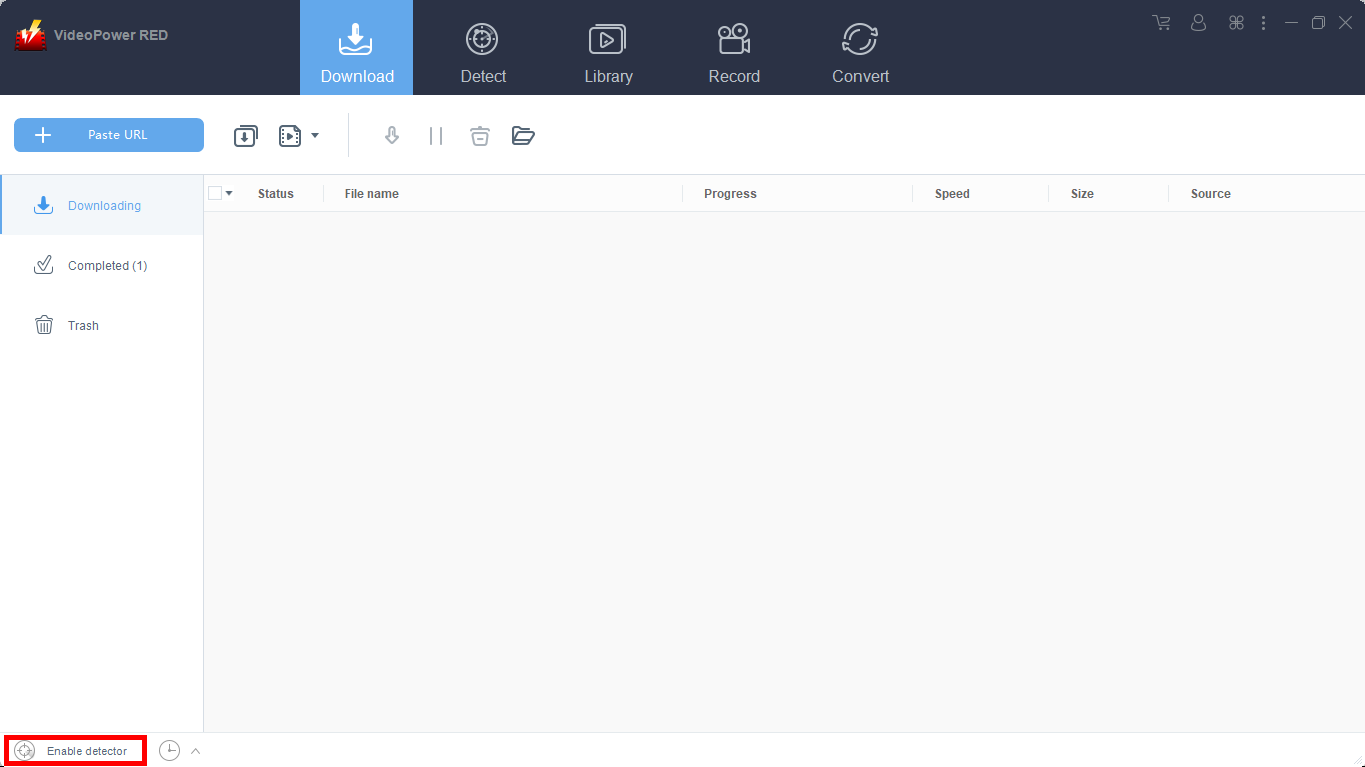
Open your preferred website to search for your wanted Video. Play the video and it will be downloaded automatically.
Step 2: Check Downloaded File
Go to the “Downloaded” tab to see and check the downloaded videos. Right-click the file if you want to do more operations like “Play” to watch the video playback.
Method 4: Screen Record
Note: This method is best for protected video files and for a slow internet connection.
Step 1: Choose a recording mode
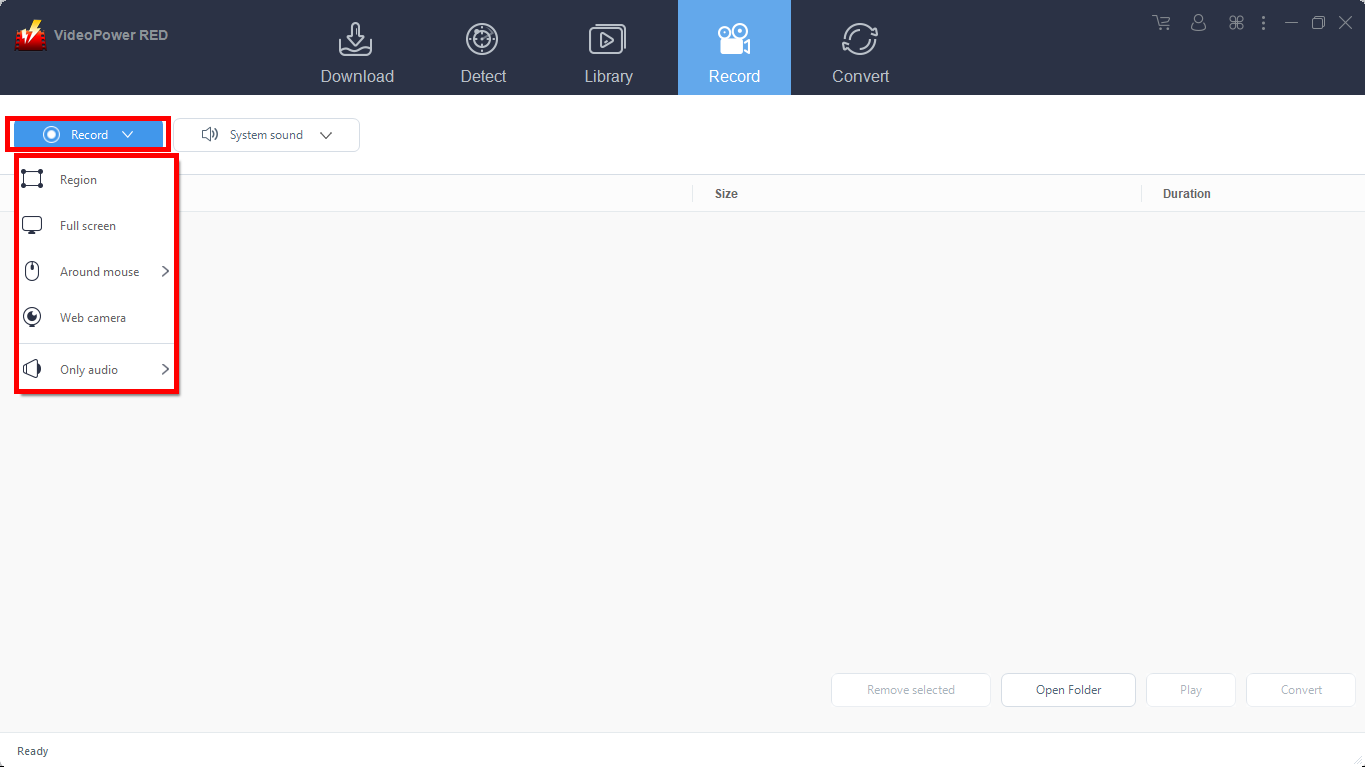
Click on the “Record” tool to select your display recording option for your online meeting.
Full Screen:
The recording area will be the whole screen of the computer.
Region:
The recording area will only be a specific area of the computer screen.
Audio only:
Select “Only Audio” to record the audio-only.
You can save your files like MP3, AAC, OGG, WMA, WAV, FLAC, and other file formats.
Web camera:
Select this option to record video from an external webcam or a built-in laptop camera.
Around mouse cursor:
The mouse position is the center of the recording range. If you move the mouse during recording, the recording range will follow the movement of the mouse.
Since we are recording a video, options like “fullscreen” or “region” can be selected. Select the option you prefer and the recording will automatically start.
Step 2: Recorded File List
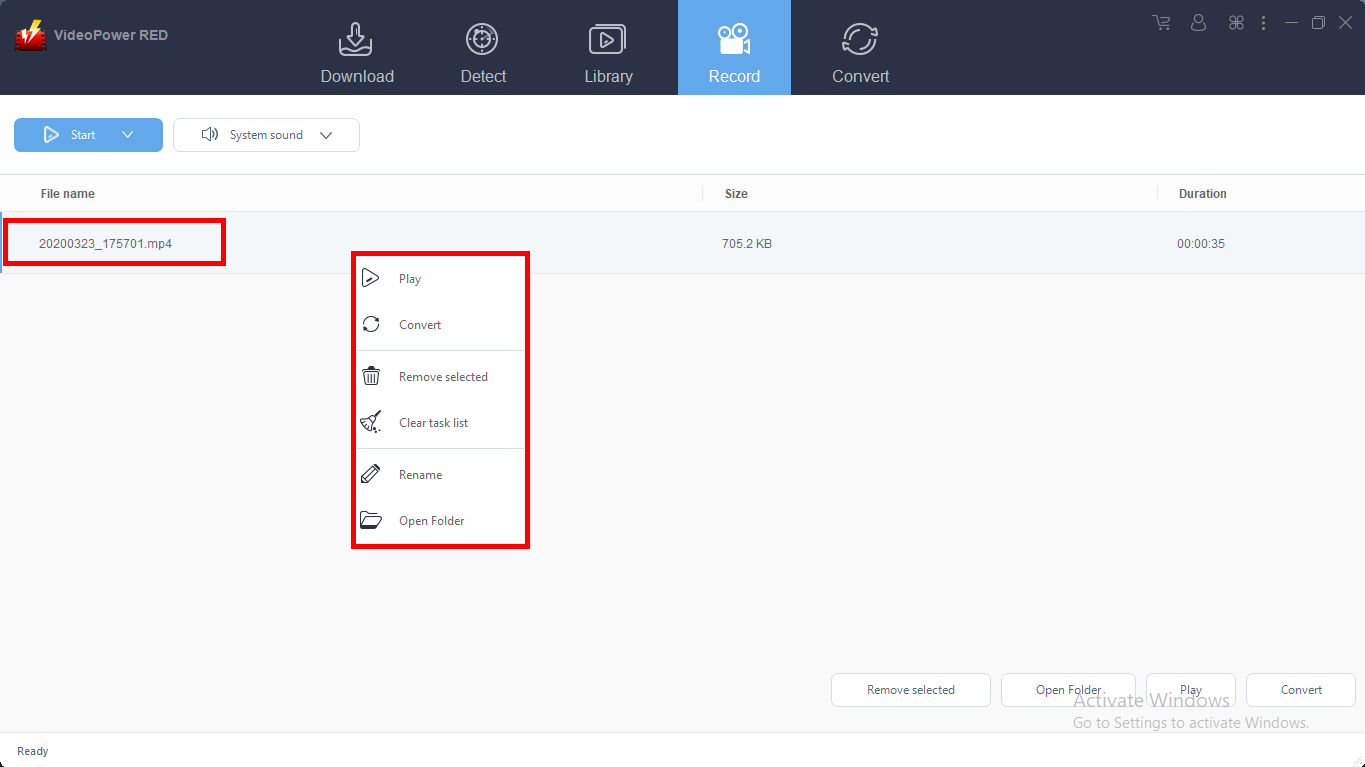
Recorded videos are displayed in the Record section. Right-click the recorded file and do more operations if necessary.
Conclusion:
More than just your usual video downloader, VideoPower RED can edit your downloaded clips, has a library button for the most trending videos to date, can even record your screen in times when the link has a copyright issue, and most of all can access and download to most websites available today.